How To Migrate Your GoHighLevel Buyers To GHL API v2.0
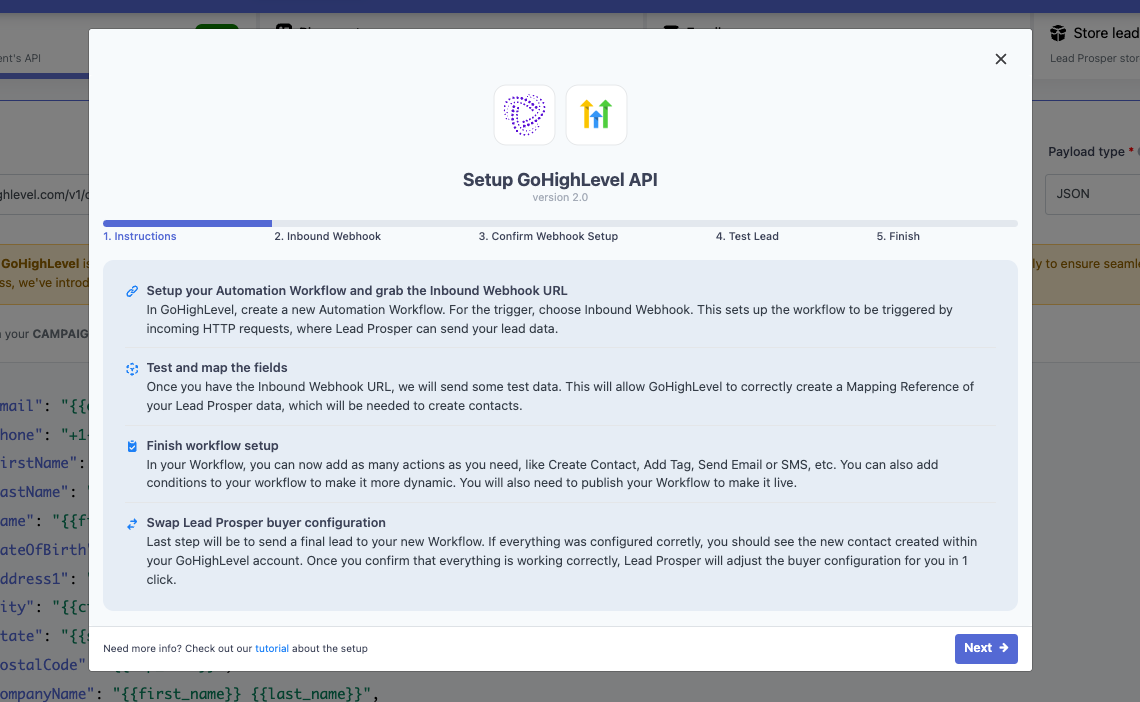
Starting June 2024 GoHighLevel will be transitioning their API from version 1 to version 2, and unfortunately that will make posting to GoHighLevel buyers difficult moving forward. In an effort to make this transition as smooth as possible for our users we have put together a Migration Wizard for Lead Prosper users that will walk you through every step needed to migrate and ensure all of your GoHighLevel buyers are ready to use version 2 when they make the switch. This will involve creating a Webhook URL in GoHighLevel for each sub-account, and then following the wizard for each GoHighLevel buyer in your campaigns.
There are a few caveats to this setup. To start you will need to follow these steps for each and every GoHighLevel buyer that you are migrating to v2. If you are the Agency owner then this would need to be done for every sub-account. If you are sending leads to a buyer without access to their account, you will need to ask them to create the Webhook URL for each buyer. Here is a guide they can use that will walk them through what is needed on their end to create the Webhook URL.
Part I: Open your GoHighLevel Buyer(s) in Lead Prosper to begin the Migration Wizard
-
In your Lead Prosper account, go to your campaign that has GoHighLevel buyers and open the buyer.
-
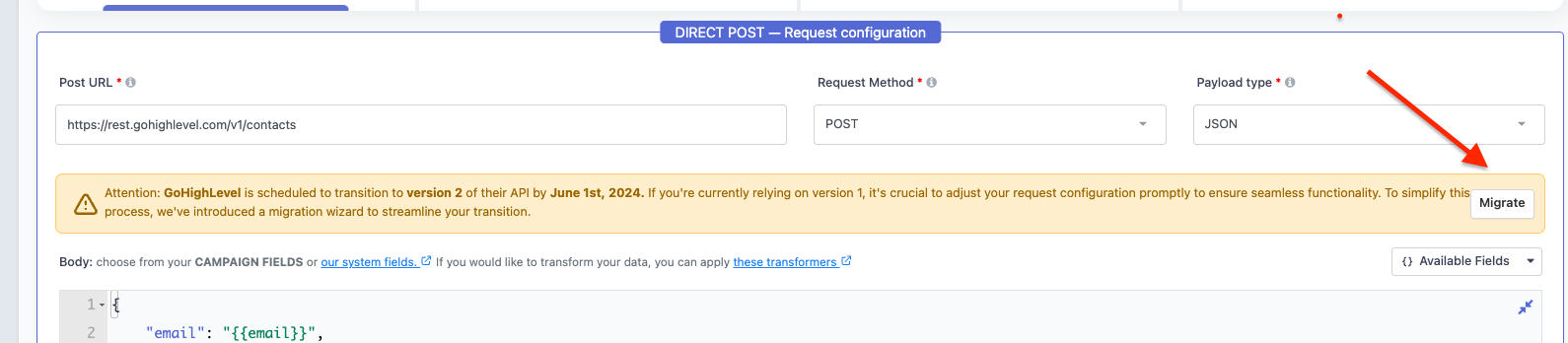
When you access your GoHighLevel buyers now there will be a banner that explains that you will need to migrate the buyer to use the new GHL API v2, and there will be a Migrate button that will open the wizard.
-
Once the Migration Wizard is open you can click Next, and move to Part II in order to get the Webhook URL needed to continue the Wizard.
Part II: Set up Workflow in GoHighLevel
-
Go to your GoHighLevel Dashboard. Click on Click here to Switch to select the sub account you want the leads directed to.

-
Locate the sidebar on the left hand side and click on Automation once you're in the sub account.


-
Click on Create Workflow in the upper right hand corner and select Start from Scratch in the dropdown menu.


-
Click on Add Trigger.

-
Click on Inbound Webhook under list of events in the right hand panel.

-
Copy the URL to paste into Buyer Settings in Lead Prosper.

Part III: Copy & Paste the GHL Webhook URL and Continue The Migration
-
Once you have set up the Webhook and copied the URL, you will go back to your Lead Prosper buyer, go to the Inbound Webhook step of the Migration Wizard.
-
Paste the Webhook URL from GoHighLevel in the Inbound Webhook URL field.
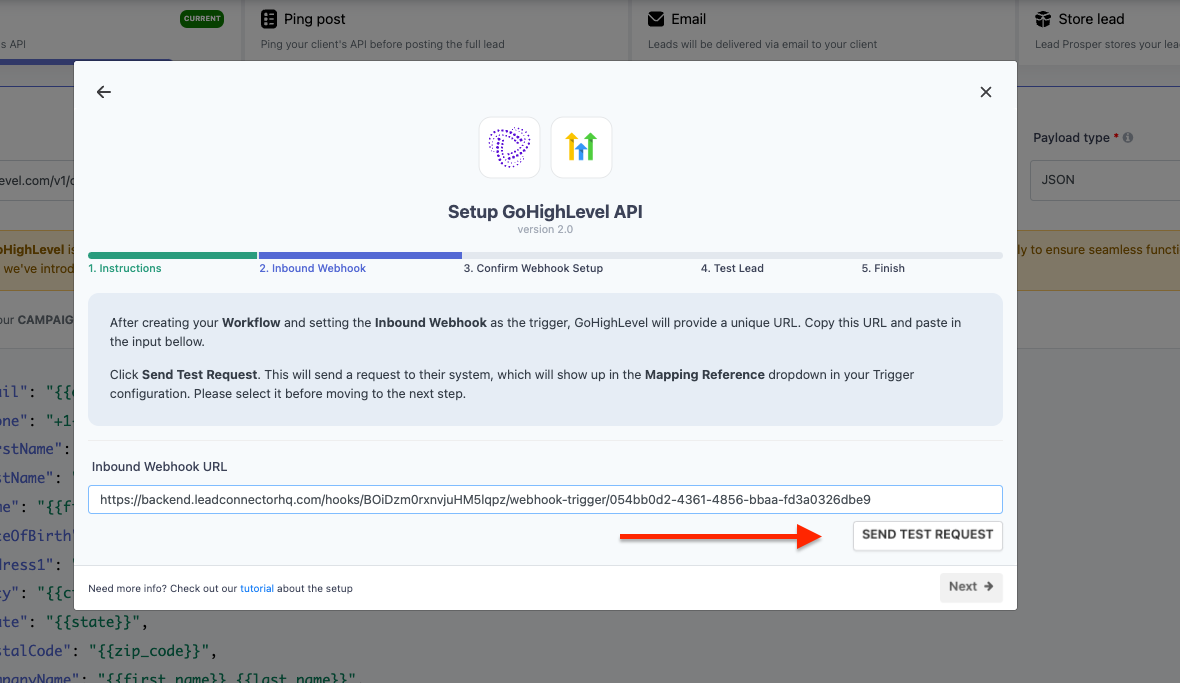
- Once that is done, hit Send Test Request, and once that is done go back to your GoHighLevel account.
Part IV: Mapping the Request
-
Go back to your GoHighLevel campaign workflow. Click on Fetch Sample Requests and select the first item that populates in the drop down menu.

-
Below Mapping References, the payload will populate from the lead info sent over from Lead Prosper. Double check to make sure the data is the same as what was sent from Lead Prosper. If it checks out, click Save Trigger on the bottom right.

-
Now we need to map the fields we received form Lead Prosper in order to add the lead as a contact in GoHighLevel. To do this, select Create Contact under the triggers.

-
Name the action whatever suits your needs. Next, we will work on setting up our fields under Action Name.

-
From the dropdown, you can select a variety of fields to map. These are the fields that will be saved in GoHighLevel. They should match the fields sent over from Lead Prosper.

-
After you select a field, a box and a tag will appear to the right of it. Click the tag to open another dropdown.

-
Click Inbound Webhook Trigger.

-
Click the corresponding field incoming from Lead Prosper to match the field you selected to have on GoHighLevel. Map the rest of your necessary fields into GoHighLevel.

-
Once you add all the fields into GoHighLevel, click Save Action on the bottom right half of the screen.

-
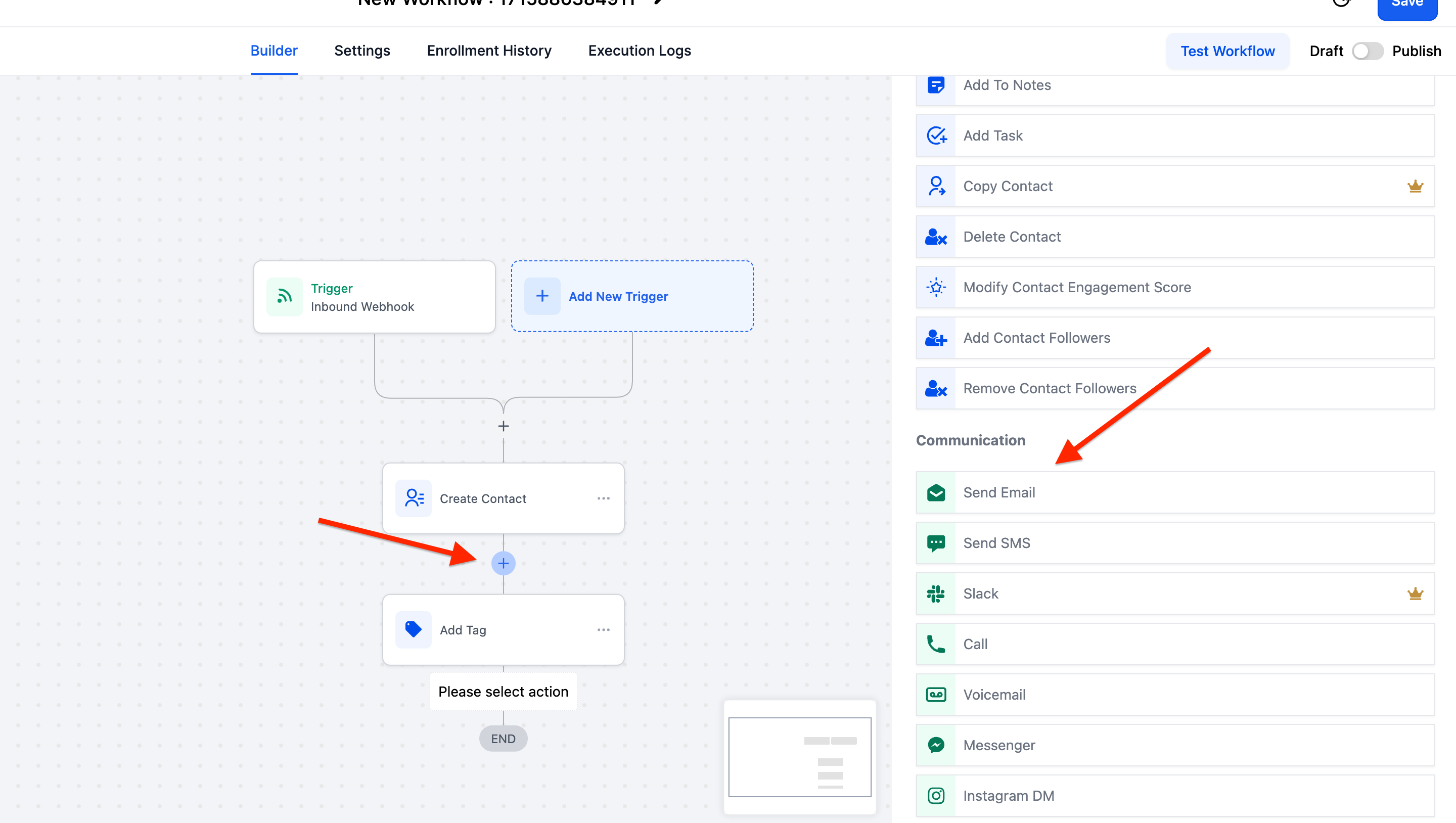
If you want to add any secondary actions, such as adding tags to your contact, sending an email, or any number of actions, you can click the + button, find the Action that you want to add, and enter the details. These actions will perform after the initial Contact is created.
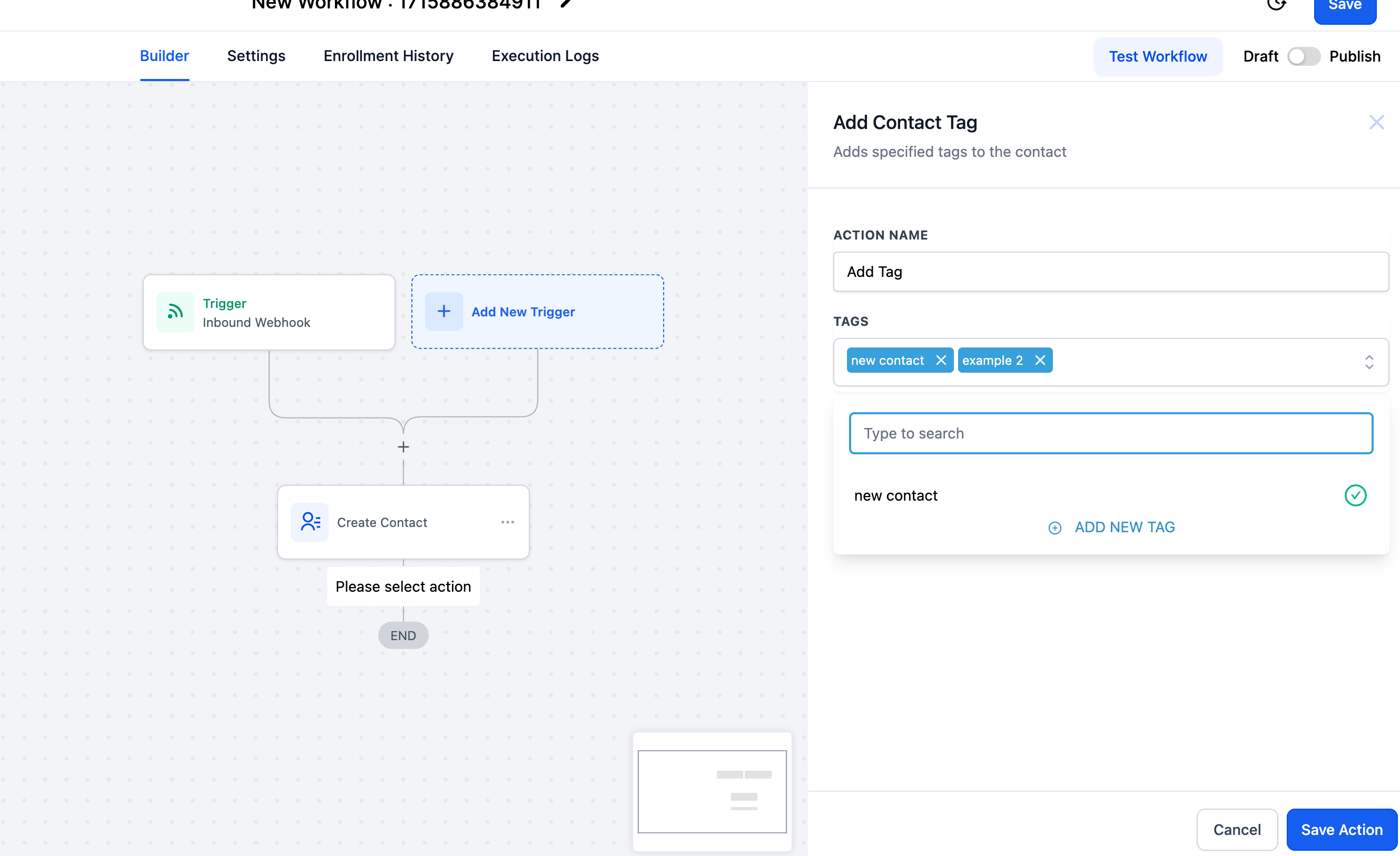
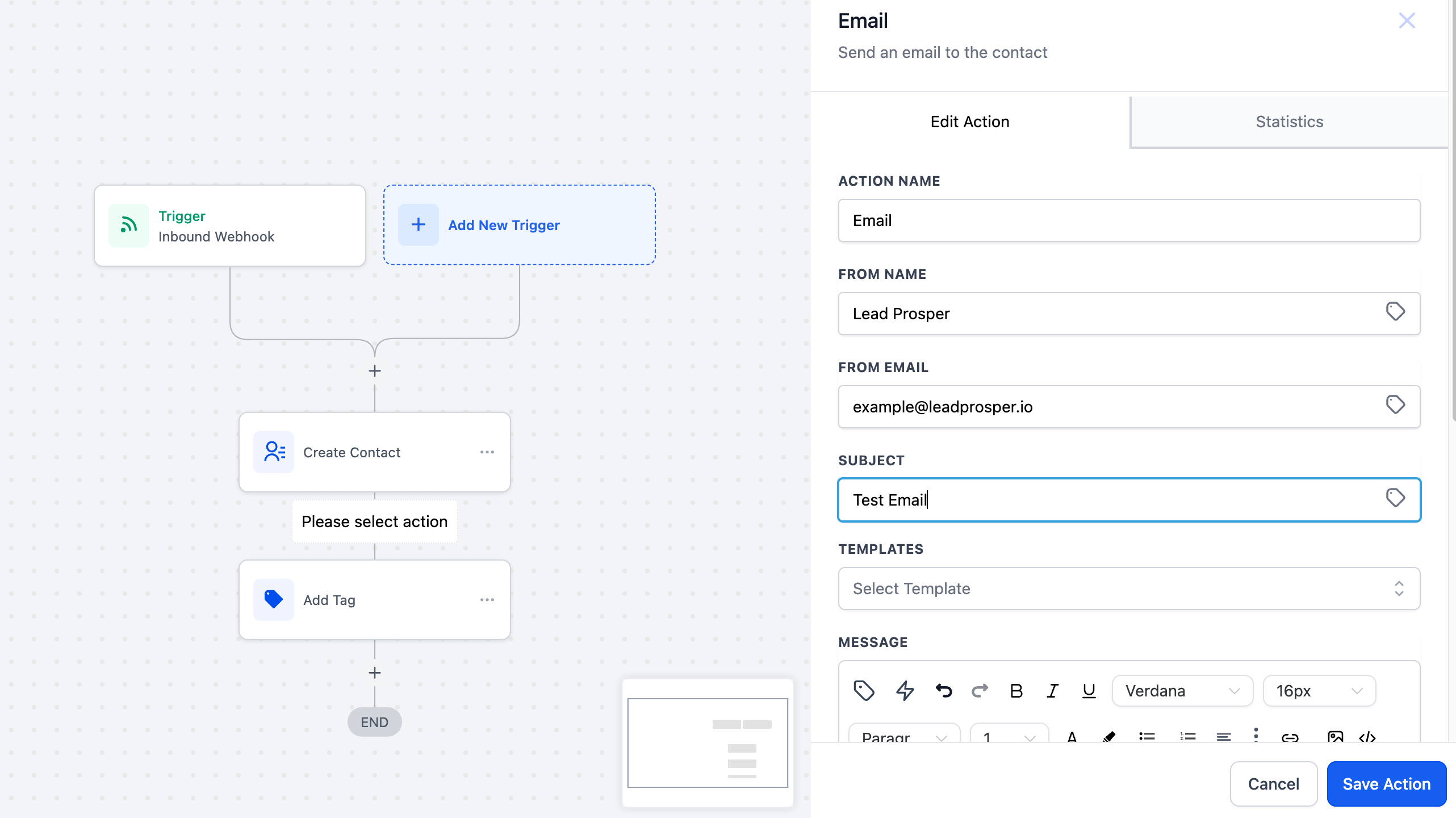
-
Be sure to switch this workflow from Draft to Publish, otherwise when a lead is sent through they will not properly post to GoHighLevel. Click Save above that.

Part V: Go Back To Your Lead Prosper Buyer / Migration Wizard to Confirm Webhook & Send Test Lead
-
When back in the Migration Wizard you can confirm the steps were taken when setting up the Create Contact action in GoHighLevel and hit Next.
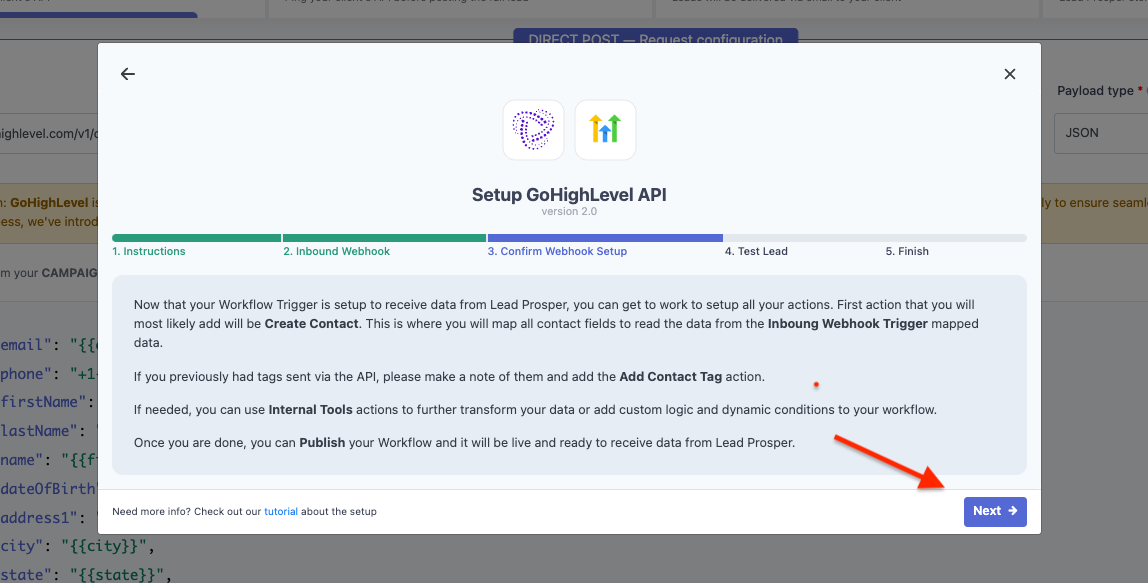
-
On the next page you will see the random generated values spun up for sending a Test Lead to GoHighLevel. Confirm that everything looks correct and then hit Test Lead to send that test to your GoHighLevel Webhook URL.
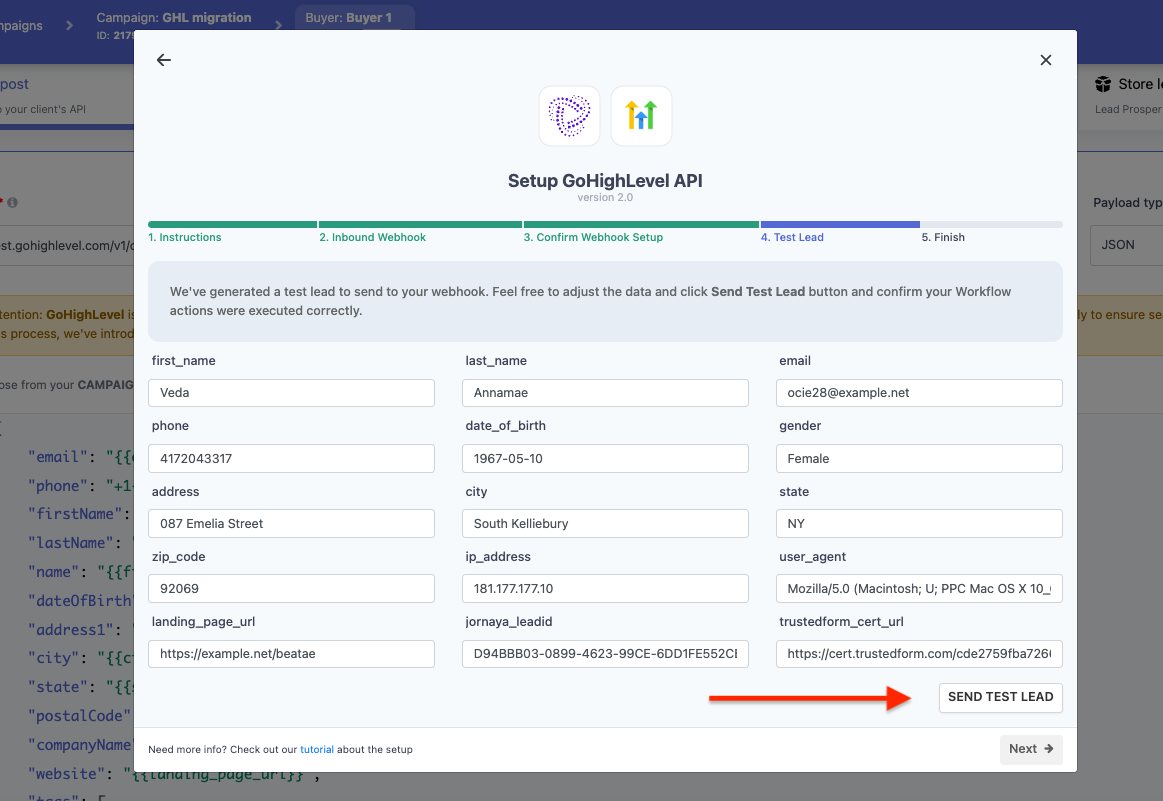
-
When you see a success message it's time to go back to GoHighLevel and confirm that your test lead was successfully sent.
Part VI: Check that the Leads Successfully Made It Into GoHighLevel
-
Now you see that you have successfully routed a lead directly to GoHighLevel. You can check by seeing if the data on this contact is the same data that was generated on the Test Buyer in Lead Prosper.

Part VII: Confirm Your Migration In Lead Prosper
-
Now that you have confirmed that the test lead has made it to your GoHighLevel account the last thing to do is to go back to your Lead Prosper buyer and back to the Migration Wizard.
-
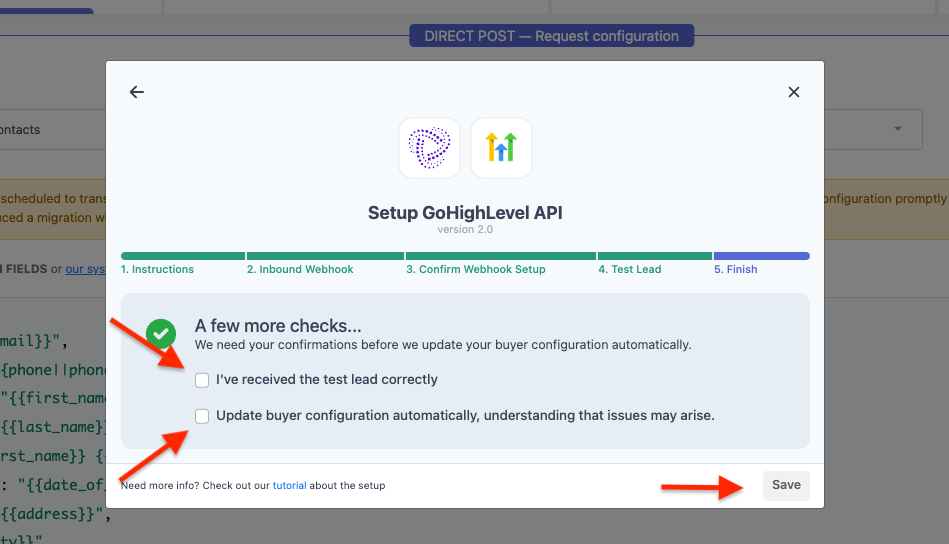
The last step of the Migration Wizard will ask you to confirm two check boxes - one that confirms you have received the test lead, and the other that confirms that you understand the wizard will automatically update some of the configuration settings inside of the buyer once you hit Save.
-
After you have checked those 2 boxes, hit Save and you are done. Your buyer page will reload, and your buyer will officially be migrated to use the GoHighLevel v2.0 API!
Please keep in mind that you will have to repeat this process for every GoHighLevel buyer in your campaigns. If you do not have access to your buyer's GoHighLevel account send them this tutorial which will walk them through the steps needed for them to create the Webhook URL for you to use in the Migration Wizard.
If you run into any issues with the set ups or have any questions please feel free to open a ticket with support or email us at support@leadprosper.io. Thanks!