.png)
Using The Upgraded Response Parser To Simplify Buyer Setups
Lead Prosper just launched a new, improved Response Parser tool that makes setting up mappings and utilizing data from your buyer's API responses easier than ever. In a handful of clicks you can easily set your buyer's accepted response mapping, real-time price, duplicate mapping, and create variables that you can use in your buyer payload to place and manipulate data that is returned in the buyer's API response(s).
Point and Click Response Mapping
With the new Response Parser tool you can easily point and click on a buyer's API response and set up response mappings, real time price, and more.
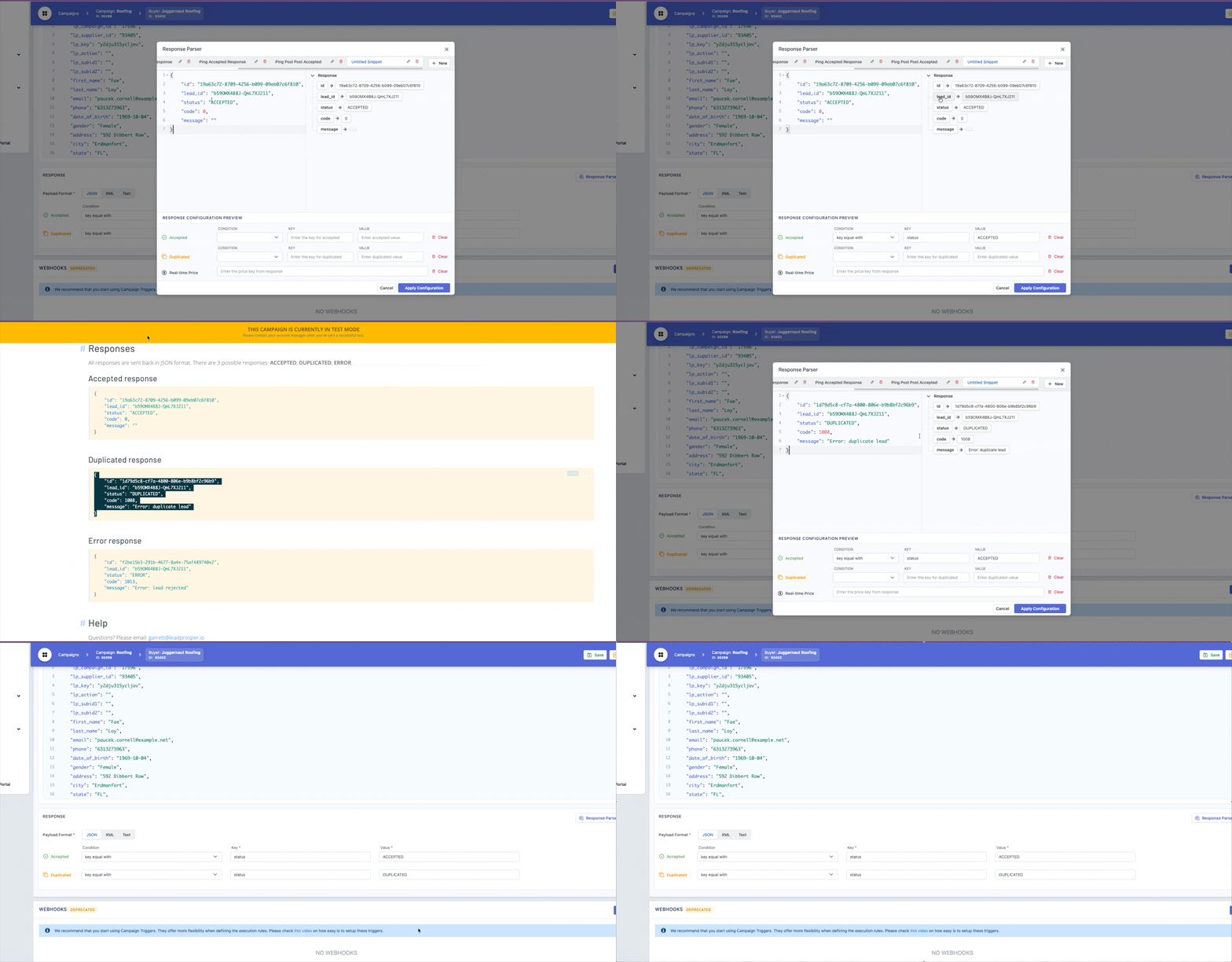
ACCEPTED & DUPLICATED RESPONSE
You can quickly set your ACCEPTED and DUPLICATED (optional) response mappings using real examples from your buyer’s API specs or the Test Buyer tool.
When setting up a Direct Post buyer:
- Import an example response into the Response Parser tool.
- Click the value you want to map from the menu on the right.
- Choose whether it should be mapped as ACCEPTED or DUPLICATED.
If you have multiple example payloads, just paste one in, set its mapping, then paste the next to capture additional mappings.
When setting up a Ping Post buyer, you’ll set the ACCEPTED and Real-Time Price mappings on the PING step, and then the ACCEPTED and DUPLICATED mappings on the POST step.
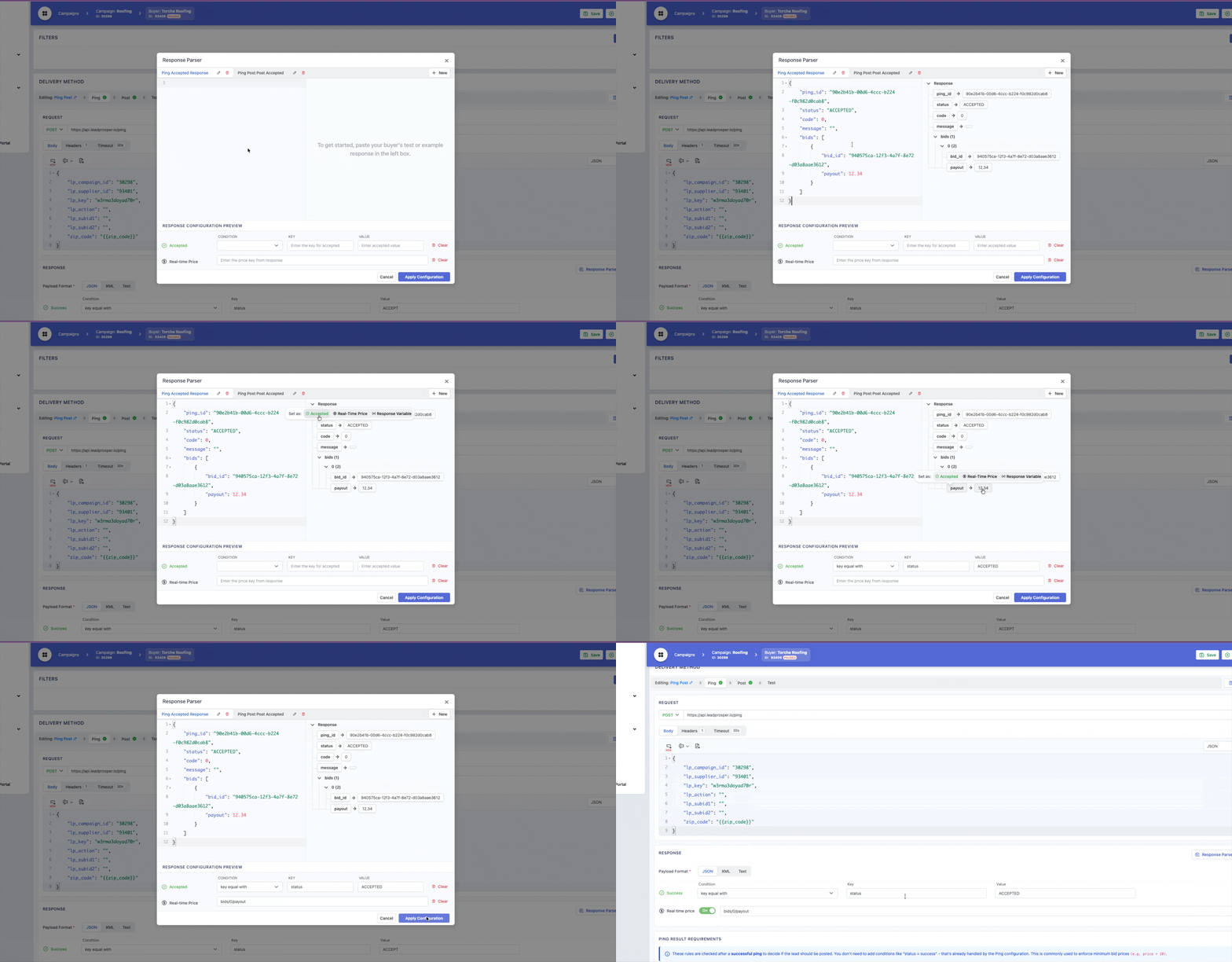
REAL-TIME PRICING
When working with Ping Post buyers, you’ll usually receive a bid price in the buyer’s PING response. On the PING step, open the Response Parser, paste in your example response, and you can set the Real-Time Price in just two clicks.
Simply select the bid price value in the response, choose Real-Time Price, then click Apply Configuration, and you’re done.
PING RESPONSE VALUES
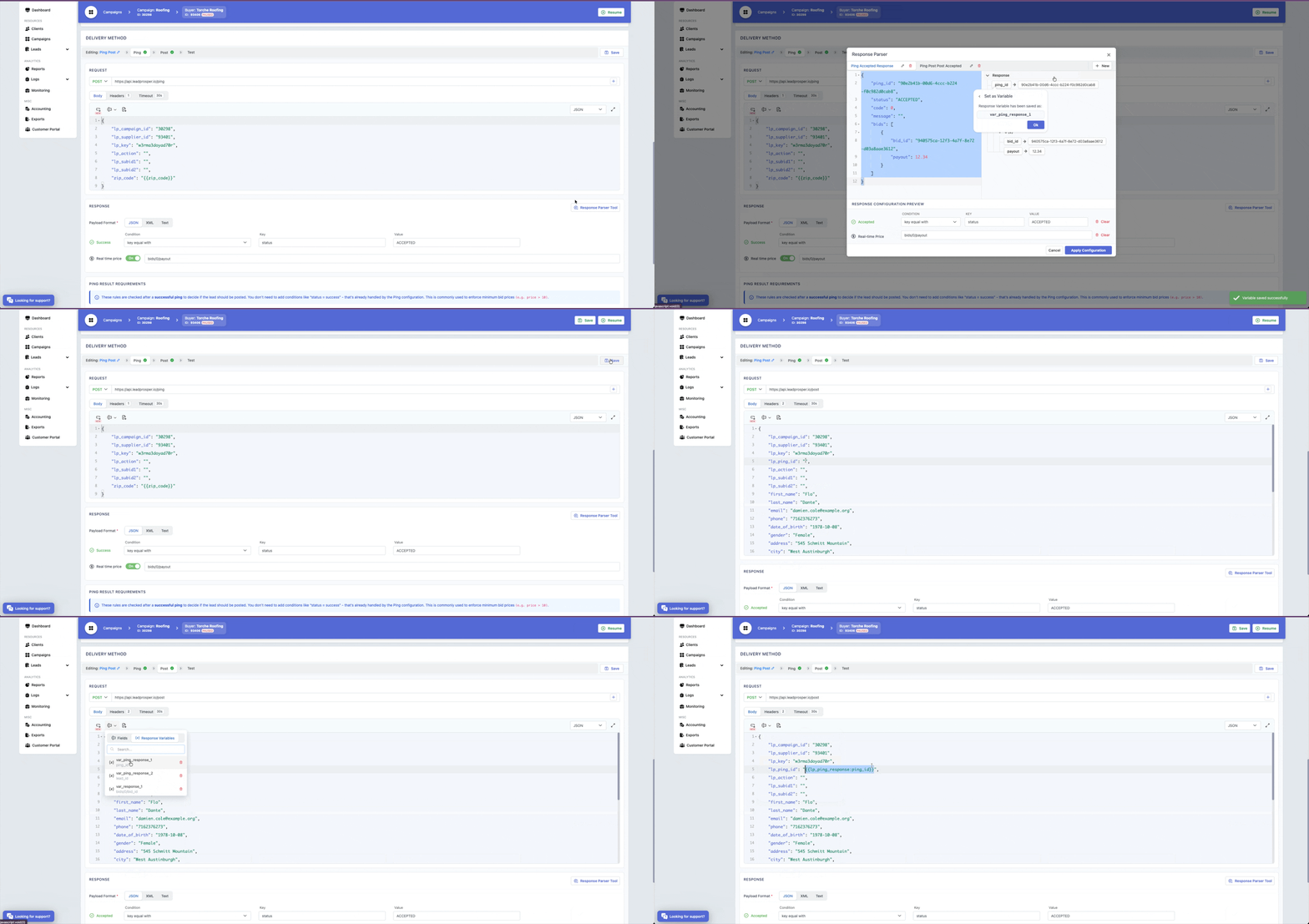
If you have a Ping Post buyer that requires pulling a ping_id from the buyer’s PING API response, the process is now much simpler. We have a system field {{lp_ping_response:KEY}} where you replace the KEY placeholder with the correct key from the PING response, and then using that system field in the POST body will allow you to grab the value from the PING response and insert it into the POST request that is then sent to the buyer. This system field can be used for any value in the PING API response that you need to extract.
To make this even easier we set up the Response Parser Tool to generate the correct {{lp_ping_response:KEY}} mapping based on the key value you select in the tool. This removes any need for guessing the key value to use and ensures that your system field is set up on the POST correctly the first time.
Using the tool to get the {{lp_ping_response:KEY}} value takes all but a few clicks.
After you have inserted your API response, select the value that you need to grab and insert into the POST.
In the pop up,
This makes it easier than ever to reuse data from the PING response throughout your buyer configuration.
TEST BUYER RESULTS
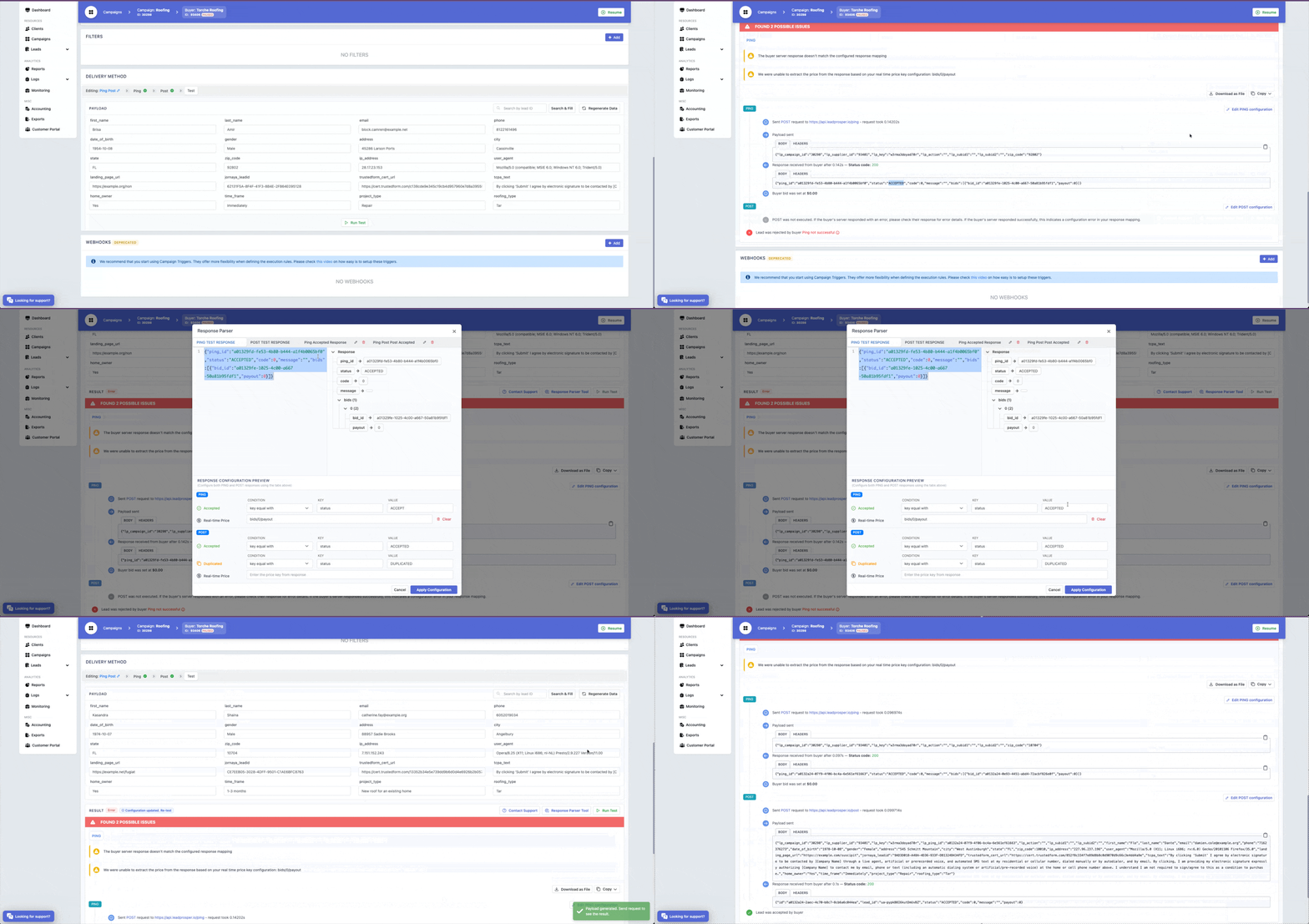
If you’re testing a buyer and notice something isn’t mapping correctly, troubleshooting is now even easier. After running your test, click the Response Parser button, and it will automatically load tabs containing your PING and POST API responses from that test.
From there, you can quickly review and adjust any mappings to the correct values. Once you’ve made your changes, click Apply Transformations to save them. You’ll stay on the Test Buyer tool, allowing you to immediately run another test to confirm everything is working as expected.
With these tools and updates, configuring and troubleshooting buyer responses in Lead Prosper is faster, more accurate, and far more flexible than ever before. Whether you’re mapping response values, setting up real-time pricing, or creating custom variables to streamline your workflows, the Response Parser and Test Buyer tools work together to simplify every step. Take advantage of these features to ensure your buyer integrations are set up correctly, tested thoroughly, and performing exactly as expected.