How to Pass a Buyer Redirect URL Back to Your Supplier
In some cases, a Buyer will return a dynamic value in their API response — such as a redirect URL — that needs to be passed back to the Supplier through the Supplier API response. This article walks through how to configure that end-to-end: enabling the custom Supplier API response field, extracting the correct key from the Buyer's response, and mapping it in the Buyer setup.
Step 1: Enable the Custom Field in Campaign Settings
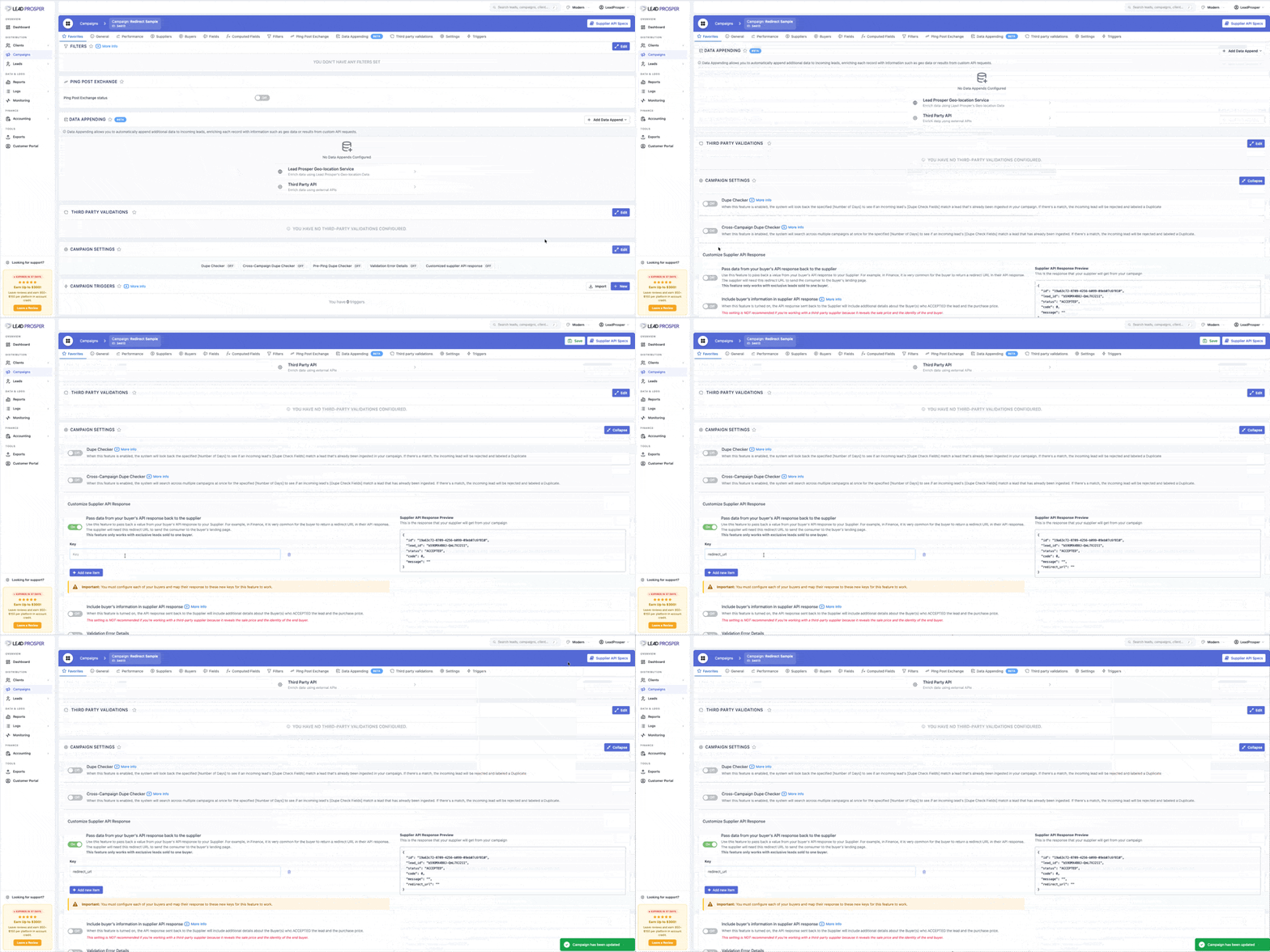
- Navigate to your main Campaign page and go to Campaign Settings > Customize Supplier API Response.
- Enable the toggle next to Pass data from your buyer's API response back to the supplier.
- In the Key box that appears, enter the custom field name you want to include in your Supplier API response. For this example, enter
redirect_url. - Check the Supplier API Response Preview box on the right — you should now see the
redirect_urlfield in the sample response. - Click Save.
With this feature enabled, a new section will appear in your Buyer setups where you can map a custom value to this field.
Step 2: Get the Buyer's Response Key
Before configuring the Buyer setup, you need an example API response from the Buyer that includes the redirect URL value. You can get this from one of three places:
- The Buyer's API posting specs
- A live lead that already has the data in the response
- A manual test lead sent through the Test Buyer Tool
Once you have the response:
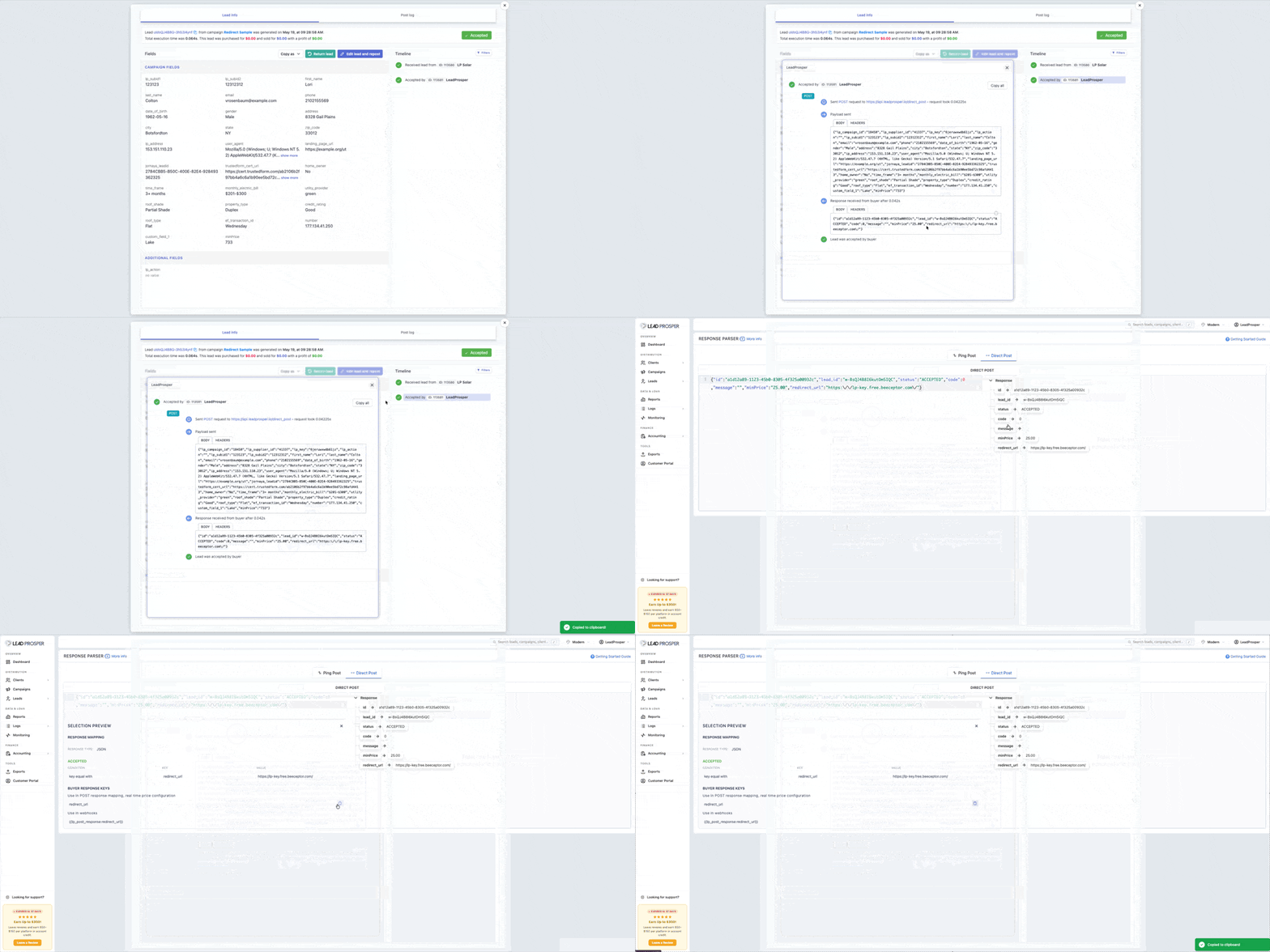
- Copy the Buyer's API response that contains the redirect URL.
- Open the Response Parser Tool (use the original version).
- Paste the Buyer's response on the left side of the tool.
- Locate the key that contains the redirect URL and select it.
- In the pop-up that appears, copy the value listed under BUYER RESPONSE KEYS.
Step 3: Map the Value in the Buyer Setup
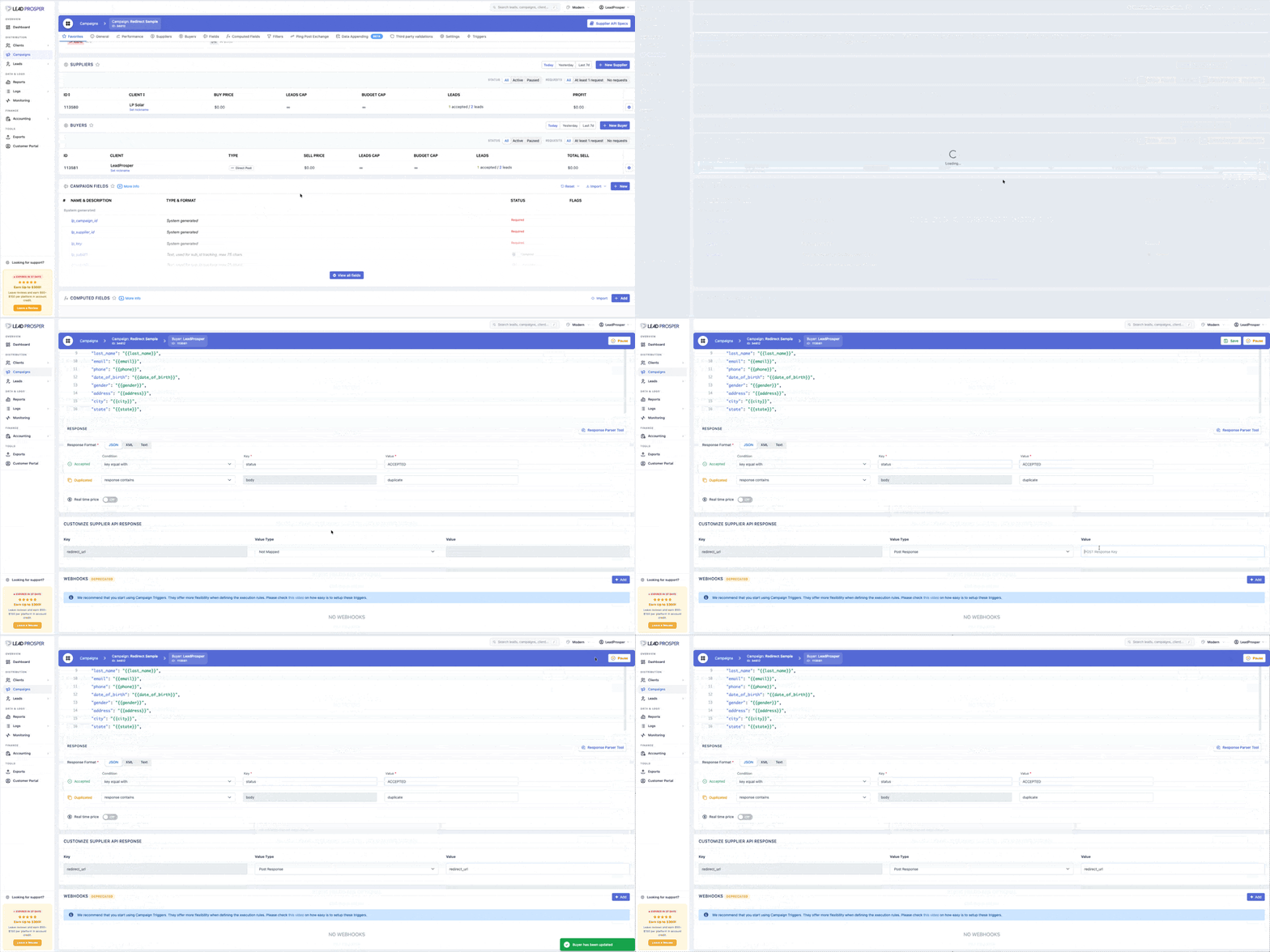
- Open the Buyer setup that requires the redirect URL.
- Scroll down the page below Response Mappings. You will see the newly visible section listing all of your Customize Supplier API Response keys, including
redirect_url. - Click Value Type and select POST response from the dropdown.
- Under Value, paste the response key you copied in Step 2.
- Click Save.
The Buyer is now configured to grab the redirect URL from their API response and pass it back to the Supplier through the Supplier API response.
Step 4: Verify the Setup
To confirm the mapping is working correctly, send a real lead through as a Supplier and check the Supplier response you receive back.
- If a value is populated and returned for the redirect URL, the setup is working as expected.
- If no value is returned for the redirect URL, copy the Lead ID and pull up that lead in Lead Prosper. Check the Buyer's API response:
- Did the Buyer Accept the lead, and did they include a redirect URL with a value? If yes, copy the entire response again, open the Response Parser Tool, and verify that your mappings are correct.
- Did the Buyer Accept the lead but did not return a redirect URL value? If so, reach out to the Buyer to determine why the value is missing from their response.
Once everything is verified, your Supplier's API response will include the redirect URL value with each accepted lead. From there, the landing page can be configured to redirect the consumer to that URL to complete the sale. If you have any questions about this setup, reach out to our support team for assistance.