.png)
Link Two Lead Prosper Campaigns Together Using Campaign Triggers
There may be some instances where you want to route leads coming in from one campaign to another. Some use cases may be you have tiers of buyers with higher priority or get leads distributed with different methods. You may be part of a call center and you want leads to go through your call centers first, and if it doesn't get accepted you may send it to another campaign with web buyers in a last attempt to sell the lead.
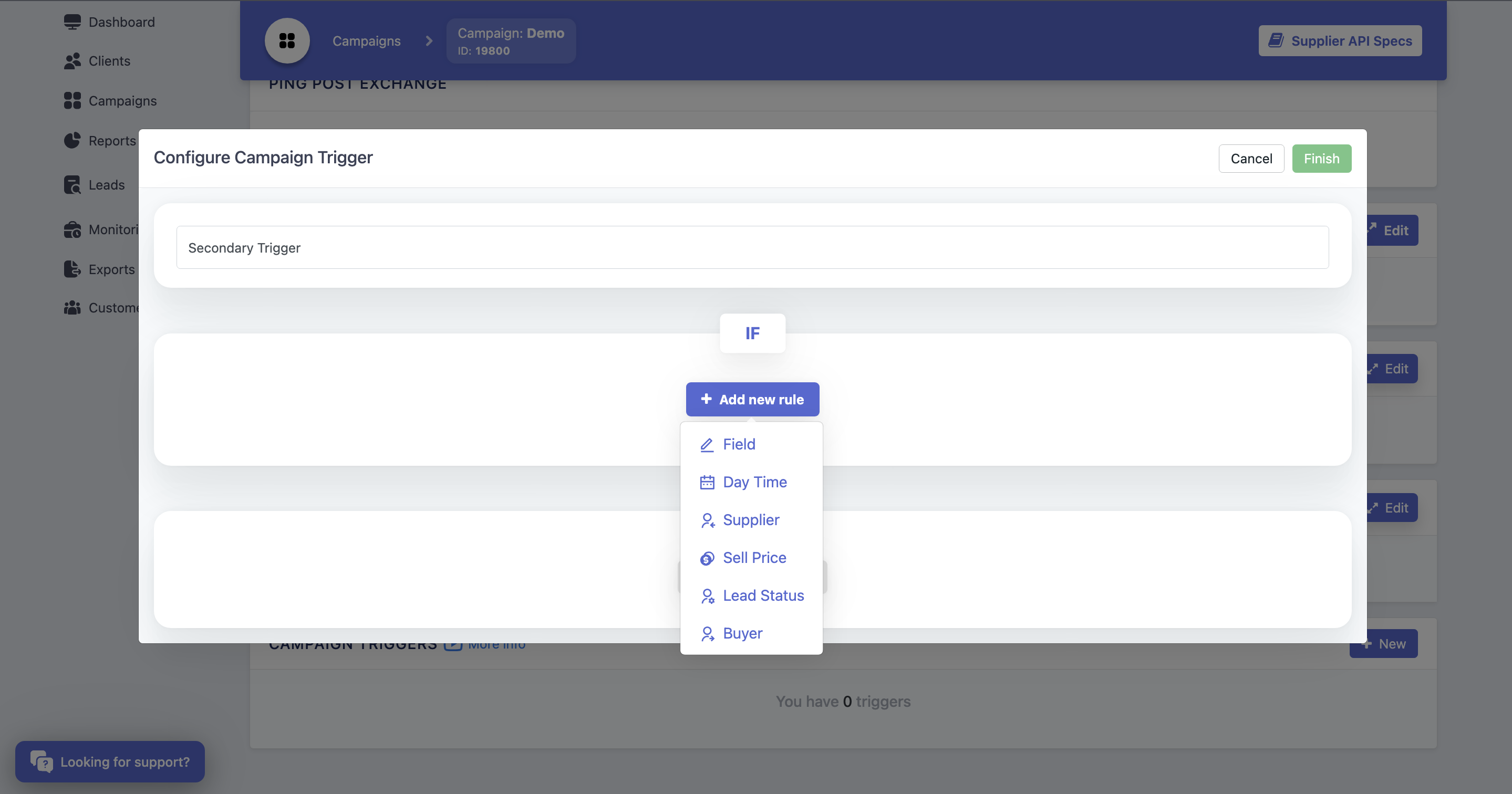
To set this up, navigate to your campaign you wish to send leads to another campaign from. You will want to add a Campaign Trigger at the bottom of the campaign. You first have to name your trigger before adding rules. Once you have named your trigger, click + Add new rule under the IF. Here, you will probably want to select Lead Status but it will depend on your situation. For this example, select Lead Status.
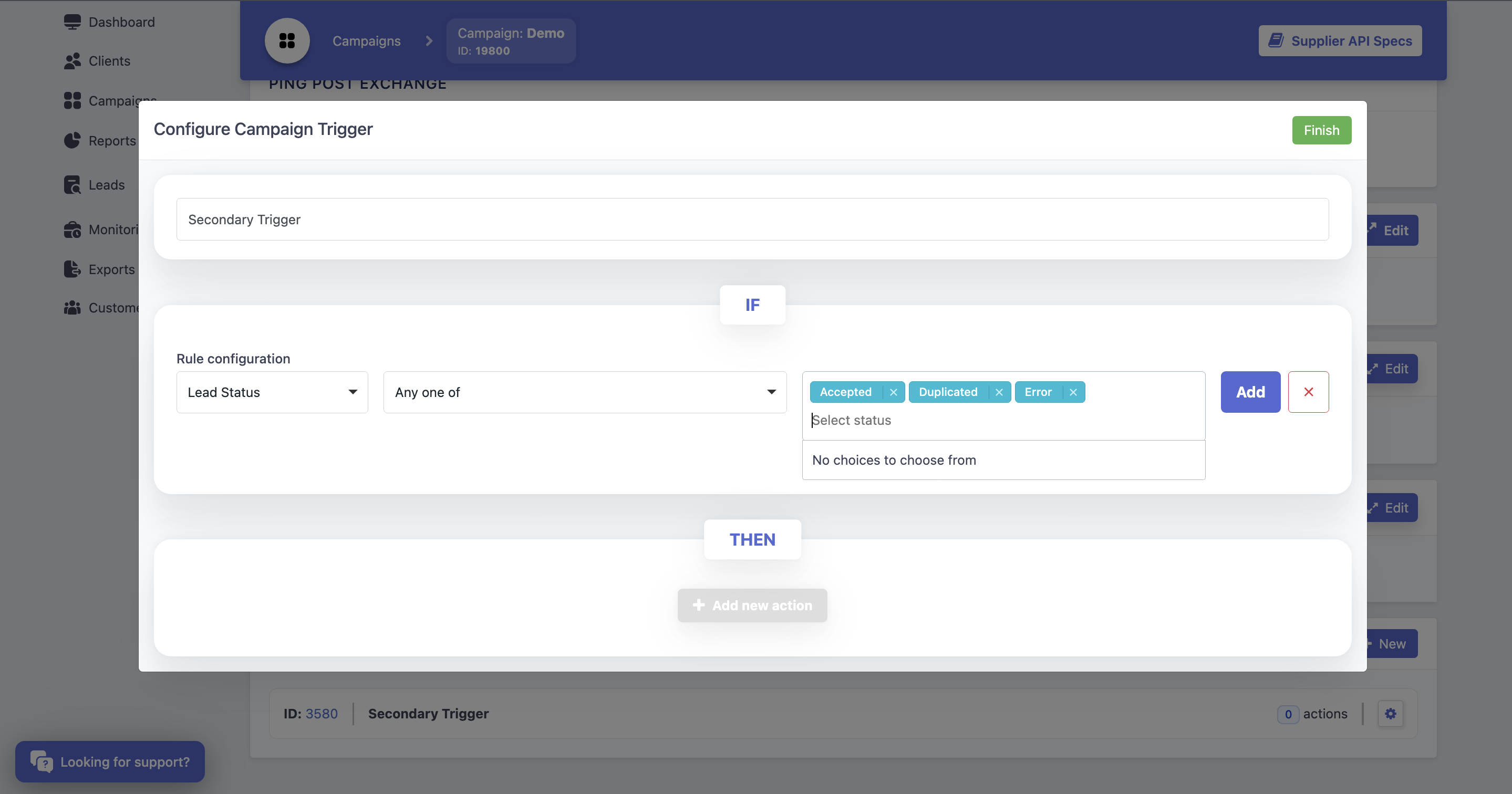
Next we will setup our rule configuration. This part may vary depending on your situation. For example, you may want to only allows leads to send to another campaign if they are either duplicates or get an error. Or you may allow leads that are accepted, duplicates, or error. For this example, we will select Any one of for the condition, and Accepted, Duplicated, Error for the statuses. Once you've selected that, click Add.
Under Then, we will click + Add new action. In order to send this to another campaign, we need to select Send HTTP. Name the action to what suits your needs, and then we need to navigate to the secondary campaign to get some needed information.
It's important to note that your secondary campaign needs to include all the exact same campaign fields as the first campaign. Otherwise you will get failed leads. The easiest way to include these is to import the fields. At the top right of the Campaign Fields box, click Import, then select From existing campaign. From there, select the campaign you are copying the fields from and check the box that says Remove all existing fields. That's all you need to import the fields from another campaign.
Important: If you are using existing campaigns, you need to make sure you map all campaign fields and values from campaign 1 to campaign 2, just like you would with any other buyer setup. Otherwise, you will experience errors/failures.
At the secondary campaign, we need to open the Supplier API Specs in the upper right hand corner. This is where you will grab the POST URL, lp_campaign_id, lp_supplier_id, and lp_key. These are required fields in the campaign trigger on the primary campaign.
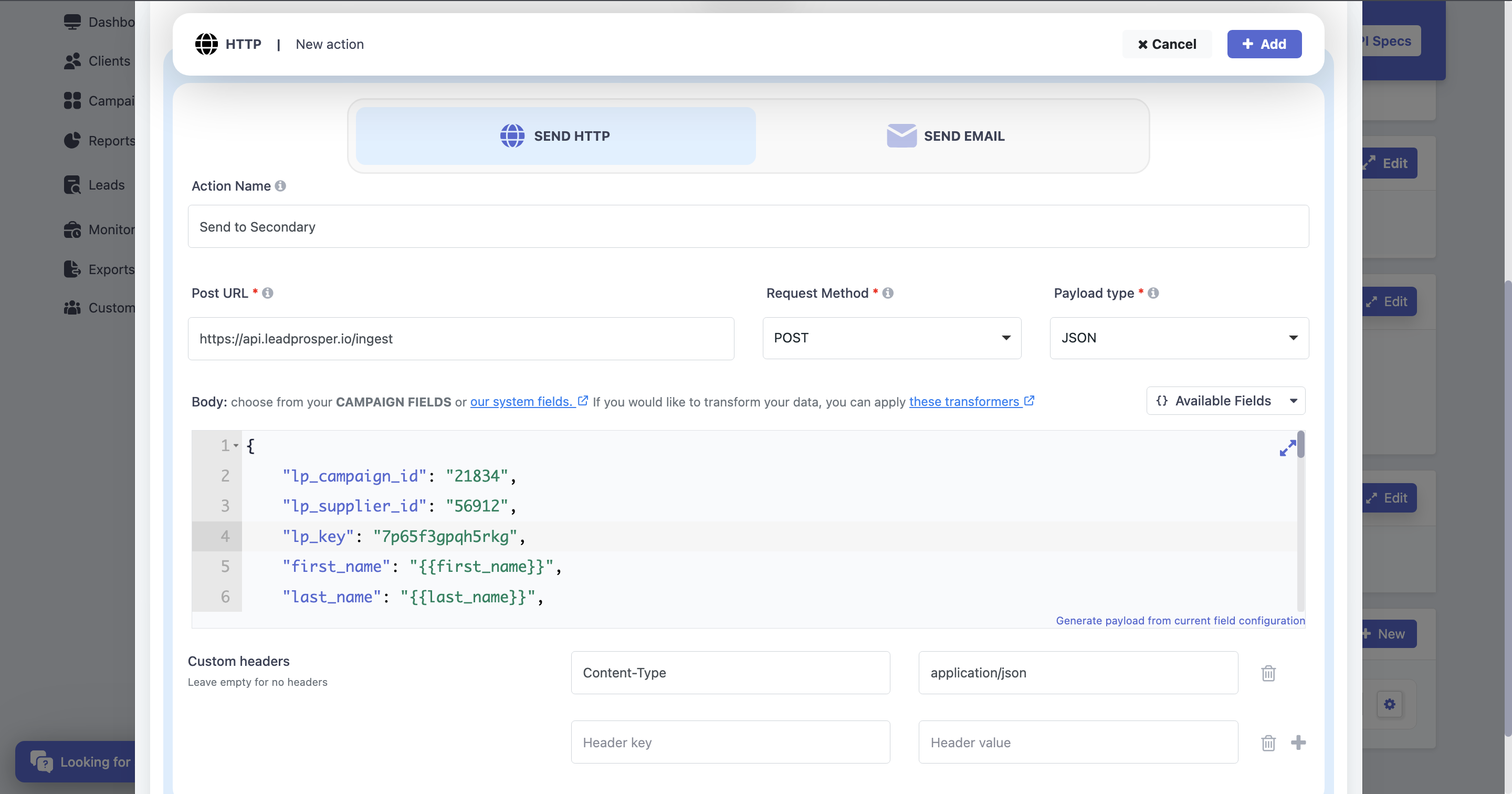
It is important to change the lp_supplier_id to the secondary campaign's id because although they are the same supplier, it could skew your analytics. If the lead wasn't sold in the primary campaign, but you never adjusted the supplier_id, then your analytics would show that the lead was sold within the primary campaign, when really it was sold in the secondary campaign. It helps to keep track of where the leads were sold.
The rest of the payload will be automatically populated. It is recommended that you keep all the fields that were generated in the payload. Just create the 3 required fields and insert the Post URL. Once you've done that, click + Add in the top right corner, then click Finish in the top right corner after that.
Once you've completed all those steps, your 2 Lead Prosper campaigns are now connected. Once you get leads coming through the first campaign and they don't meet any requirements for the buyers on that campaign, they will be sent straight to the second campaign in an attempt to sell the leads to those buyers.
This setup can be customized if you have multiple suppliers. We would add an if_else transformer to the lp_supplier_id and lp_key to match our suppliers from the primary to the secondary campaign. It would look something like this.
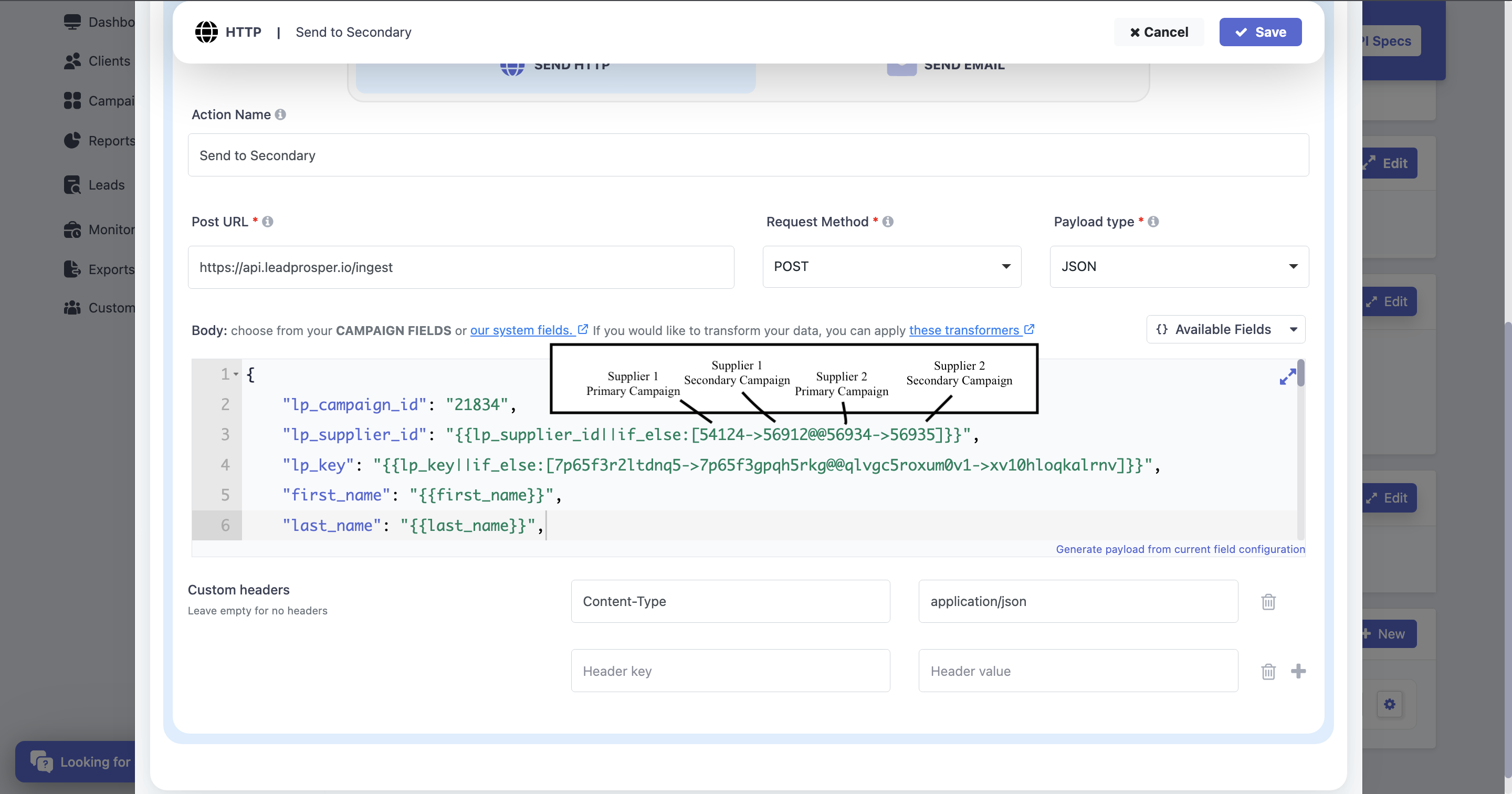
They lp_keys are in the same order as the supplier_id's. What's happening here is if the lead is from supplier 1, then it's going to change the supplier_id from the supplier 1 on the primary campaign to the supplier_id of the supplier on the secondary campaign. As well as the lp_key.
If you have any questions or need help with this process, feel free to reach out to our support team at support@leadprosper.io