.png)
Logic Filters
Logic Filters
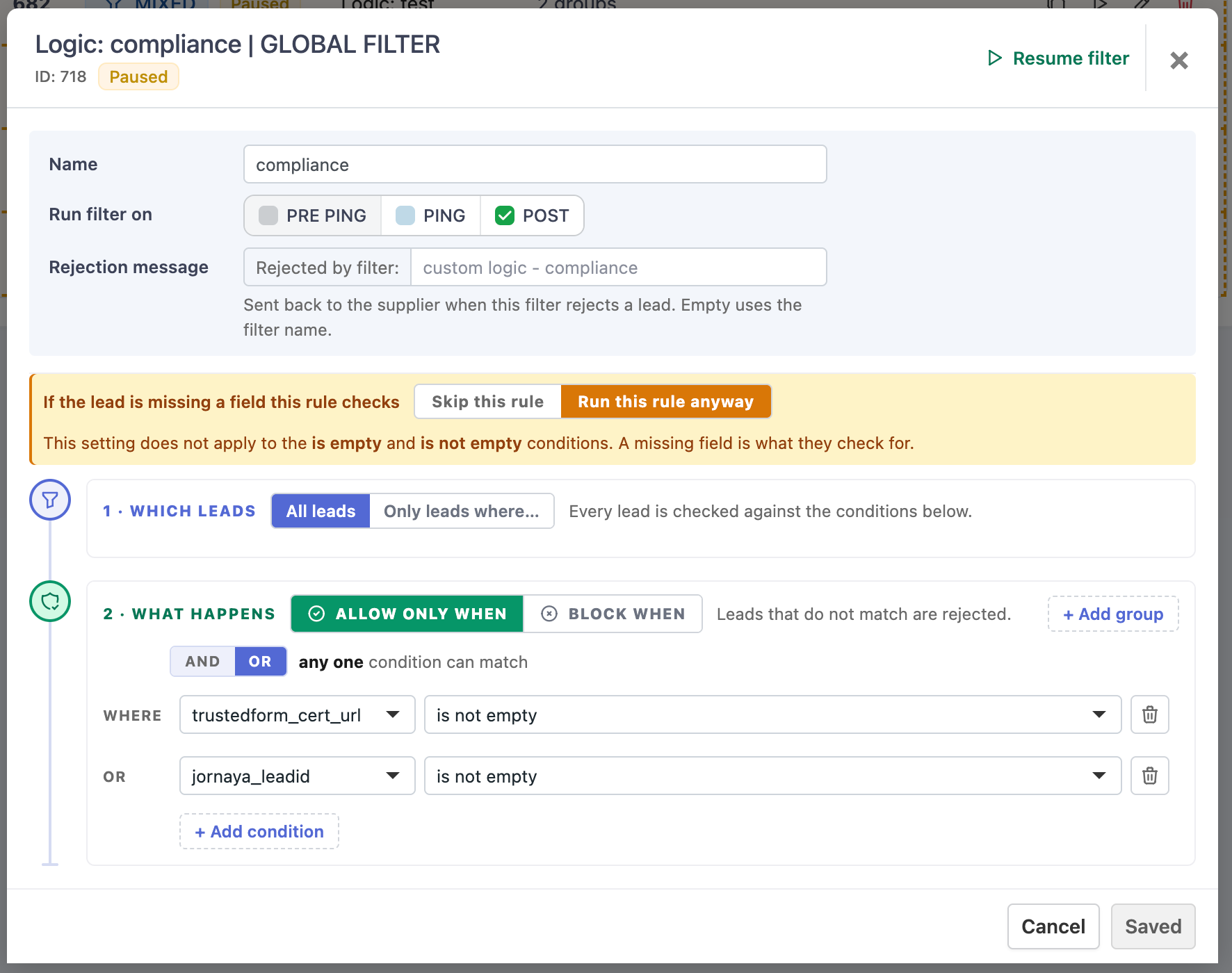
A Logic filter lets you write a rule in plain steps: which leads it is about, what has to be true about them, and whether matching leads get through or get rejected.
A regular Field filter looks at one field. A Logic filter can look at several fields at the same time, for example "sub1 is fb AND sub2 is retarget", and it can be limited to one supplier's leads.
When to use one
Use a Field filter when one field decides on its own. "Only accept leads from CA and TX" is a Field filter.
Use a Logic filter when:
- the decision depends on two or more fields together ("this sub1 with that sub2", "this state and under this age"),
- the rule should only apply to some leads, usually one supplier's,
- you want "either this or that" in one place.
How to add one
- Open the campaign and go to the Filters tab.
- Click Add filter and choose Logic Filter.
- Fill in the parts described below and click Save.
You can add a Logic filter on the whole campaign or on one supplier or buyer, just like any other filter.
Copy a Logic filter to other suppliers or buyers
Once a Logic filter is saved, you can put the same filter on other parts of the same campaign without building it again.
- In the filters list, click the copy icon on the filter's row.
- Tick where it should go: the campaign level, any suppliers, any buyers. The place it already lives on is greyed out.
- Choose Status after copy: Live or Paused. Paused is the safe choice if you want to look at each copy before it starts rejecting leads.
- Click Copy.
Each place you tick gets its own separate copy with the same name, message, stages and conditions. Editing one copy does not change the others. Copying to a place that already has a filter with the same name makes a second one, so check the list first.
Copies stay inside this campaign. To use the same filter on a different campaign, build it there.
The parts of a Logic filter
When you open a Logic filter you see a few settings at the top, then the rule itself.
Name
A short name so you can find it in the list. Something like Acme bad sub or Consent required .
Rejection message
This is what the supplier is told when this filter rejects one of their leads.
Every rejection starts with Rejected by filter:. After that comes your message. If you leave the box empty, the supplier sees the filter name instead, like this:
- Filter named
Acme bad sub, no message: the supplier seesRejected by filter: custom logic - Acme bad sub - Same filter, message
sub 12 is not accepted: the supplier seesRejected by filter: sub 12 is not accepted
Write something the supplier will understand. They will read it and act on it.
Run filter on
When the filter runs: PRE PING, PING or POST. Tick at least one. If the rule uses a field that is not sent at ping time, run it on POST.
If the lead is missing a field this rule checks
Sometimes a lead arrives with one of the fields the rule looks at empty, or not sent at all. For example the rule checks sub2 and the lead has no sub2. You choose what happens:
- Skip this rule. The lead is not checked by this rule at all. This is the default and usually what you want.
- Run this rule anyway. The rule runs with the empty field as it is.
One exception. A field checked with is empty or is not empty is never skipped, whatever you pick here. An empty field is exactly what those two conditions look for, so skipping on empty would make them useless. Any other condition in the same rule still follows your choice. The editor shows a note under this setting when the rule has such a condition. See use case 5.
1. Which leads
Who the rule is about.
- All leads. Every lead the campaign receives.
- Only leads where... Only leads that match what you put here. Everyone else skips this rule as if it did not exist.
This is usually where you pick the supplier. Once you say "Only leads where supplier is Acme", the rest of the rule is about Acme's leads only. You do not add "supplier is Acme" again below. The bottom part says what happens to those leads, not who they are.
2. What happens
What the rule does to the leads from step 1.
- Allow only when. Leads that match the conditions get through. Leads that do not match are rejected. Use this for "only accept...".
- Block when. Leads that match the conditions are rejected. Leads that do not match get through. Use this for "reject...".
Below that you add the conditions.
Conditions, groups, AND and OR
A condition is one check on one field: state is any of CA, TX , lp_subid1 is fb , age is greater than 60 .
Conditions sit inside a group. On the group you choose AND or OR:
- AND means every condition in the group must be true.
- OR means one of them being true is enough.
You can add a second group. Between the groups you choose AND or OR again, once for the whole rule.
Read it like a sentence: (this AND that) OR (something else).
The same three conditions, grouped two ways
Say you have state is any of CA , lp_subid1 is solar , age is greater than 60. Put all three in one group with AND:
state is CA and sub1 is solar and age is over 60
This is true only for a solar lead from California who is over 60. All three at once.
Put the first two in one group and the age in a second group, with OR between the groups:
(state is CA and sub1 is solar) or (age is over 60)
This is true for any solar lead from California, whatever the age, and also for anyone over 60 from anywhere.
Same conditions, very different result. If a rule is not doing what you expect, check the grouping first.
Simple rule of thumb
- Things that must all be true at the same time: same group, AND.
- Different cases where any one is enough: separate groups, OR between them.
Use cases
1. Block a bad sub-source from one supplier
Supplier Acme sends good leads overall, but their sub1 fb combined with sub2 retarget is junk. Other suppliers use the same sub ids for good traffic, so you cannot just block fb .
- Which leads: Only leads where supplier is any of Acme
- What happens: Block when
- One group, AND: lp_subid1 is fb, lp_subid2 is retarget
Acme's fb + retarget leads are rejected. Acme's other leads and every other supplier are not affected.
2. Different state lists for each sub-source of one supplier
Supplier Bright runs two campaigns through one connection. Their solar traffic may only send CA, AZ, NV. Their roofing traffic may only send TX, FL, GA.
- Which leads: Only leads where supplier is any of Bright
- What happens: Allow only when
- Group 1, AND: lp_subid1 is solar, state is any of CA, AZ, NV
- Group 2, AND: lp_subid1 is roofing, state is any of TX, FL, GA
- Between the groups: OR
A Bright lead gets through if it is solar from CA, AZ or NV, or roofing from TX, FL or GA. Anything else from Bright is rejected.
3. Age limit that depends on the state
The campaign accepts ages 18 to 64 everywhere, but in Alabama, Mississippi and Nebraska the minimum is 21.
- Which leads: All leads
- What happens: Block when
- Group 1, AND: state is any of AL, MS, NE, age is less than 21
- Group 2: age is less than 18
- Group 3: age is greater than 64
- Between the groups: OR
A lead is rejected if any of the three groups is true: under 21 in one of those three states, or under 18 anywhere, or over 64 anywhere.
4. Block throwaway and generic email addresses
- Which leads: All leads
- What happens: Block when
- One group, OR: email contains mailinator.com, guerrillamail, tempmail, email starts with info@, admin@, noreply@
A "contains" or "starts with" condition can take a list of values. If any one of them matches, the condition is true. A few fragments do the work of a long list of full addresses.
5. Require proof of consent from one supplier, from either provider
Supplier Clear must send a TrustedForm certificate or a Jornaya LeadiD with every lead. Other suppliers are not held to this.
- Which leads: Only leads where supplier is any of Clear
- What happens: Allow only when
- Group 1: trustedform_cert_url is not empty
- Group 2: jornaya_leadid is not empty
- Between the groups: OR
A Clear lead gets through if either field is filled in. A Clear lead with both fields empty is rejected, even with Skip this rule selected: fields checked with is empty or is not empty are never skipped.
6. Limit a supplier to a zip list, with one exception
Supplier Delta may only send leads from a list of 3,000 zip codes, except their direct traffic which may come from anywhere.
- Which leads: Only leads where supplier is any of Delta AND lp_subid1 is none of direct
- What happens: Allow only when
- One group: zip_code is any of (upload your list)
Delta's non-direct leads must be in the zip list. Delta's direct leads, and every other supplier, skip the rule.
Good to know
- All filters must pass. A lead has to get through every filter on the campaign. If you want "either this or that", put both cases in one Logic filter as two groups with OR between them.
- Upper and lower case do not matter.
fb,FBandFbare the same value. Spaces before and after a value are removed when you save. - Lists can be big. "Is any of" conditions accept any number of values. You can type them, paste them or upload a file. "Starts with", "contains" and "matches regex" take up to 100 values.
- Regex limits. A pattern can be up to 200 characters. When you save, each pattern is also tested against long text. A pattern that takes too long, usually one with a repeat inside another repeat like
(a+)+, is refused with a message naming it. Rewrite it more simply and save again. - Age is in whole years. Someone one day short of 30 counts as 29.
- Pausing. Use the pause button in the filter header to switch a filter off without deleting it.
- Finding out why a lead was rejected. The supplier response and the lead log both show
Rejected by filter:followed by your message or the filter name, so you can see which filter did it.