.png)
Custom Price Settings Per Campaign - Rev Share, Minimum Required Bid, Minimum Sell Price, and more
By default, Buyers and Suppliers in Lead Prosper can use three primary pricing methods - Static Pricing, Conditional Pricing, and Real-Time Pricing.
Static Pricing assigns a fixed price to every lead, while Conditional Pricing allows pricing to change based on specific lead criteria—for example, pricing Florida leads at $15 and California leads at $30. Real-Time Pricing uses a dynamic price returned by a Direct Post or Ping Post Buyer in their API response.
As Direct Post and Ping Post Exchanges have evolved, pricing strategies have become more flexible and complex. In many cases, optimizing a campaign requires pricing logic that goes beyond these traditional methods—whether the goal is to improve margins, account for downstream buyer behavior, or support a unique distribution model.
To accommodate these scenarios, Lead Prosper includes several custom pricing options that give users greater control over how lead prices are calculated, adjusted, and passed throughout their campaigns.
Different campaign types have their own unique options.
Ping Post Exchanges by default are Highest Bidder as they are Auction based. For this reason there are ways to set Default Minimum Required Buyer Bid to ensure that no leads are sold for under a specific price on a Global level. Or may have the need for custom Margin Overrides By Supplier, applied only when a specific Supplier + Buyer combination takes place.
In Direct Post Campaigns there are several custom options to set a Minimum Sell Price for all leads, as well as a feature - Do Not Sell Under Supplier Cost - which as the name suggests does not allow a lead to sell to a Buyer if the lead sell price is less than the cost to purchase the lead from the Supplier.
For Direct Post Campaigns that are set to Highest Bidder there are unique options for Bid Overrides and Bid Penalties that are designed to artificially adjust a buyer's bid price to adjust their sort order in the Highest Bidder order. This artificial bid adjustment allows Buyers to move up and down the sort order without affecting the actual lead sell price.
Lastly we have a Rev Share module for Direct Post Campaigns that allows a Supplier lead cost to be set dynamically based on a percentage of what the lead sold to the Buyer.
Learn more about each of the custom pricing options below and see how you can set them up in your Campaigns.
Ping Post Exchange
Ping Post Exchanges now have a number of new Price Settings available, including Default Minimum Required Buyer Bid and Margin Override by Supplier.
Default Minimum Required Buyer Bid
The Default Minimum Required Buyer Bid allows you to set a Global / Campaign Level rule that will automatically reject bids if the bid price returned is less than the set value after margins are applied.
Currently this feature exists on a Supplier level, but now you can add a Global setting so that any bids that are returned, regardless of Supplier, are under a specific amount.

How To Set A Default Minimum Required Buyer Bid
- Go to your Ping Post Exchange Settings in your Exchange.
- Locate the 'Default Minimum Required Buyer Bid' option and toggle it on.
- Enter your minimum required buy bid price.
Once set up and live if your Supplier sends in a PING and it is rejected due to the Default Minimum Required Buyer Bid price the Supplier will receive back an error that reads "Buyer bid lower than Supplier required bid".
If you are reviewing the lead details the type of Minimum Require Buyer Bid will be shown - "Set on the Supplier" or "Set on the Campaign":
NOTE: If you have a Default Minimum Required Buyer Bid on your Exchange, and you have a Supplier that also has a Minimum Require Bid set up, the Supplier level Minimum Required Bid will take precedent and be used.
Margin Override Per Supplier
The Margin Override Per Supplier feature gives users the ability to set Buyer level margin-overrides based on specific Suppliers, allowing for more granular control over margins applied to bids in your Ping Post Exchanges. If applied to a buyer, this rule will take precedent over any other Margins or Margin Overrides that are in place when the PING comes from the specific Suppliers.

How To Set A Margin Override Per Supplier
- Go to the buyer that you want to apply the setting for.
- Under PRICING toggle on Margin Override
- Once enabled a new option will appear - Supplier-specific margins. Select 'Add Supplier'
- Choose the Supplier you want to add the margin override to
- Add the Margin you want applied
- Save
You can add as many Supplier-Specific Margin rules as you have Suppliers.
Direct Post Campaigns
Minimum Sell Price
You can set Global Level and Supplier Level Minimum Sell Price rules. The purpose of these rules are to prevent selling leads when the lead sell price would be less than a determined value, such as a profit line. Any buyers that have a sell price below that Minimum Sell Price amount will be left out of whatever distribution method the Direct Post campaign is set to.
How To Set A Minimum Sell Price - Campaign Level
- Go to your Direct Post Campaign
- Under Campaign Settings go to PRICING and toggle on Minimum Sell Price
- Set the Minimum Sell Price

This will set the Global setting for Minimum Sell Price. No leads will sell to a Buyer under this price.
NOTE: Any Supplier with a Minimum Sell Price will take precedent over the Campaign Level price.
How To Set A Minimum Sell Price - Supplier Level
- Go to your Supplier in the Direct Post Campaign
- Under Pricing toggle on Minimum Sell Price
- Set the Minimum Sell Price

This will set the Supplier level Minimum Sell Price. When this is enabled no leads from this Supplier will sell to a Buyer if the sell price would be under the Minimum Sell Price.
Supplier Minimum Sell Price rules take precedent and override a Campaign Minimum Sell Price rule.
Do Not Sell Under Supplier Cost
Enabling this feature lets you set a rule on the Campaign and Supplier Levels that would leave out any buyers when the lead sell price would be less than the Supplier Cost. You would enable this feature to ensure that you do not lose money or always ensuring a specific margin is met on the lead.
On top of the Do Not Sell Under Supplier Price you can also add a Margin - this percentage will be added on TOP of the Supplier Cost. For example if you have a Supplier with a fixed cost of $10, and then enable a "Do Not Sell Under Supplier Cost" with a 20% margin, any Buyer Bids that come in under $12 will be ignored by this rule. This helps to ensure that you are always making X% profit on each lead.
How To Enable Do Not Sell Under Supplier Cost - Campaign Level
- Go to your Direct Post campaign
- Pull up Campaign Settings
- Under Pricing toggle on 'Do Not Sell Under Supplier Price'
- (Optional) Add a margin percentage

How To Enable Do Not Sell Under Supplier Cost - Supplier Level
- Go to your Direct Post campaign
- Find and select the Supplier
- Under Pricing toggle on 'Do Not Sell Under Supplier Price'
- (Optional) Add a margin percentage

NOTE:
- When the rules are enabled a Campaign Level it applies to every Supplier who has the rule turned off.
- If a Supplier has a "Do Not Sell Under Supplier Price' rule enabled it will take precedent over the Campaign Level rule.
- These rules do not apply to Buyers who are set up for real-time price on the POST.
- These rules do not apply to Suppliers who are set up for Rev Share.
- If this rule is enabled along with the Minimum Sell Price rule then the Do Not Sell Under Supplier Cost will run first.
Rev Share
Rev Share is a feature that you can enable on the Supplier level in the Direct Post campaign. As the name suggests it allows you to set the Supplier Cost to a percentage of the lead sell price (what the lead was sold to the Buyer for).
You set the percentage as the margin you want to keep - meaning if you keep 40% of the lead sell price, you set the Rev Share percentage to 40%. The Supplier cost would be 60% of the lead sell price.
There is also an option to include the Rev Share price in the Supplier API response.
{
  "id": "19a63c72-8709-4256-b099-09eb07c6f810",
  "lead_id": "b59OMX4B8J-QmL7XJ211",
  "status": "ACCEPTED",
  "code": 0,
  "message": "",
  "rev_share": {
    "price": 10
  }
}
How To Set Up Rev Share For A Supplier
- Go to your Direct Post campaign
- Find and select the Supplier
- Under Pricing toggle on 'Rev Share'
- Set the percentage price to be the percentage of the Rev Share you want to keep. If your agreement with your Supplier is 30% rev share, you will set this number to 70%
- If you want to pass the Rev Share price back to the Supplier toggle on 'Return The Buyer Price In The API Reponse'.

NOTES:
- When Rev Share is enabled any Supplier level 'Default buy price' or 'Conditional price' rules are disabled.
- 'Do not sell under supplier price' is disabled when Rev Share is toggled on.
- The 'Return The Buyer Price In The API Reponse' option is enabled by default. If you do NOT want the Supplier to see the Rev Share price returned in the Supplier API Response you must toggle this off.
- If Rev Share is enabled for a Supplier, the Lead Cost value in any Campaign Triggers, Reports, and Logs is calculated AFTER Rev Share is applied.
Direct Post Campaigns - Highest Bidder
These Price Rules only exist in Direct Post campaigns where the distribution type is Highest Bidder, or Buyer Groups that are set to Highest Bidder.
Bid Override
In a Highest bidder Campaign, Buyers are ordered by their bid price, and sells down the list from Highest Bid to Lowest until the lead is sold or fails to sell. By default a Buyer's bid is its Sell Price. The Bid Override lets you order a buyer outside of the Sell Price either by Custom Bid, Bump Up Percentage, Bump Down Percentage, or Buyer Position.
Bid Override only affects the Buyer's bid price in relation to the Highest Bidder Buyer order, similar to a Bid Penalty. It does NOT affect the price that the lead sells for, only the positioning.
Options
-
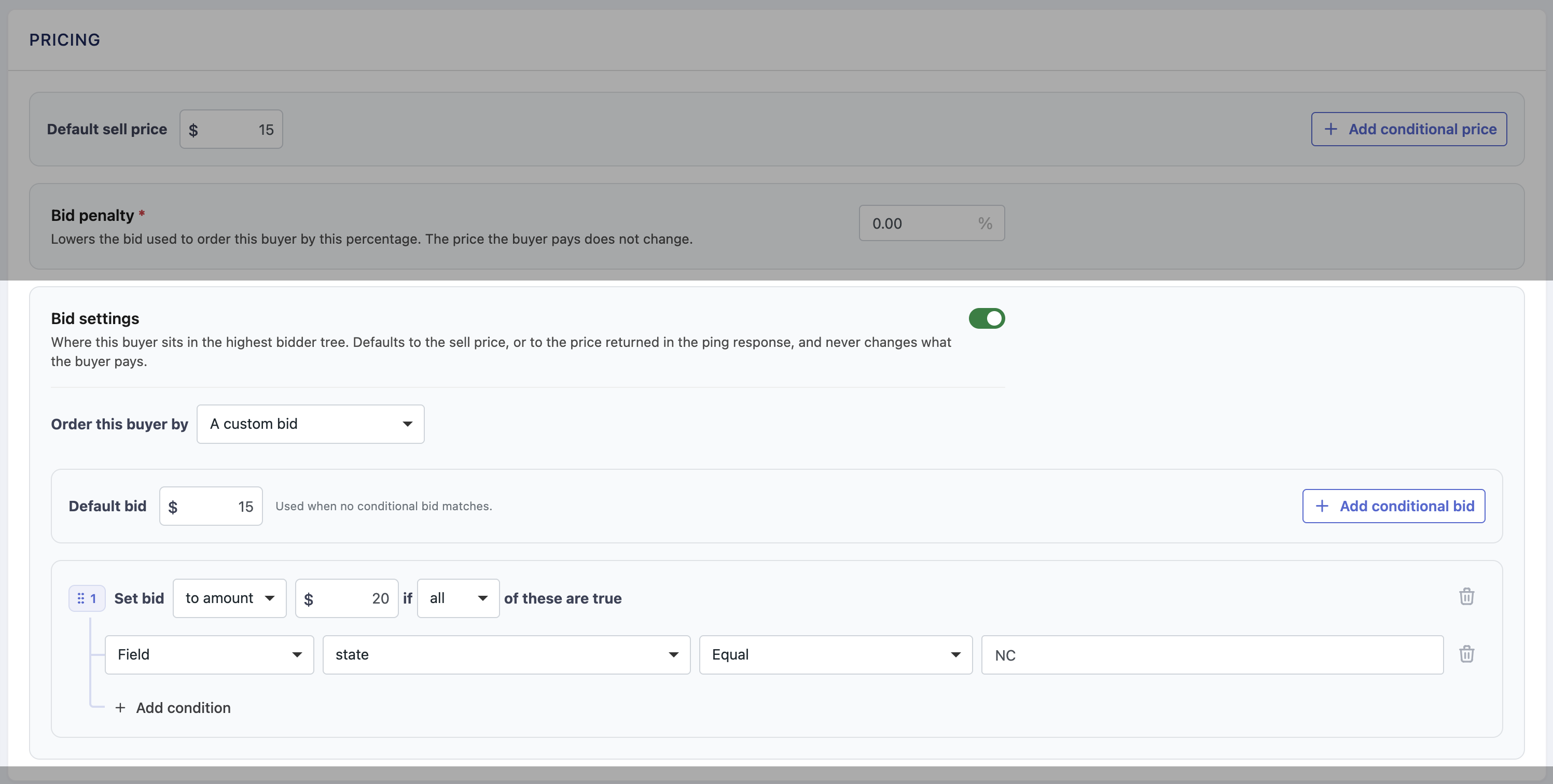
Custom Bid - set up custom static bid or conditional bid price rules that override a Buyer's bid price.
Use Case: You have a Buyer set up in a Highest Bidder campaign that you are working with on Rev Share. If they close the sale after you send it to them, you make X% of the sell price. The sell price at the time of 'sale' to the Buyer is a static $0, but they need to be able to be competitive in the Highest Bidder campaign. Enabled Bid Override and set a Custom Bid price to create an artificial bid price to put the Buyer in a position to potentially purchase a lead. If the lead sells to the Buyer the Lead Sell Price would be $0.
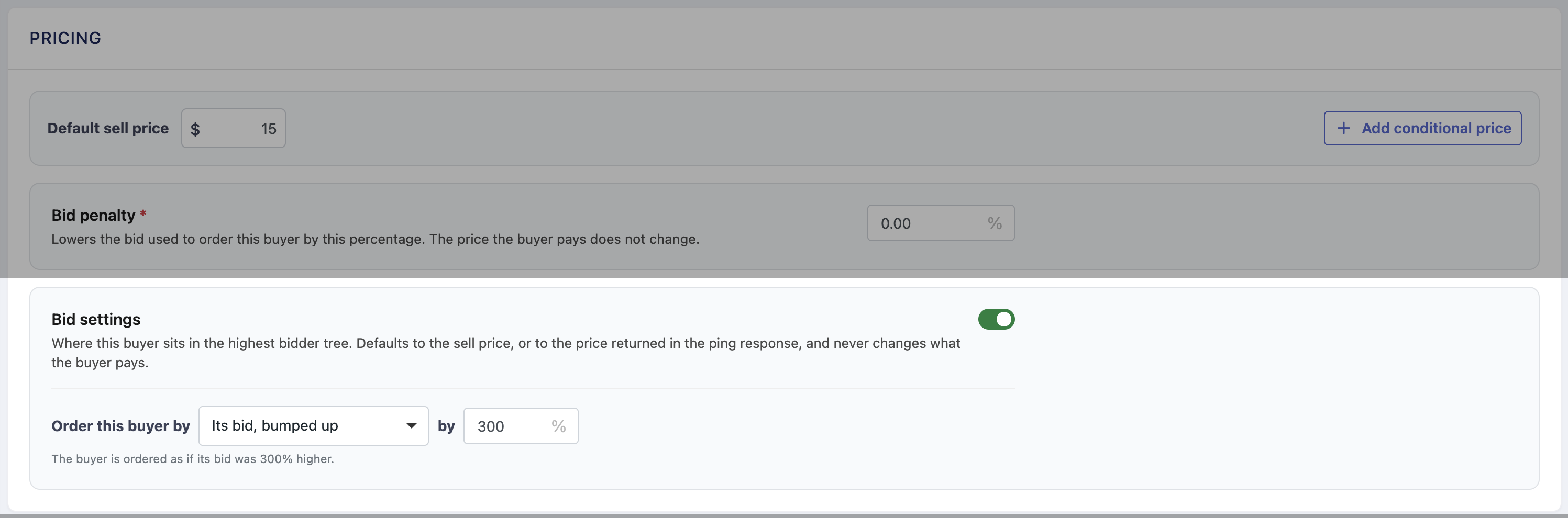
- Bump Up - set a custom percentage to bump the Bid price up by. You can artificially increase the Buyer bid price by up to 1000%.
-
Bump Down - set a custom percentage to bump the Bid price down by. You can artificially decrease the Buyer bid price by up to 1000%.
-
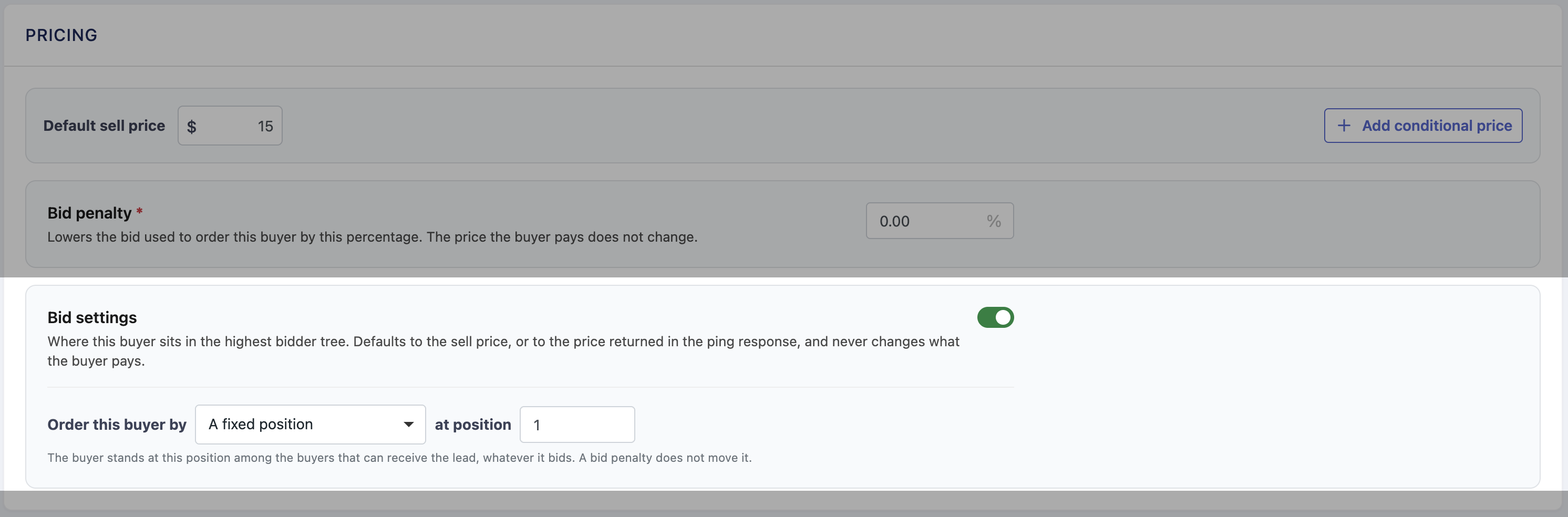
Position - force a Buyer to always be in a specific position in the Buyer sort order when enabled.
Use Cases: You have a Buyer in a Highest Bidder campaign that you always want to get priority access over any other Buyers, regardless of their Bid Price, so you would set their position to always be 1 in the Buyer sort order.
How To Set Bid Override Settings In A Highest Bidder Campaign
- Go to the Direct Post Campaign that is set to Highest Bidder, or the Buyer Group in a Direct Post Campaign that is set to Highest Bidder.
- Find the Buyer you want to add a Bid Override and open the Buyer Profile.
- Under Pricing toggle on Bid Settings
- Choose which Option you want to use for the Bid Override from the dropdown, and set the Override
- Custom Bid - set a Static Price or Conditional Bid Price rules.
- Bump Up - set the % to increase the bid by (up to 1000%)
- Bump Down - set the % to decrease the bid by (up to 1000%)
- Position - set the exact position you want the Buyer to always sit in the sort order.
NOTES
- You can only set one Option for the Bid Override, however if you have already have Options set and choose to try out another one, your current Option settings will remain if you select back to it.
- Bump Up & Bump Down can be applied to Real-Time Prices returned on the PING
- A Buyer in Position 1 will always take priority over the actual Highest Bidder Buyer.
- If you have two Buyers set to Bid Override for the same position - for example two buyers set to Position 1 - the Highest Bidder of those two buyers will get priority.
- Bid Override does not take precedent over any Minimum Sell Price or Supplier Price rules that are in place.
Bid Penalty
A Bid Penalty is a percentage-based adjustment applied to a buyer's bid price within a campaign. It reduces the buyer's effective bid during the highest-bidder sort order without changing the actual price the buyer returns. Bid Penalties help account for post-sale costs — like lead returns — that make a buyer's real-time bid less profitable than it appears.
How To Set A Buyer Bid Penalty
- Go to your Highest Bidder Campaign
- Find the Buyer you want to apply a Bid Penalty and open the Buyer Profile
- Under Pricing find Bid Penalty and set the percentage you want to reduce the bid price by.

NOTES:
- Bid Penalty only artificially reduces the bid price, it does affect the actual lead sell price.
- If Bid Override is enabled on the same Buyer that Bid Penalty is set up, the Bid Penalty will be apllied AFTER the Bid Override rules.
You can learn more about Bid Penalties and how they are applied here.
Lead Prosper’s custom pricing options are designed to give you more control over how leads are bought, sold, prioritized, and valued throughout your Campaigns. Whether you need to enforce minimum profitability, apply supplier-specific margins, structure a revenue-share agreement, or adjust how Buyers are positioned in a Highest Bidder campaign, these settings allow you to build pricing logic around the way your business actually operates.
As your Direct Post Campaign and Ping Post Exchange strategies become more advanced, the right combination of pricing rules can help protect margins while giving you the flexibility to support more complex Buyer and Supplier relationships. From minimum bid and sell-price requirements to Bid Overrides, Bid Penalties, and Rev Share, these options make it possible to move beyond one-size-fits-all pricing and create a campaign structure that better aligns with your specific goals and business model.