
API Credentials & Tokens - Manage Multiple API Tokens For The Lead Prosper API
API Credentials is a new way to manage multiple API keys (tokens) in your Lead Prosper account. You can create, edit, and revoke multiple API tokens for third-party integrations, for pulling data and performing actions through the Lead Prosper API, for connecting to an AI assistant, and more.
What API Tokens Are Used For
An API token connects to the Lead Prosper API so you can read data, run reports, perform actions, and more.
Data you can pull
- Leads, with delivery logs and outcomes
- Bulk lead exports
- Campaign, supplier and accounting statistics
- Campaign setup: suppliers, buyers, fields, filters, caps, triggers and notes
- Clients and portal clients, with billing, credit and transactions
Actions you can perform
- Create and manage campaigns, suppliers, buyers, buyer groups and fields
- Set pricing, delivery and ordering
- Manage filters and caps
- Pause and resume suppliers, buyers and triggers
- Return leads
- Manage clients and portal clients, including credit adjustments
- Add and delete notes
For the full API documentation, visit: https://api.leadprosper.io/public/docs#v2/description/introduction
Access Roles
Each token has one of two access roles:
- Read & Write – the token can read from and write to your account.
- Read Only – the token can read from your account but cannot write or edit.
Creating a Token
- Click + Create token.
- Fill out the following details:
- Name – a name for the token.
- Description – what the token will be used for and who will be using it.
- Access – choose Read & Write or Read Only.
- Expires after – choose when the token expires: Never, 30 days, 90 days, or 1 year.
- Click Create token to generate the new API token.
The API token is the key you use to authenticate with and access the API.
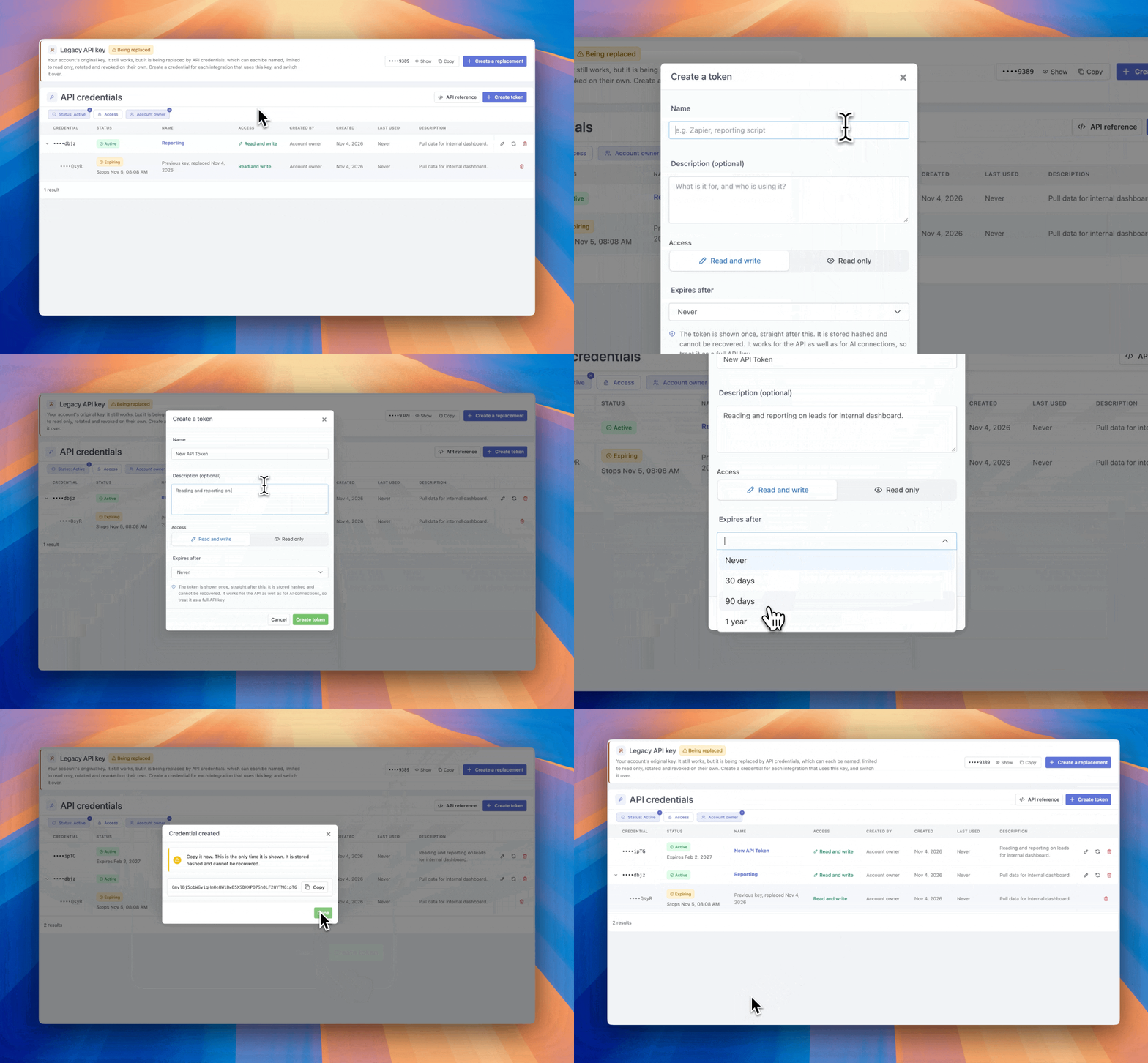
Important: The token is shown only once, right after it is created. Copy it and store it in a secure location. After that, the token is hashed and stored, and it can never be recovered.
Editing a Token
After a token is created, you can edit its Name and Details. You cannot change a token's access after it has been generated.
Rotating a Token
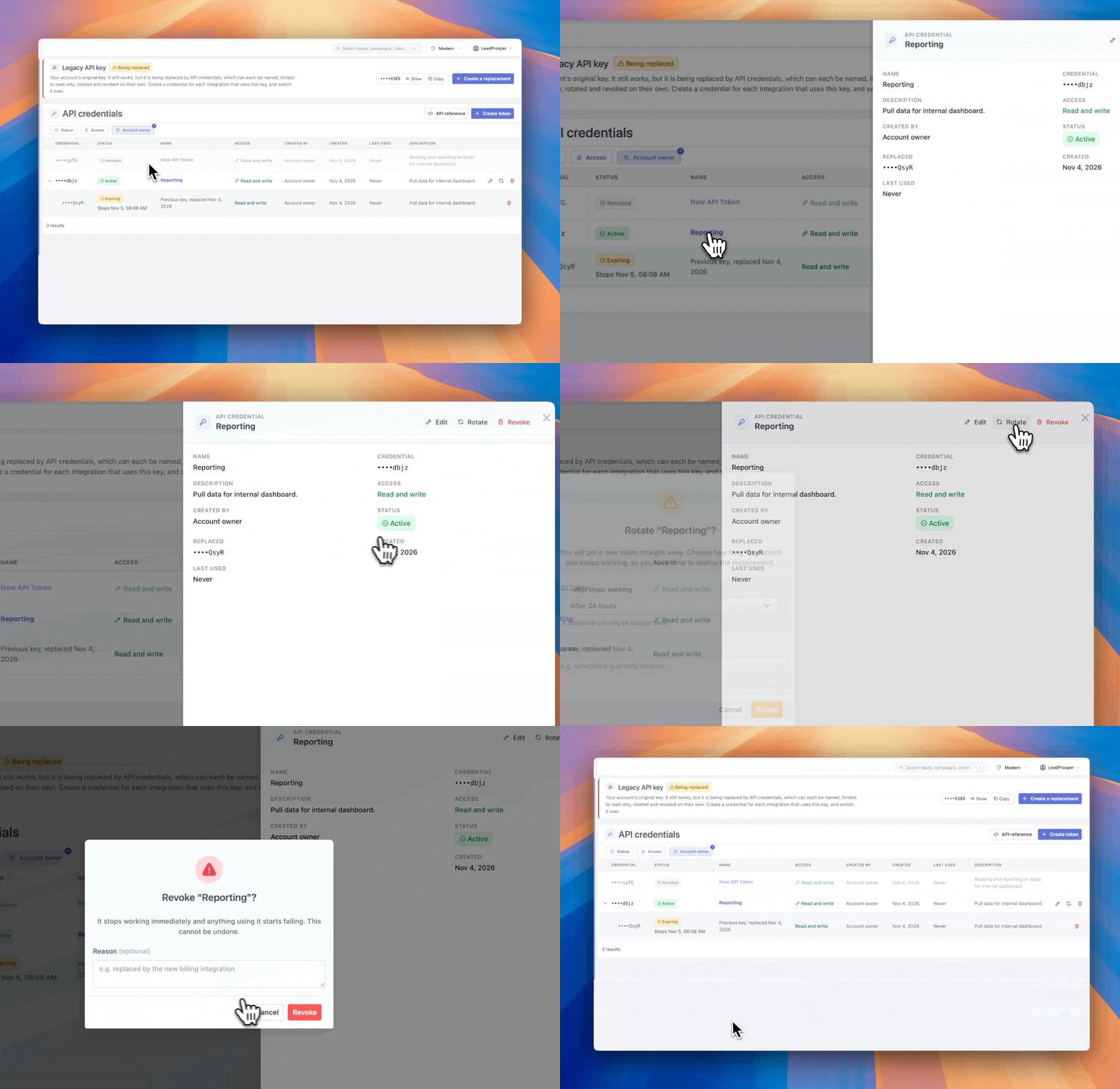
Use Rotate when you need to regenerate a token, for example if the token has expired or there has been a potential security breach and you want a new API key.

When you rotate a token:
- A new token is generated with the same permissions as the original.
- You choose when the original token will be revoked: Immediately, After 1 hour, After 24 hours, After 7 days, or After 30 days.
- You can optionally enter a Reason for the rotation, for internal reporting and organizational purposes.
Note: A token can only be rotated once. As soon as the rotation is requested, the new token is created and the original token begins the revoking process. A rotation cannot be reverted.
Viewing Token Details and History
Click a token's name on the API Credentials page to open its details. This pop-up shows when the token was created, its permissions, its rotation history, who created it, and more.
Revoking a Token
To revoke a token completely, click Revoke on the API Credentials page, or open the token's details and revoke it from there.
Revoking takes effect immediately. Anything connected to or using that token will lose access and start failing.
Important: A revoked token cannot be restored. Double-check that you are revoking the correct token before you confirm.
Filtering Your Tokens
You can filter the list of tokens on the API Credentials page in three ways:
- Status – show Active or Inactive tokens.
- Access – show tokens with Read Only or Read & Write permissions.
- Team member – show tokens based on which team member created them.
