.png)
Reviewing Your First Lead in Lead Prosper
After you've sent your first sample lead from your landing page or webhook into your new Lead Prosper campaign, the next step is to review what was actually received. This review is one of the most important steps in onboarding - it confirms every field on your form made it through correctly, helps you spot typos or formatting issues early, and gives you the foundation you need to build out your campaign fields properly the first time around.
This article walks you through how to find your first lead, review the data, and use it to configure your campaign correctly.
If you haven't sent in a test lead yet, start here: Sending A Sample Lead From Your Owned & Operated Landing Page.
Opening Your First Lead
Once your sample lead has been ingested into the campaign:
- Click Leads in the left sidebar menu.
- Locate your test lead in the list. New campaigns default to Test Mode, so any lead sent in during onboarding will be flagged as a test.
- Click the lead to open the Lead Modal.

Understanding the Additional Fields Area
In a brand new campaign with no campaign fields configured yet, all of the data you sent in will appear under the Additional Fields section of the Lead Modal.
This section was built to display any field included in the lead payload that doesn't yet have a matching campaign field. It serves two purposes:
- During onboarding: It shows you everything that came through from your form so you can build matching campaign fields.
- In live campaigns: It surfaces fields being sent that may not exist yet, helps you catch typos in field names, and makes troubleshooting easier when something doesn't map.
What to Check in Your Sample Lead
Before you start building campaign fields, walk through the data in the Additional Fields area and confirm:
- All expected fields are present. Every input on your form should appear here.
- No empty values where data should be. If a field on your form was filled out but shows up empty, something isn't being captured correctly on submission.
- Field names are spelled correctly. Watch for typos, capitalization differences, or unexpected characters in the field keys.
- Formats look right. Phone numbers, dates, states, and other formatted fields should match what you expect to receive.
If you spot any issues, fix them on your form first and send another test lead before you start building out campaign fields. It's much easier to correct a form issue now than to work around it later.
Best Practices for Building Campaign Fields
Once your data is coming through cleanly, you can start creating campaign fields based on the Additional Fields data.
1. Copy Field Names to Avoid Typos
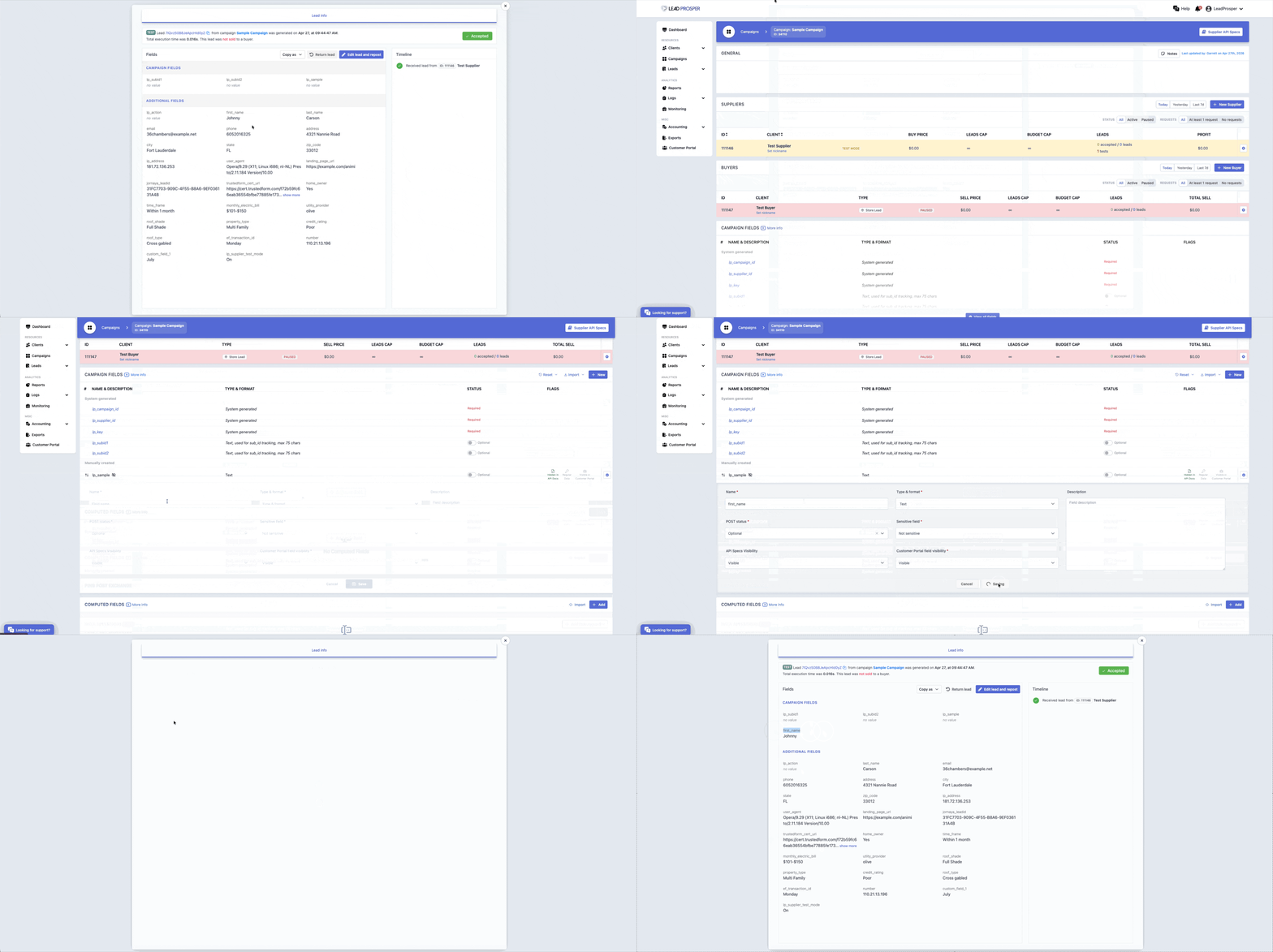
When creating a campaign field, select and copy each field name directly from the lead instead of typing it from memory. Even one mismatched character means the data won't map - the field will keep showing up under Additional Fields and the campaign field you created will sit empty.
2. Use Pre-Defined Field Types Whenever Possible
Lead Prosper has built-in field types for Phone, Email, Age, Date & Time, State, Zip, and others, each with its own validation, filters, and transformers. Avoid defaulting every field to Text. While Text is the most flexible field type, it has no built-in validation, which means you lose access to format transformers, value-based filters, and other tools that make your campaign easier to manage as it scales.
For a full breakdown, see Field Types.
3. Use Multi Value List for Multi-Select Fields
If your form collects multiple values for a single field - such as a "What services are you interested in?" question with checkboxes - use the Multi Value List field type. This enforces that incoming values match your defined list, which keeps your transformers and filters working correctly across every supplier sending into the campaign.
Watching Your Data Move in Real Time
As you create each campaign field, you can refresh the Lead Modal to see your data points move from the Additional Fields section into the Campaign Fields section.
When every campaign field is configured correctly, the Additional Fields area should be empty - every data point from your form should now live under Campaign Fields.

Final Verification Tests
Once your campaign fields are all built out:
- Send a few more test leads from your form.
- Open each one and confirm everything maps to the correct campaign fields.
- Verify there are no errors and no values landing in Additional Fields unexpectedly.
If everything looks clean, you're ready to add real Suppliers and Buyers and consider the campaign ready to go live.
Need Help?
If something doesn't look right, or you're unsure why a field is or isn't showing up, reach out to us at support@leadprosper.io and we'll take a look.