.png)
Sending A Sample Lead From Your Owned & Operated Landing Page - Onboarding
When you set up your new Lead Prosper campaign, please send a test lead from your landing page exactly the way you do now - only add the three required parameters (lp_campaign_id,lp_supplier_id ,lp_key) and point your form’s or webhook POST URL to our API endpoint. By leaving all your existing field names, formats, and values unchanged, we can capture how you’re currently sending data and replicate that setup in Lead Prosper, so you won’t have to reconfigure your form settings later. This is a crucial step in getting your campaign configured correctly.
Before You Begin: Use Standard Field Names & Formats
Before submitting your test lead, take a few minutes to align your form field names with Lead Prosper's standard field names. Doing so enables accurate analytics, smarter routing and optimization from day one, and faster support.
What to keep in mind:
- You don't need to match every field — the standard fields listed in the platform are defaults you can map now and expand later.
- Common formats for dates, phones, and states are flexible. Use your existing format as long as the values are real — do not use placeholder text.
- Preferred formats: ISO dates (
YYYY-MM-DD), 10-digit phone numbers (5551234567), two-letter state codes (CA). Other consistent, valid formats are also accepted.

How to Send Your Sample Lead
Step 1: Create a Sample Campaign
- Click Campaigns in the left sidebar.
- Click the + Create your first campaign button.
- In the modal that appears, select Create a sample campaign and enter a campaign name.
The campaign will be created with no fields and a pre-configured Test Supplier and Test Buyer.
- Click on Campaigns in the left sidebar menu and then click + Create your first campaign button
-
In the new modal that opened, select Create a sample campaign and give your campaign a name
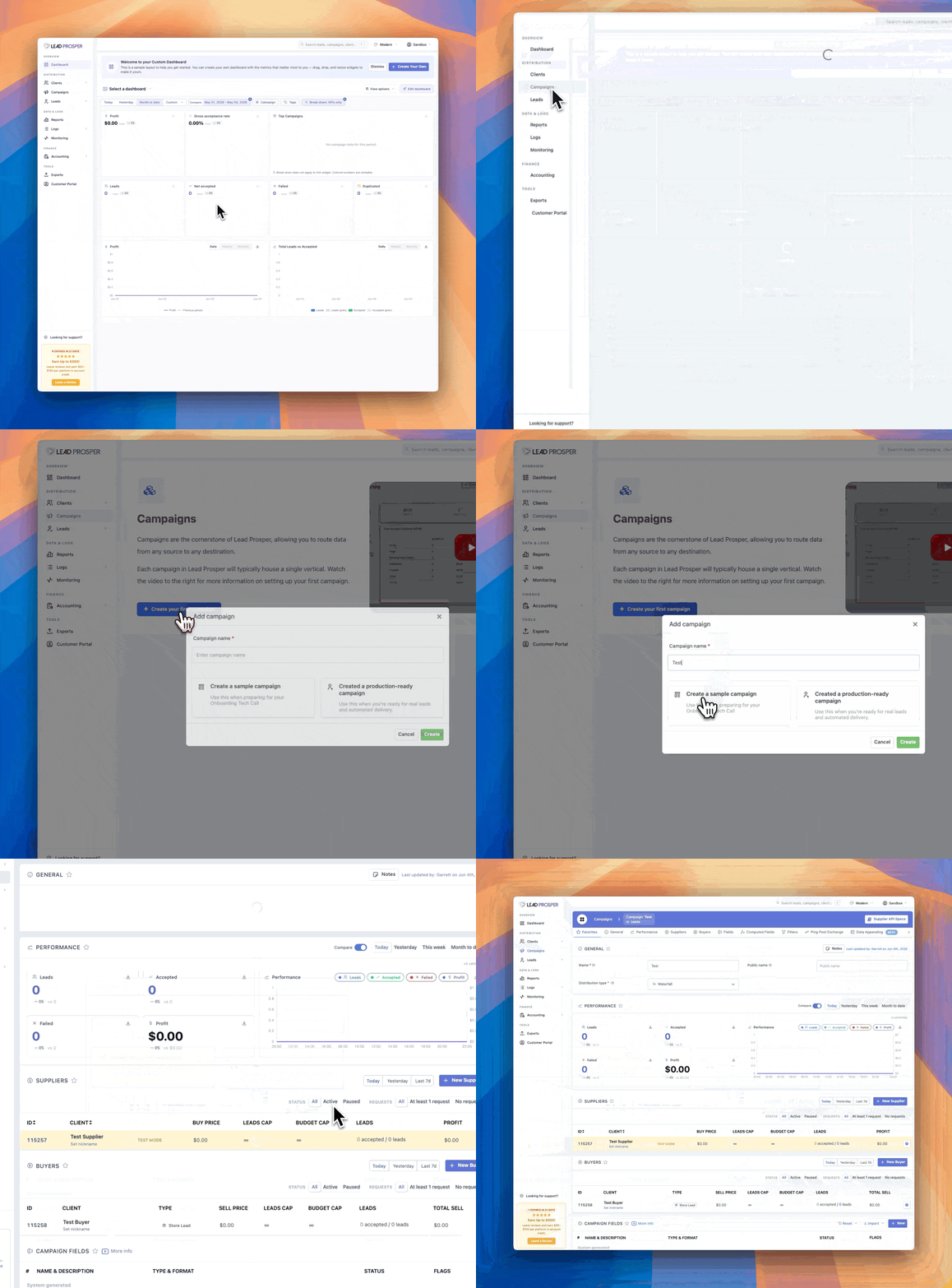
Your campaign will be created with no fields and a Test Supplier and Test Buyer.
Step 2: Open Your API Specs
- From the campaign edit view, click the Supplier API Specs button. This opens a new page with the API instructions for posting data to your campaign.
- On the Supplier API Specs page, scroll to the Ingesting Leads section.
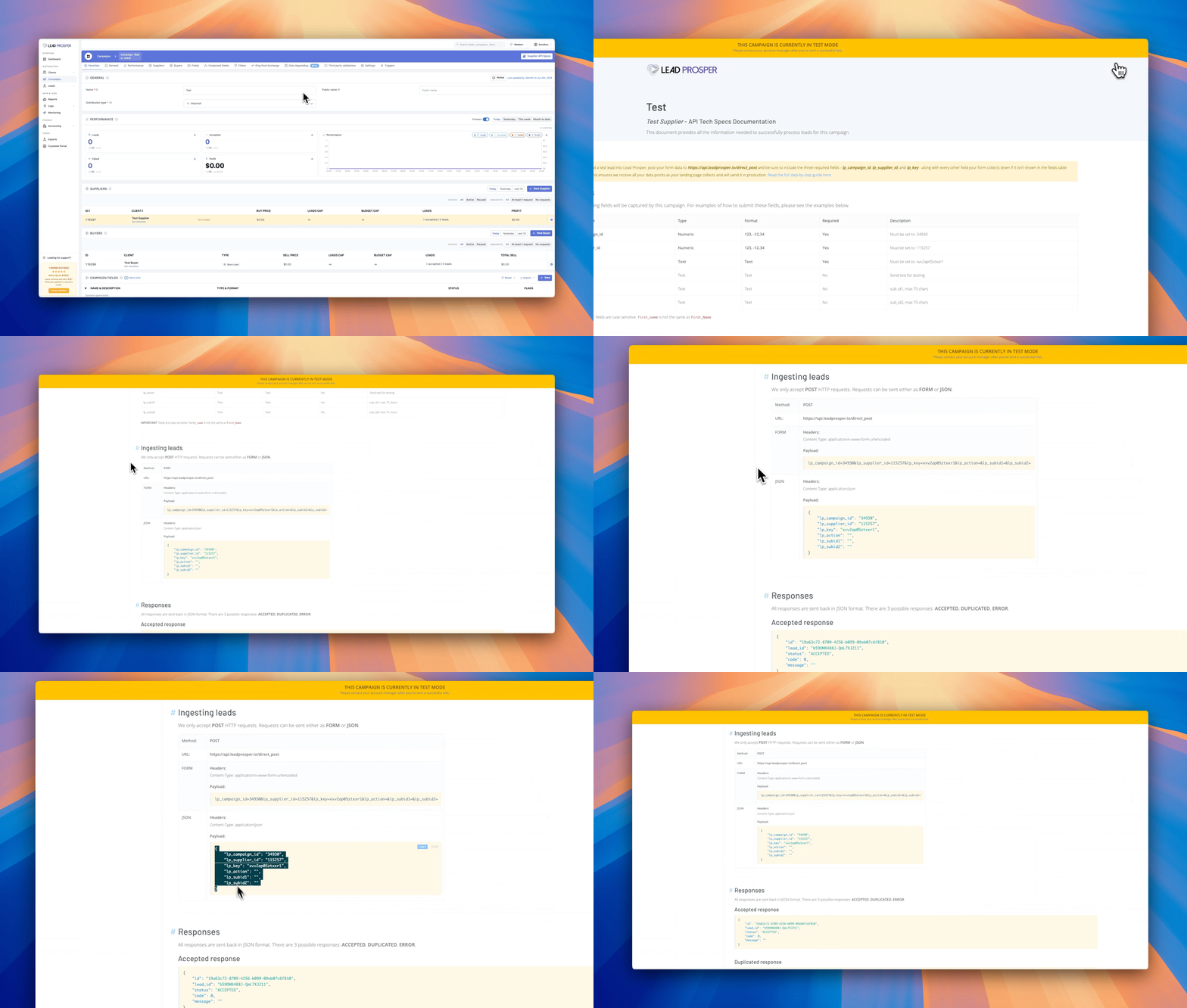
Note: The example payload on this page shows only the default Lead Prosper system fields. You should send all of your existing form fields — not just these defaults. See the steps below for how to include them.
Step 3: Choose Your Payload Type
Lead Prosper accepts POST requests only, in either of the following formats:
- FORM (
application/x-www-form-urlencoded) - JSON (
application/json)
Step 4: Add the Three Required Parameters
Every request must include the following three parameters, which you can find on your Supplier API Specs page:
lp_campaign_idlp_supplier_idlp_key
You can inject these into your existing payload in one of three ways:
Option A: Hidden Form Fields
If you cannot edit the payload directly, add three hidden inputs to your form using the values from your API Specs page.
Option B: FORM Payload
If you can edit the application/x-www-form-urlencoded body, copy the first three key–value pairs from the example FORM payload and append them to your existing payload.
Example of Your Original Payload

Updated Example Payload w/ LP fields

Option C: JSON Payload
If you can edit the JSON body, copy the first three lines (the required keys) from the example JSON payload and insert them at the top of your JSON object.
Example of Your Original Payload

Updated Example Payload w/ LP fields

Step 5: Update Your Endpoint
In your form or landing page settings, replace the existing POST URL with:
https://api.leadprosper.io/direct_post
Step 6: Save and Submit
- Save your form or webhook configuration.
- Open your form, fill it out with real (non-placeholder) values, and submit it exactly as you normally would — now including the three required LP parameters.
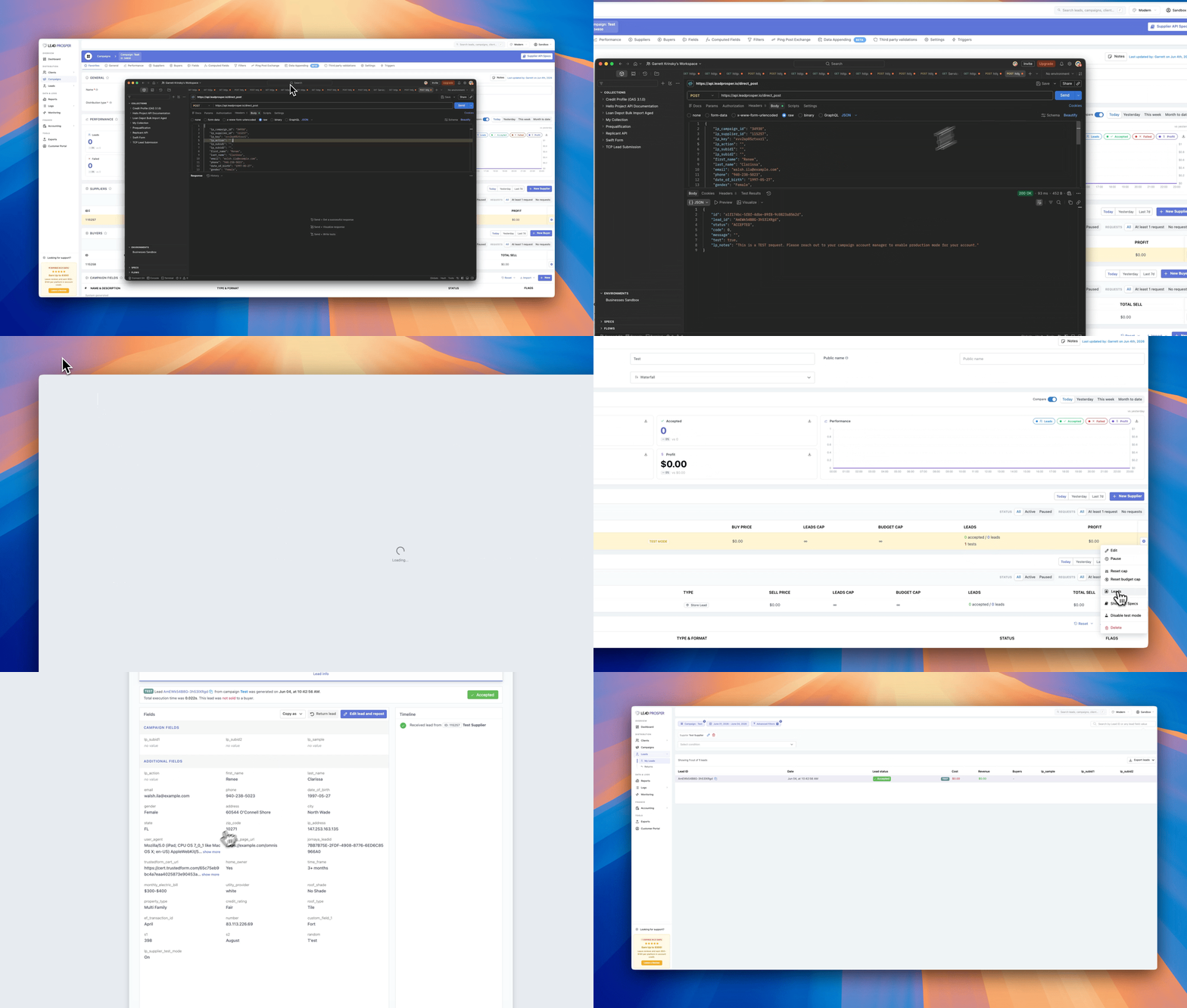
Once your test lead is received, open the lead's detail view in your Lead Prosper campaign and check the Additional Fields section. You'll see every field name, value, and format you submitted. This data allows the Lead Prosper team to replicate your existing setup and finalize your campaign field configuration — so you won't need to reconfigure your form later.