.png)
How to Search, View and Filter Your Leads in Lead Prosper
The My Leads area in Lead Prosper is where you search, filter, and review every lead that has come into your campaigns. From here you can break down lead performance by campaign, date range, status, Buyer, Supplier, field values, and more — giving you everything you need to troubleshoot configuration issues, review Buyer responses, and optimize your campaigns.
Navigating to the Leads Area
Go to Leads in the left-hand menu. From here you can search for leads by Campaign, timeframe, Lead ID, or field value.
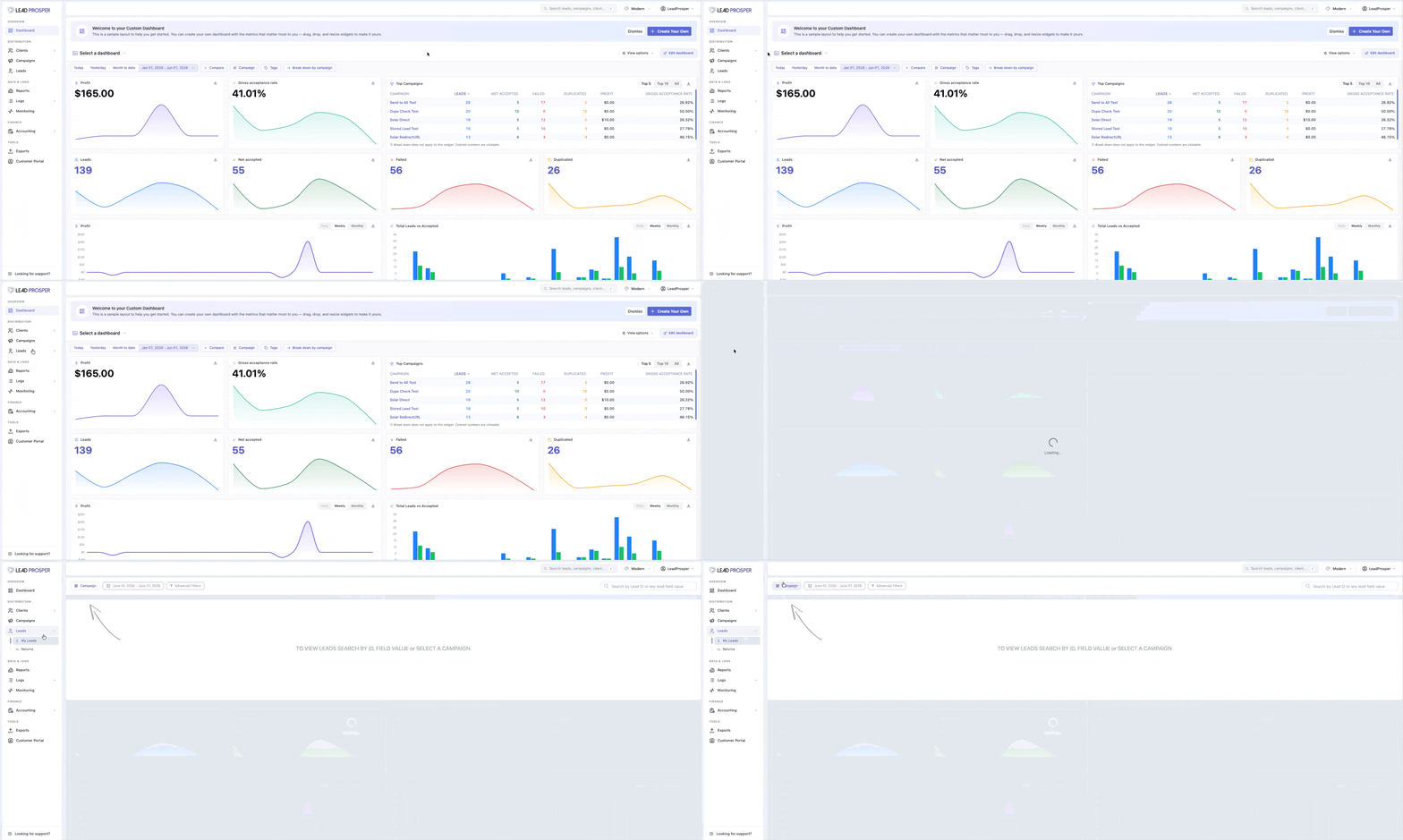
Selecting a Campaign and Date Range
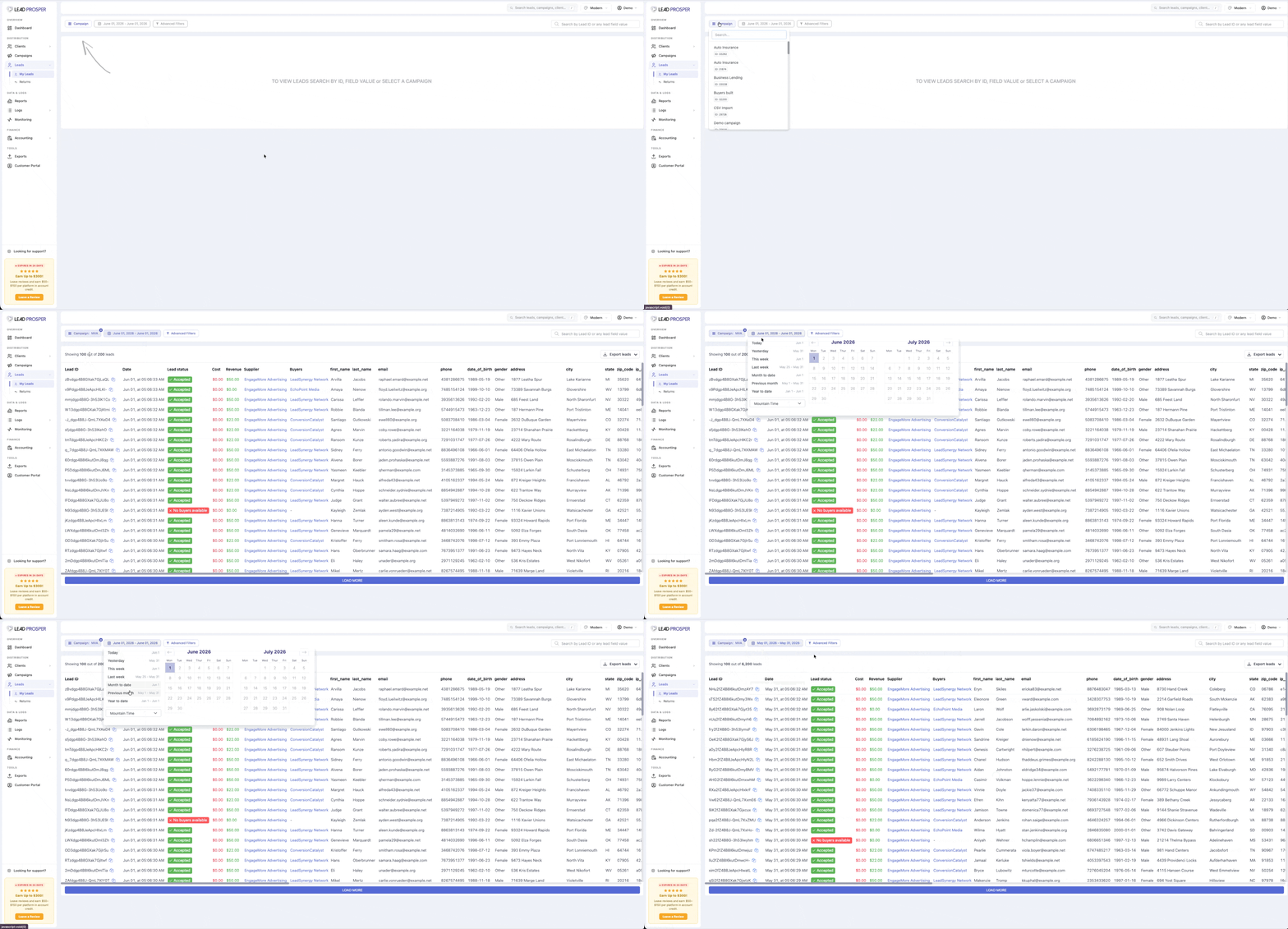
Select the Campaign you want to review. The default time frame is Current Month, so all leads for the current month will be displayed. If the list comes back empty, no leads exist for that default time frame — adjust the date range as needed.
Click the date range selector to choose from the following pre-defined options:
- Today
- Yesterday
- This Week
- Last Week
- Month to Date
- Previous Month
- Year to Date
You can also select a Custom Date Range using the calendar tool. If you need results returned in a timezone other than the default value set in your Account Settings, you can adjust the timezone directly from this view.
Understanding the Lead List Columns
Once leads are displayed, the following columns are available:
- Lead ID — the
lp_lead_idvalue - Date — the date and time the lead was processed
- Lead Status — the overall status of the lead
- Cost — the price the lead was purchased from the Supplier for
- Revenue — the price the lead was sold to the Buyer for
- Supplier — the Supplier who sent the lead
- Buyer(s) — the Buyer(s) involved in the lead
- Campaign field values — the field values specific to that campaign
Advanced Filters
Advanced Filters let you run more granular lead reports. You can combine multiple Advanced Filters to narrow results to the exact set of leads matching your criteria.
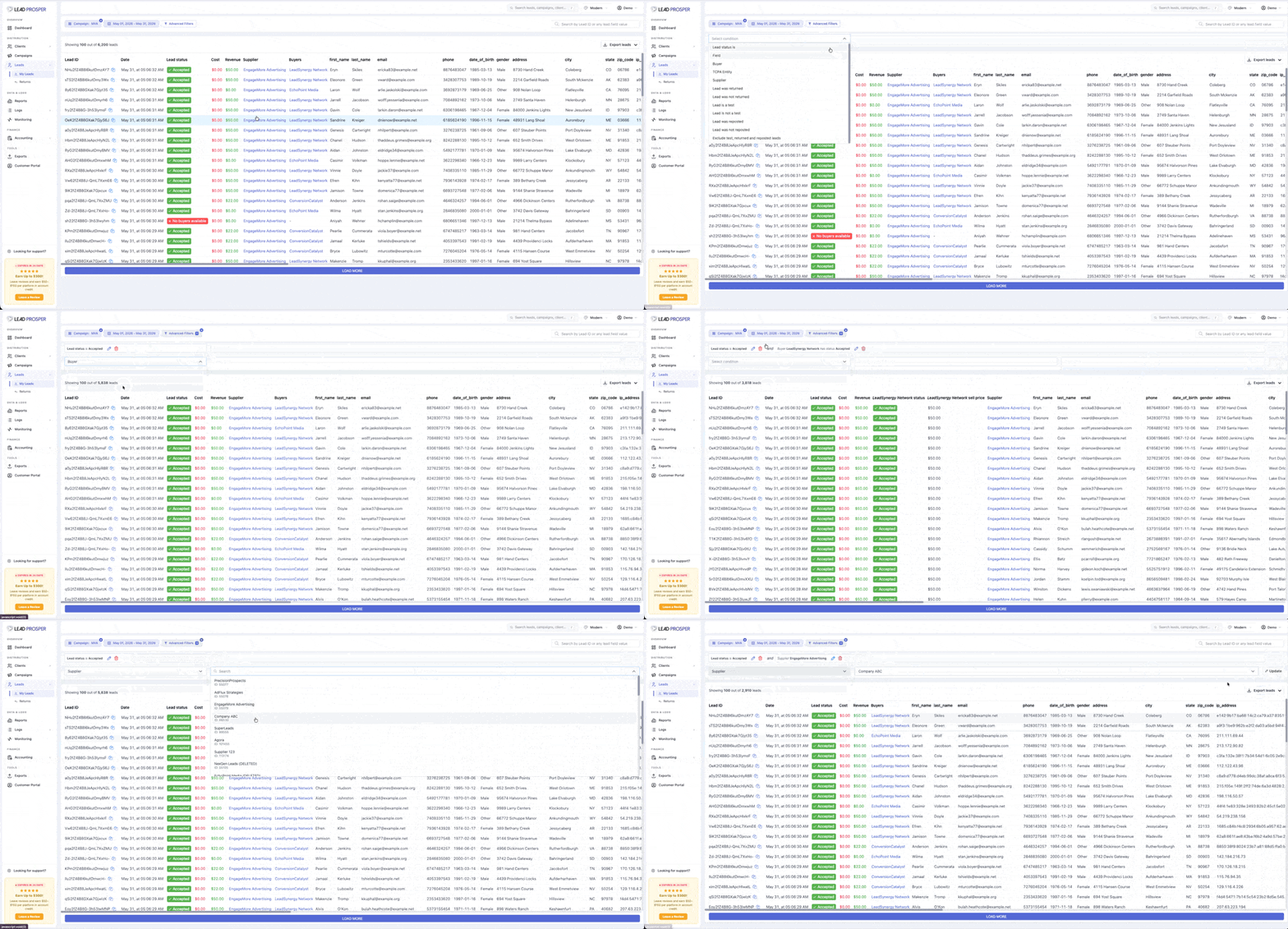
Lead Status
Filter leads by their overall status:
- Accepted — leads that were successfully sold.
- Duplicated — leads flagged as duplicates.
- Error — leads that failed for any reason. Selecting Error unlocks additional Error Group breakdowns:
- Not Sold - Any Error — catch-all for any leads that failed due to any error reason.
- Invalid Supplier Data — leads that came in with invalid Supplier data. Includes Missing Required Field, Improperly Formatted Data, and Invalid Values.
- External Validations — leads that failed due to a third-party integration.
- Supplier Cap Reached — leads rejected because a Supplier cap was reached.
- Available Buyers - Cap Reached — leads rejected because all available/eligible Buyers are paused due to caps.
- Invalid Day/Time — leads rejected due to a Day/Time Parting filter.
- Rejected By Filter(s) — leads rejected due to any filters.
- Not Sold - Buyer Related Errors Only — leads that failed due to Buyer-related errors when an attempt was made to distribute the lead to a Buyer. This covers any leads where a Buyer returned any response other than the Accepted response mapping.
Field
Select any or all Campaign Fields and search by value using the following conditions:
- Matches exactly
- Starts with
- Ends with
- Has no value
Buyer
Select any of the Buyers in your campaign, then break down by the following statuses:
- Any Status — all leads related to that Buyer, regardless of status.
- Accepted — all leads that were Accepted by that Buyer.
- Duplicated — all leads flagged as a duplicate by that Buyer.
- Error — all leads that were rejected for whatever reason by that Buyer. Selecting Error unlocks additional Error Group breakdowns:
- Any Status — the lead failed to sell to the Buyer for any reason.
- Buyer Not Eligible — leads where the Buyer was not eligible for the lead. This can be due to filters, caps, validations, or anything else that would prevent the Buyer from receiving that particular lead.
- Real Time Errors — leads where the Buyer was eligible and the lead attempted to be sold to them, but the Buyer returned any response other than the Accepted response mapping. These could range from the lead being unmatched on the Buyer's end to the Buyer rejecting it due to a misconfiguration. Review these errors to confirm whether a misconfiguration needs to be fixed.
- Ping Errors — leads where a PING was sent to the Buyer but failed for any reason.
- Ping Conditions (Not Met) — leads where a PING was sent to the Buyer but the POST was never sent because PING conditions on that Buyer were not met. For example, a PING is sent and the Buyer returns a bid price of $2.00, but the Buyer has a PING condition rule requiring the real-time price/bid returned to be greater than $4.00.
- Pinged — all leads that were Pinged to the Buyer (applicable to Ping Post Buyers).
- Outbid — all leads that were Pinged and Accepted by the Buyer, but were not sold to the Buyer because the Buyer was outbid.
Supplier
Filter leads based on the Supplier who sent them.
Additional Filters
- Lead was returned — returns only leads that have been returned by the Buyer who purchased them.
- Lead was not returned — returns only leads that have NOT been returned by the Buyer.
- Lead is a test — returns only leads that were ingested as test leads.
- Lead is not a test — returns only leads that are not test leads.
- Lead was reposted — returns only leads that were reposts.
- Lead was not reposted — returns only leads that are not reposts.
- Exclude test, returned, and reposted leads — returns all leads except test, returned, and reposted leads.
Exporting Leads
Once you have filtered and displayed the leads you need, you can run an Export to create a CSV or XLS file for more extensive reporting. The export includes:
- All campaign fields and their values
- Lead ID
- Date
- Status
- Cost
- Revenue
- Supplier
- Supplier ID
- Supplier Client Name
- Supplier Client ID
- Buyer
- Buyer ID
- Buyer Client ID
- Returned Status
- Returned Reason (if available)
- Test
- Repost
- Delayed Lead
- Validation Error Provider
- Validation Error Description
lp_campaign_idlp_supplier_idlp_keyassociated with the lead Supplier
Searching by Lead ID or Field Value
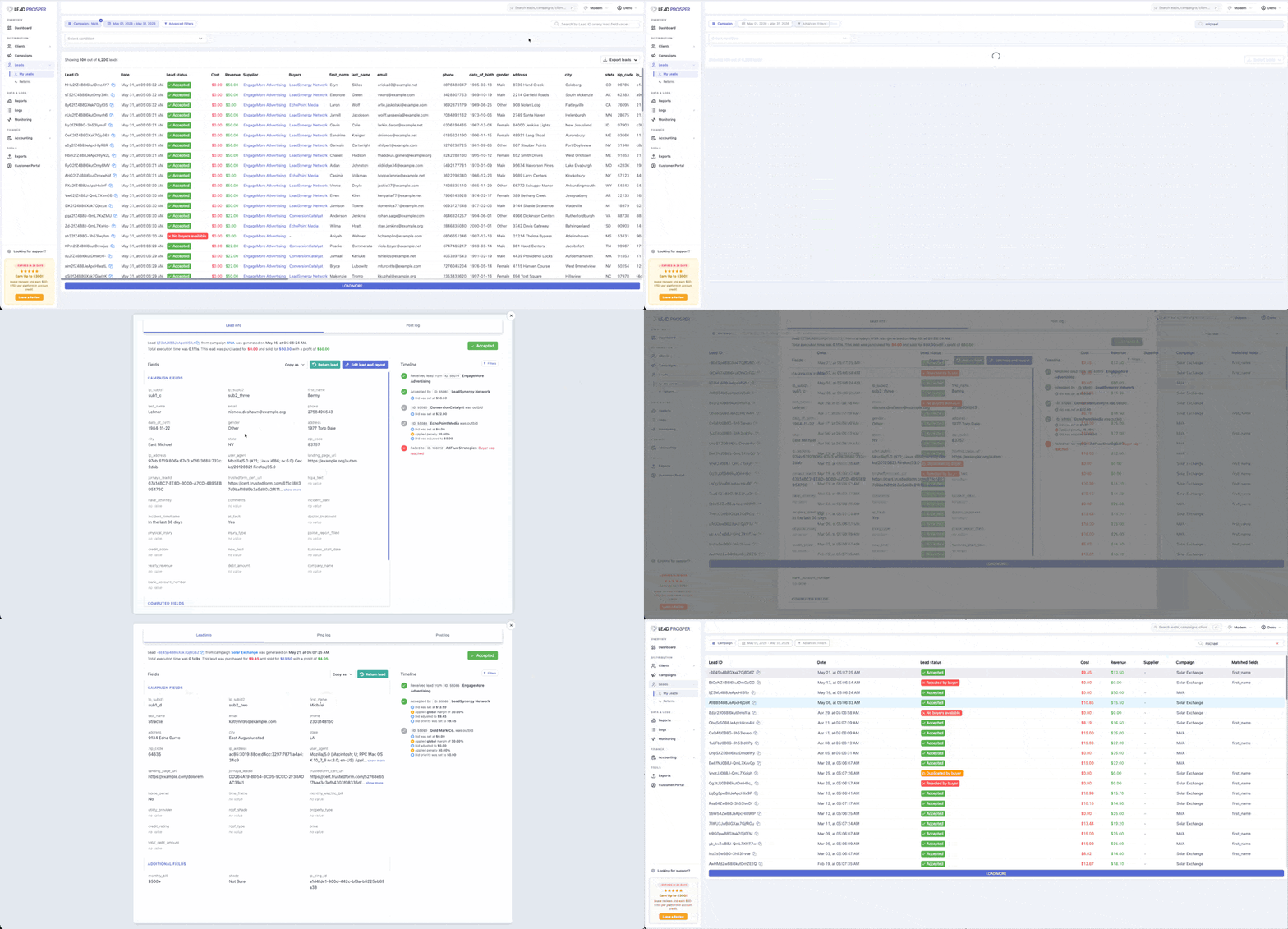
One often-overlooked feature is the ability to search for leads by the actual Lead ID / lp_lead_id value, or by any single field value associated with the lead. When you search by a field value, the system searches all campaign fields and looks for that value across all of them.
The search results return a list with the following columns: Lead ID, Date, Lead Status, Cost, Revenue, Supplier, Campaign, and Matched Fields.
Matched Fields will list the actual field name if it finds an exact match. For example, if you search for "Michael" and a field contains that exact value, the field name will appear under Matched Fields. If the match is partial — such as a city field containing "West Michael" — the lead will still appear in the search results, but the field name will not be listed under Matched Fields.
From the search results, click on any lead to open the lead modal and review the full lead details.
The My Leads area gives you multiple ways to find exactly what you're looking for. You can filter an entire campaign's leads by date range, status, Buyer, Supplier, and field values using Advanced Filters — combining as many as needed to zero in on a specific set of leads. You can search globally by Lead ID or any field value to quickly locate individual leads across all campaigns. And once you've found what you need, the Export feature lets you pull everything into a CSV or XLS file for deeper analysis. Whether you're reviewing Buyer responses, diagnosing why leads aren't selling, tracking returns, or building performance reports, the My Leads area is your central hub for understanding and optimizing lead flow. If you have any questions about searching, filtering, or anything else in Lead Prosper, don't hesitate to reach out to our support team — we're here to help.