.png)
Campaign Fields Explained - The Smart Way to Control Data Quality from Ingestion to Delivery
Campaign Field Types
Every field in a Lead Prosper campaign has a type that controls what values the field accepts, which filters are available, and which payload transformers can be applied. Choosing the right field type enforces data quality at the point of ingestion and unlocks more powerful filtering and transformation options downstream.
This article covers each field type, its accepted formats, available filters, and relevant transformers.
Types of Campaign Fields:
Adding New Campaign Fields
You can add Campaign Fields one at a time, or create multiple fields at once in bulk.
- Go to Campaign Settings.
- Choose one of the following ways to start a new field:
- At the top of the Campaign Fields section, select New.
- To add a field in a specific spot within your existing Campaign Fields list, navigate to that spot and select the + button.
- At the bottom of the Campaign Fields list, select Add Fields.
Adding a Single Field
- Enter a name for the field.
- Select the field's Type & Format.
- Add a description (optional).
- Set Status to Required or Optional.
- Set optional rules for Sensitive Data, API Specs Visibility, and Customer Portal visibility (if available).
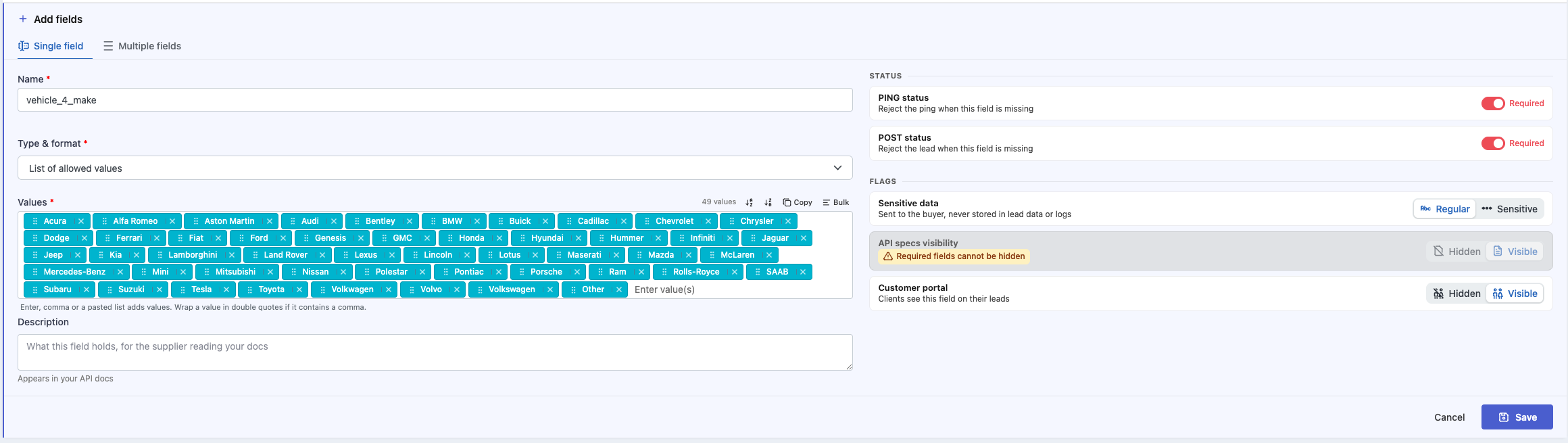
Adding Multiple Fields in Bulk
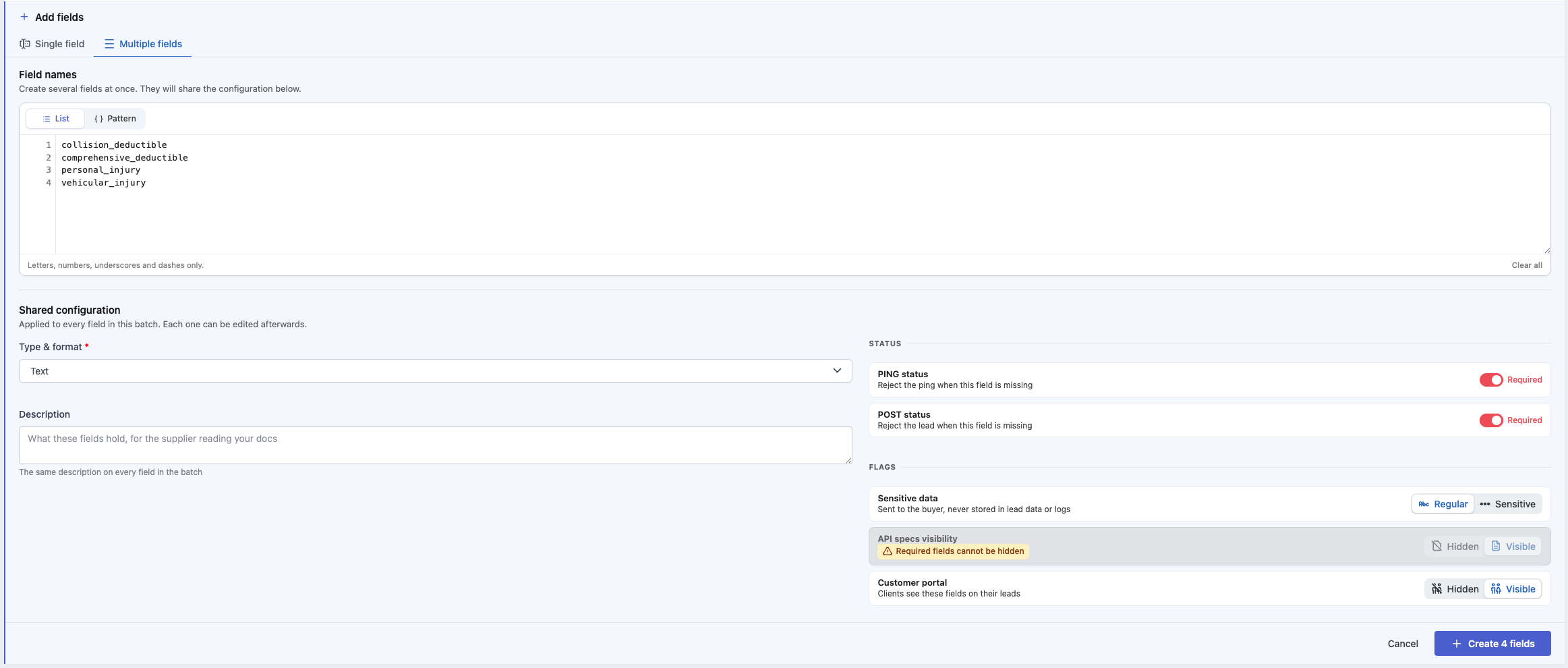
When creating multiple campaign fields at once, you have two options for naming the new fields: List or Pattern.
List
Add each new field name on its own line, entered as a list.
Pattern
Create multiple fields in succession based on sequential numbers.
- Use
{n}as a placeholder for the number in the field name. - Set the numeric range using the From and To fields.
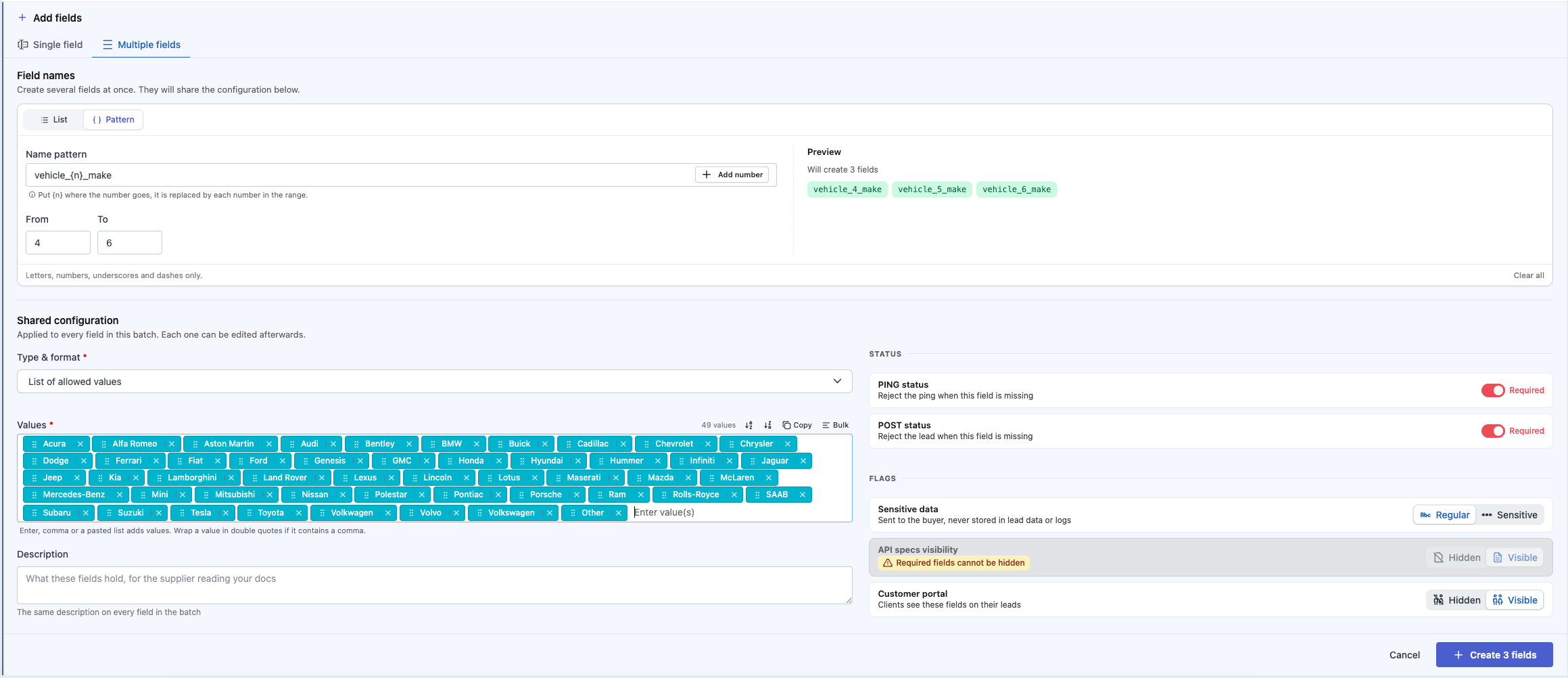
For example, to create three new vehicle_X_make fields:
- In the Name pattern field, enter
vehicle_{n}_make. - Set From to
1and To to3.
This creates three fields:
vehicle_1_makevehicle_2_makevehicle_3_make
Shared Configuration
Bulk-created fields share a single set of configuration options, applied to every field in the batch:
- Select the Type & Format.
- Add a description (optional).
- Set Status to Required or Optional.
- Set optional rules for Sensitive Data, API Specs Visibility, and Customer Portal visibility (if available).
Types of Campaign Fields
Text Fields
Text fields accept any string of characters — letters, numbers, special characters, or any combination. They are the most flexible field type and impose no formatting restrictions on incoming values.
The tradeoff for that flexibility is reduced reliability when using filters and transformers. Because a text field allows any value, there is no guarantee that the incoming data will match the exact or partial values your filters and transformers expect. A typo, extra space, or unexpected format in the value can cause a filter or transformer to fail silently.
You can still apply filters and transformers to text fields, but keep in mind that any value not matching an exact or partial match condition may cause the filter or transformer to not run.
Filters
Each filter below can be set to either Allow (only matching leads pass through) or Block (matching leads are rejected).
| Filter | Description |
| equals one of these values | Matches against an exact list of values. |
| partial match (regexp) | Uses a regular expression to search for a pattern within the value. |
List of Allowed Values
List of Allowed Values fields let you define the specific values that a field will accept. If a lead comes in with a value that does not match one of the allowed values, it is immediately rejected.
This field type provides several advantages:
- Guarantees that ingested values match exactly what you have defined.
- Ensures that filters and transformers on this field work 100% of the time, since the possible values are known and controlled.
- Simplifies filter setup — you pick one or more values from your predefined list rather than typing them manually.
- Increases the effectiveness of payload transformers in Computed Fields by guaranteeing the exact values that will be sent, which is especially useful with transformers like
if_elseandmerge_fields.
Filters
Each filter below can be set to either Allow (only matching leads pass through) or Block (matching leads are rejected).
| Filter | Description |
|---|---|
| equal to one of the allowed values in the list | Single value filter. |
| one of the allowed values in the list | Multiple value filter. |
Commonly Used Transformers
The transformers listed below are the most commonly used with List of Allowed Value fields, but any transformer can be applied to any field type through a Computed Field. For the full list of available transformers, see the Payload Field Transformers article.
| Transformer | Description |
|---|---|
if_else |
Converts a date to an age number, with optional decimal settings. |
merge_fields |
Reformats a date string to any predefined format, or lets you pick individual components (day, month, year, hour, minute, etc.) to custom-build the output. |
Email fields enforce that incoming values are properly formatted email addresses. Any value that does not conform to a valid email format will be rejected at the point of ingestion, preventing malformed or junk data from entering your campaign.
Beyond basic format validation, Email fields unlock filtering options that go well beyond what a standard text field can offer. You can filter by exact email match, by md5 hash (useful when working with hashed suppression lists), or by domain — allowing you to block or allow entire groups of email addresses based on the domain name alone. This makes Email fields particularly effective for managing suppression lists, blocking disposable email providers, or restricting leads to specific corporate domains.
Filters
Each filter below can be set to either Allow (only matching leads pass through) or Block (matching leads are rejected).
| Filter | Description |
|---|---|
| Allow or Block – equals one of these values | Matches against an exact list of email addresses. |
| Allow or Block – md5 | Matches against an exact list of md5 values. The md5 hash is calculated on the fly from the original email address. |
| Allow or Block – domains list | Filters all email addresses associated with the domain(s) added to the list. |
| Allow or Block – partial match (regexp) | Uses a regular expression to match against the email value. |
Phone
Phone fields enforce a specific phone number format for all phone numbers ingested into the campaign. When you set a field to Phone, any incoming value that does not match the selected format will be rejected, ensuring that every phone number stored in your campaign is clean and consistent from the start.
This consistency is especially valuable when distributing leads to multiple buyers, since different buyers often require different phone number formats. Rather than relying on suppliers to send the exact format each buyer needs, you can collect phone numbers in a single standardized format and then use a Computed Field with the phone transformer to convert them to whatever format a specific buyer requires — whether that's a 10-digit number, a US-formatted number with parentheses, or an international E.164 format. You can select from the extensive list of predefined formats or use the builder to construct a custom formatted phone number.
When configuring the field, you select from the following predefined formats:
| Example | Format |
|---|---|
6503271100 |
Plain 10 digits |
650-327-1100 |
10 digits with hyphens |
(650) 327-1100 |
US formatted |
1 (650) 327-1100 |
US formatted, with country code |
+1 650-327-1100 |
US, 10 digits with hyphens and country code |
+496912345678 |
International E.164 format (must start with country code) |
6912345678 |
National format, without country code (any number of digits) |
16503271100 |
1 digit country code, 10 digits for number |
+16503271100 |
Leading plus sign, 1 digit country code, 10 digits number |
446503271100 |
2 digit country code, 10 digits number |
+446503271100 |
Leading plus sign, 2 digit country code, 10 digits number |
+34650327110 |
Leading plus sign, 2 digit country code, 9 digits number |
+594650327110 |
Leading plus sign, 3 digit country code, 9 digits number |
07911123456 |
11 digits number |
When a field is set to Phone, you can use a Computed Field with the phone transformer to convert the phone number from your collection format into virtually any other format.
Filters
Each filter below can be set to either Allow (only matching leads pass through) or Block (matching leads are rejected).
| Filter | Description |
|---|---|
| equals one of these values | Matches against an exact list of phone numbers. |
| partial match (regexp) | Uses a regular expression to match against the phone value. |
Commonly Used Transformers
The transformers listed below are the most commonly used with Phone fields, but any transformer can be applied to any field type through a Computed Field. For the full list of available transformers, see the Payload Field Transformers article.
When a field is set to Phone, you can use a Computed Field with the phone transformer to convert the phone number from your collection format into virtually any other format.
| Transformer | Description |
|---|---|
phone |
Converts a phone number from your collection format into virtually any other format. Select from the extensive list of predefined formats or use the builder to construct a custom formatted phone number to match your buyer's requirements. |
State
State fields provide predefined lists of allowed state/province values for the United States, Canada, and Australia. Rather than using a generic text field where suppliers might send inconsistent values like “Calif”, “california”, or “Cali”, the State field type restricts input to the exact abbreviations defined in the list — guaranteeing uniformity across every lead.
This controlled input makes State fields ideal for geographic filtering and routing. You can filter leads by specific states directly from the predefined list without worrying about typos or formatting mismatches breaking your rules. And when your buyers need the full state name instead of the abbreviation, you can use the us_state transformer within a Computed Field to automatically convert values like CA to California .
| Country | Format | Examples |
|---|---|---|
| United States | 2-letter abbreviation | CA , NY |
| Canada | 2-letter abbreviation | ON , QC |
| Australia | State abbreviation | NSW , SA |
Filters
Each filter below can be set to either Allow (only matching leads pass through) or Block (matching leads are rejected).
| Filter | Description |
|---|---|
| equals one of these values | Select a Country (United States, Canada, or Australia) and then enter the States you want to filter. The states display as full names but the filter runs against the 2-letter or 3-letter abbreviation. |
Postal Code
Postal Code fields enforce postal/zip code formats based on popular formats from around the world. When you select a Postal Code format, any incoming value that does not match the expected pattern will be rejected — preventing truncated zip codes, letters in numeric-only formats, or other malformed entries from making it into your campaign.
This is particularly important for geographic targeting and buyer routing. Clean, consistently formatted postal codes ensure that any downstream filters or lookups based on location work reliably. Whether you are collecting 5-digit US zip codes, Canadian alphanumeric postal codes, or UK postcodes, the Postal Code field type keeps the data standardized so your filters and distribution rules can depend on it.
| Example | Format |
|---|---|
78124 |
5 digit US standard zip code |
78124-4256 |
5 digits + 4 digits US zip code |
K1G 0E9 , K1G0E9 |
6 character Canadian postal code (with or without space) |
W9 3PT , KA7 1HR , LL47 6YW |
UK postal codes (with or without space) |
2000 |
4 digit postal code |
Filters
Each filter below can be set to either Allow (only matching leads pass through) or Block (matching leads are rejected).
| Filter | Description |
|---|---|
| equals one of these values | Matches against an exact list of postal/zip codes. |
| partial match (regexp) | Uses a regular expression to match against the postal code value. |
Date & Time
Date & Time fields are among the most powerful campaign fields due to the filtering and transformer capabilities they unlock. By enforcing a specific date format at the point of ingestion, you guarantee that every date value entering your campaign is structured and parseable — which is what makes the advanced filtering and transformation features possible.
The filtering options alone set Date & Time fields apart. You can filter leads by calculated age (useful for age-gating in verticals like insurance or finance), by exact date comparisons, or by date ranges. These filters run automatically against every incoming lead using the enforced format, so there is no risk of a misformated date causing a filter to silently fail.
Where Date & Time fields really shine is in their transformer capabilities. Through Computed Fields, you can convert dates to ages, reformat dates to match any buyer's required format, add or subtract time intervals, calculate the difference between dates, and convert timezones — all without any manual intervention. You can even chain multiple transformers together to convert vague text values like “Less than 6 months” into actual calculated dates.
Predefined Formats
| Example | Format |
|---|---|
2015-07-21 |
YYYY-mm-dd |
2015/07/21 |
YYYY/mm/dd |
07-21-2015 |
mm-dd-YYYY |
07/21/2015 |
mm/dd/YYYY |
21-07-2015 |
dd-mm-YYYY |
21/07/2015 |
dd/mm/YYYY |
2015-07-21 20:45:11 |
YYYY-mm-dd HH:mm:ss |
2015-07-21 09:45:11 PM |
YYYY-mm-dd HH:mm:ss A |
2004-02-12T15:19:21.021Z |
YYYY-mm-dd HH:mm:ss with milliseconds |
10/22/2010 01:10:35 |
mm/dd/YYYY HH:mm:ss |
22/10/2010 01:10:35 |
dd/mm/YYYY HH:mm:ss |
07/2000 |
mm/YYYY |
| 01 to 31 | Day of the month (leading 0) |
| Monday, Sunday | Full day name |
| Mon, Sun | Short day name |
| 01 to 12 | Numerical month (leading 0) |
| January, December | Full month name |
| Jan, Dec | Short month name |
| 2000 | 4 digit year |
Filters
Each filter below can be set to either Allow (only matching leads pass through) or Block (matching leads are rejected).
| Filter | Description |
|---|---|
| age greater than | Calculates the age in years from the date and checks if it is greater than the value entered. |
| age less than | Calculates the age in years from the date and checks if it is less than the value entered. |
| age equal to | Calculates the age in years from the date and checks if it equals the value entered. |
| age not equal to | Calculates the age in years from the date and checks if it does not equal the value entered. |
| age greater than or equal to | Calculates the age in years from the date and checks if it is greater than or equal to the value entered. |
| age less than or equal to | Calculates the age in years from the date and checks if it is less than or equal to the value entered. |
| age between | Calculates the age in years from the date and checks if it falls between the first value and the second value. |
| date greater than | Filters any date that is after the date value entered. |
| date less than | Filters any date that is before the date value entered. |
| date equal to | Filters any date that equals the exact date entered. |
| date not equal to | Filters any date that does not equal the date entered. |
| date greater than or equal to | Filters any date that is on or after the date value entered. |
| date less than or equal to | Filters any date that is on or before the date value entered. |
| date between | Filters any date that falls between the first date value and the last date value entered. |
If you are blocking specific dates of the year, see the Block Dates Filter.
Commonly Used Transformers
The transformers listed below are the most commonly used with Date & Time fields, but any transformer can be applied to any field type through a Computed Field. For the full list of available transformers, see the Payload Field Transformers article.
Date & Time fields have a number of dedicated transformers:
| Transformer | Description |
|---|---|
age |
Converts a date to an age number, with optional decimal settings. |
date |
Reformats a date string to any predefined format, or lets you pick individual components (day, month, year, hour, minute, etc.) to custom-build the output. |
date_add |
Increases the date by a specified interval — year(s), month(s), week(s), day(s), hour(s), minute(s), and/or second(s). |
date_diff |
Calculates the difference between today's date and the field value, measured in days, months, or years. |
date_sub |
Decreases the date by a specified interval — year(s), month(s), week(s), day(s), hour(s), minute(s), and/or second(s). |
timezone |
Converts the date + time value to a specified timezone. |
You can also combine these transformers to convert text values into dates. For example, using if_else to map a text value like “Less than 6 months” to a relative string like “6 months ago”, then chaining the date transformer to produce an actual date. For a full walkthrough, see the Payload Field Transformers article.
Numeric
Numeric fields accept only valid numeric values — integers, decimals, positive or negative. This field type strictly enforces that the value cannot contain any letters or special characters, which means values like $100,000 or 75k will be rejected at ingestion. Only clean numeric data makes it through.
That strict enforcement pays off in two ways. First, it enables numeric-specific filters that would be impossible on a text field — you can filter by greater than, less than, between, equal to, and more, all evaluated as actual numbers rather than string comparisons. Second, it unlocks a full suite of math transformers through Computed Fields. You can add, subtract, multiply, divide, round up or down, calculate remainders, and set conditional value mappings based on numeric ranges — all of which depend on the incoming value being a verified number.
Filters
Each filter below can be set to either Allow (only matching leads pass through) or Block (matching leads are rejected).
| Filter | Description |
|---|---|
| greater than | Checks if the value is greater than the filter value. |
| less than | Checks if the value is less than the filter value. |
| equal to | Checks if the value is exactly equal to the filter value. |
| not equal to | Checks if the value is anything other than the filter value. |
| greater than or equal to | Checks if the value is greater than or equal to the filter value. |
| less than or equal to | Checks if the value is less than or equal to the filter value. |
| between | Checks if the value falls between the first value and the second value. |
| one of | Checks if the value matches one of the multiple filter values entered. |
Commonly Used Transformers
The transformers listed below are the most commonly used with Numeric fields, but any transformer can be applied to any field type through a Computed Field. For the full list of available transformers, see the Payload Field Transformers article.
Several transformers are particularly useful with numeric fields:
| Transformer | Description |
|---|---|
if_else_between |
Sets numerical ranges and applies conditional mapping to convert numbers within those ranges to a replacement value. |
math_add |
Adds a value to the existing number. |
math_ceil |
Rounds any numeric value up to the nearest whole number. |
math_divide |
Divides the numeric value by a set number. |
math_floor |
Rounds any numeric value down to the nearest whole number. |
math_modulo |
Calculates the remainder when the field value is divided by the given argument. Useful for converting height or months. |
math_multiply |
Multiplies the numeric value by a set number. |
math_sub |
Subtracts a set value from the numeric value. |
IP Address
IP Address fields validate that the incoming value is a properly formatted IP address, accepting both IPv4 and IPv6 formats. Any value that does not conform to one of these two formats will be rejected.
IP Address fields are commonly used for fraud detection and traffic quality controls. By ensuring the value is always a valid IP address, you can reliably filter against known bad IPs using exact match lists or use regular expressions to block entire IP ranges or subnets. This is especially useful for blocking known bot traffic, duplicate submissions from the same source, or leads originating from restricted geographies.
| Example | Format |
|---|---|
127.0.0.1 |
IPv4 |
2001:db8:1234:5678:90ab:cdef:1234:5678 |
IPv6 |
Filters
Each filter below can be set to either Allow (only matching leads pass through) or Block (matching leads are rejected).
| Filter | Description |
|---|---|
| equals one of these values | Matches against an exact list of known IP addresses. |
| partial match (regexp) | Uses a regular expression to match against the IP address value. |
URL
URL fields validate that the incoming value is a properly formatted URL. You can choose to require the full protocol (http:// or https://) or accept a bare domain name without the protocol. Any value that does not match the selected format will be rejected.
URL fields are commonly used to capture landing page URLs, referral sources, or any other web address associated with a lead. Either format can include query string parameters appended to the end of the URL, which is useful for tracking subids and traffic sources. When you need to strip those parameters before forwarding the lead to a buyer, the url_no_query_strings transformer in a Computed Field will remove all query strings and leave only the base URL.
URL fields enforce one of two URL formats:
| Example | Format |
|---|---|
https://www.example.com |
URL with protocol (http:// or https://) |
example.com |
Domain name without protocol |
Available Filters
Each filter below can be set to either Allow (only matching leads pass through) or Block (matching leads are rejected).
| Filter | Description |
|---|---|
| equals one of these values | Matches against an exact list of URLs. |
| partial match (regexp) | Uses a regular expression to match against the URL value. |
Commonly Used Transformers
The transformers listed below are the most commonly used with URL fields, but any transformer can be applied to any field type through a Computed Field. For the full list of available transformers, see the Payload Field Transformers article.
| Transformer | Description |
|---|---|
url_no_query_strings |
Matches against an exact list of URLs. |
The field type you assign to each campaign field has a direct impact on data quality, filtering accuracy, and how effectively you can transform values for your buyers. As a general rule, use the most specific field type available for the data you are collecting. A phone number should be a Phone field, not a Text field. A date of birth should be a Date & Time field, not a Text field. The more specific the field type, the more control you have over what comes in, what gets filtered, and what gets sent out.
If you need values restricted to an exact set of options — such as a list of lead sources, property types, or coverage levels — use the List of Allowed Values field type. This guarantees that every value entering the field matches your predefined list, which eliminates formatting inconsistencies and ensures that filters and transformers work reliably every time.
For a complete reference of all available transformers and how to use them — including syntax, parameters, chaining, and advanced examples — see the Payload Field Transformers article. To learn more about system-generated values you can include in your buyer payloads, see the System Field Shortcodes article.