.png)
Going Live With A New Supplier In Your Lead Prosper Campaigns
Before setting a new Supplier live in a Campaign, run tests to confirm that data is formatted correctly and that no errors occur. This article walks through the full process — from adding the Supplier to monitoring live traffic.
Step 1: Add the New Supplier
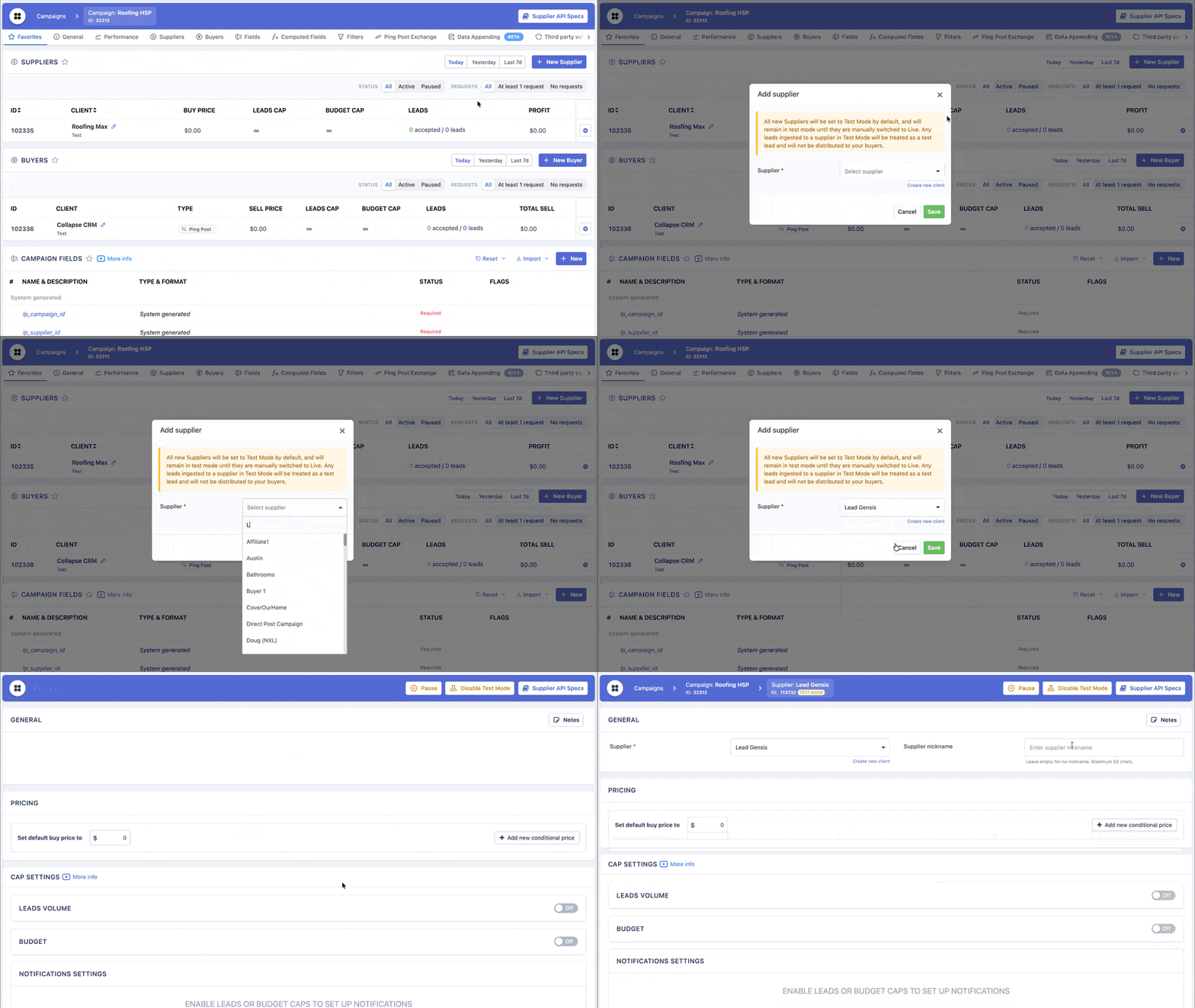
Go to Campaign > Suppliers and click +Add to create a new Supplier.
When a new Supplier is created in Lead Prosper, it is automatically placed in Test Mode. This allows the Supplier to send test leads into the Campaign to verify that all data is formatted correctly and that proper values are being used before live traffic begins.
Step 2: Send the Supplier Their API Specs
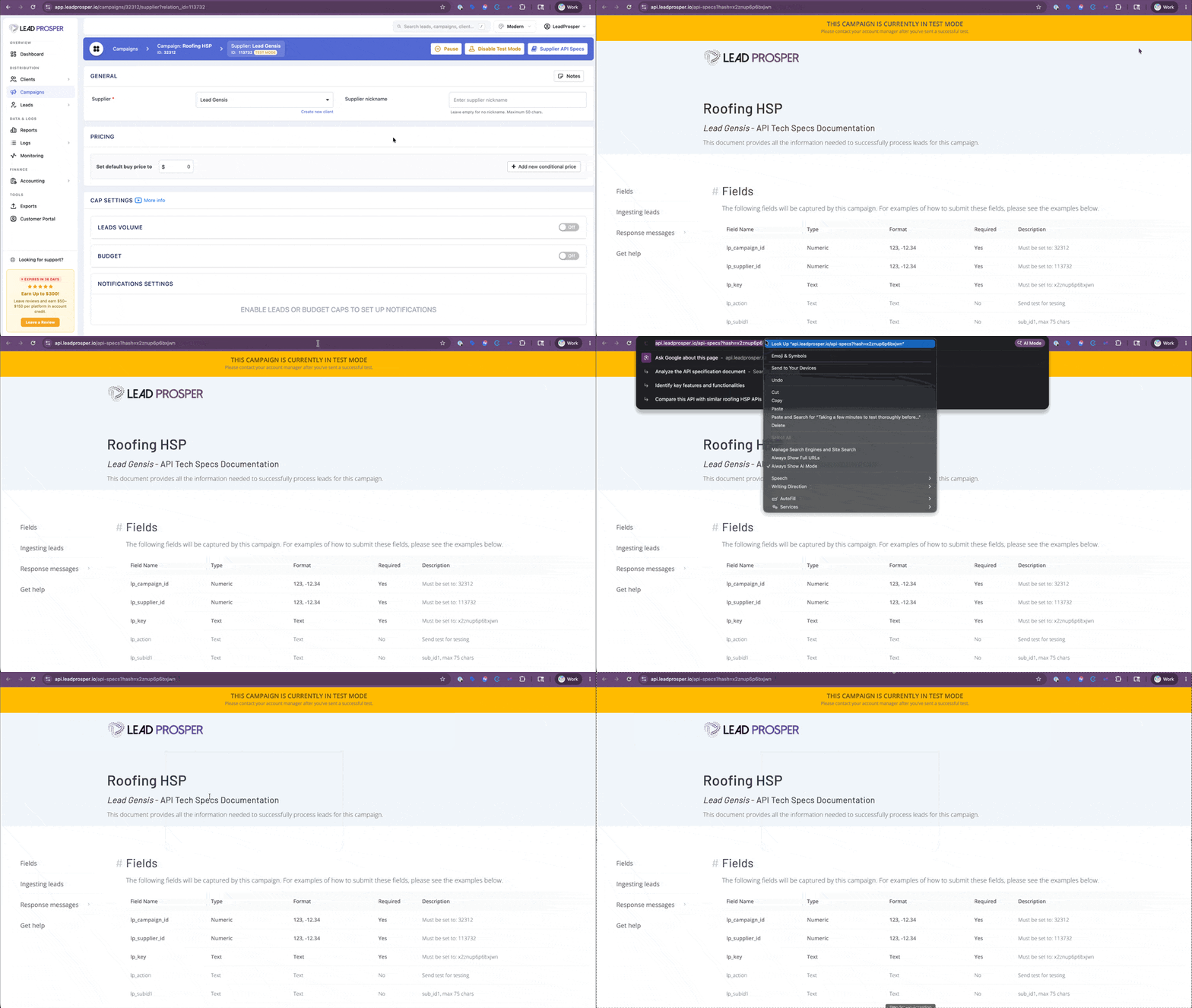
After the Supplier is created, select Supplier API Specs to open the specs page. Copy the URL and forward it to your Supplier.
These API Specs are dynamic — the Supplier will always use this same URL to access the most current version.
Step 3: Have the Supplier Send a Test Lead
Test leads confirm that the Supplier is sending properly formatted data with correct values so that when live traffic begins, leads can be ingested without issues.
While a Supplier is in Test Mode, every lead sent through that Supplier is flagged as a test lead.
There are two ways to send a test lead:
- Supplier is in Test Mode — all leads sent through that Supplier are automatically treated as test leads.
- Include
lp_action=testin the post — the individual lead is treated as a test lead regardless of the Supplier's mode.
Step 4: Review the Test Lead
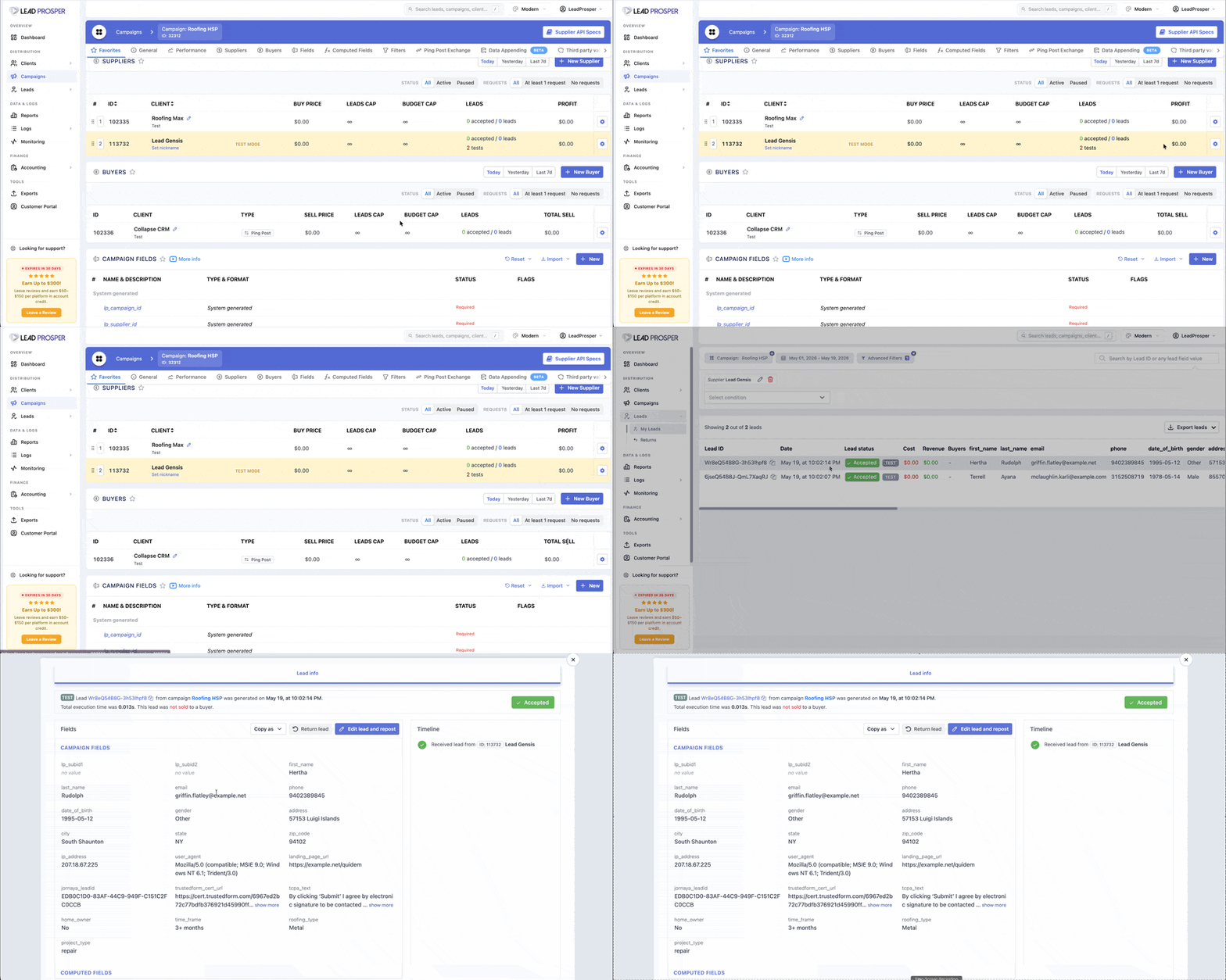
Once a test lead has been ingested, review the lead to confirm that all data looks correct. Walk through the data in the Campaign Fields and Additional Fields area and check the following:
- All expected fields are present. Every input on your form should appear here.
- No empty values where data should exist. If a field on your form was filled out but shows up empty, something is not being captured correctly on submission.
- Field names are spelled correctly. Watch for typos, capitalization differences, or unexpected characters in the field keys.
- Formats look right. Phone numbers, dates, states, and other formatted fields should match what you expect to receive.
Step 5: Disable Test Mode
Once everything looks good, disable Test Mode:
- Go to the Campaign page.
- Find the Supplier in the list.
- Click the cog wheel icon.
- Select Disable Test Mode.
- Confirm the action.
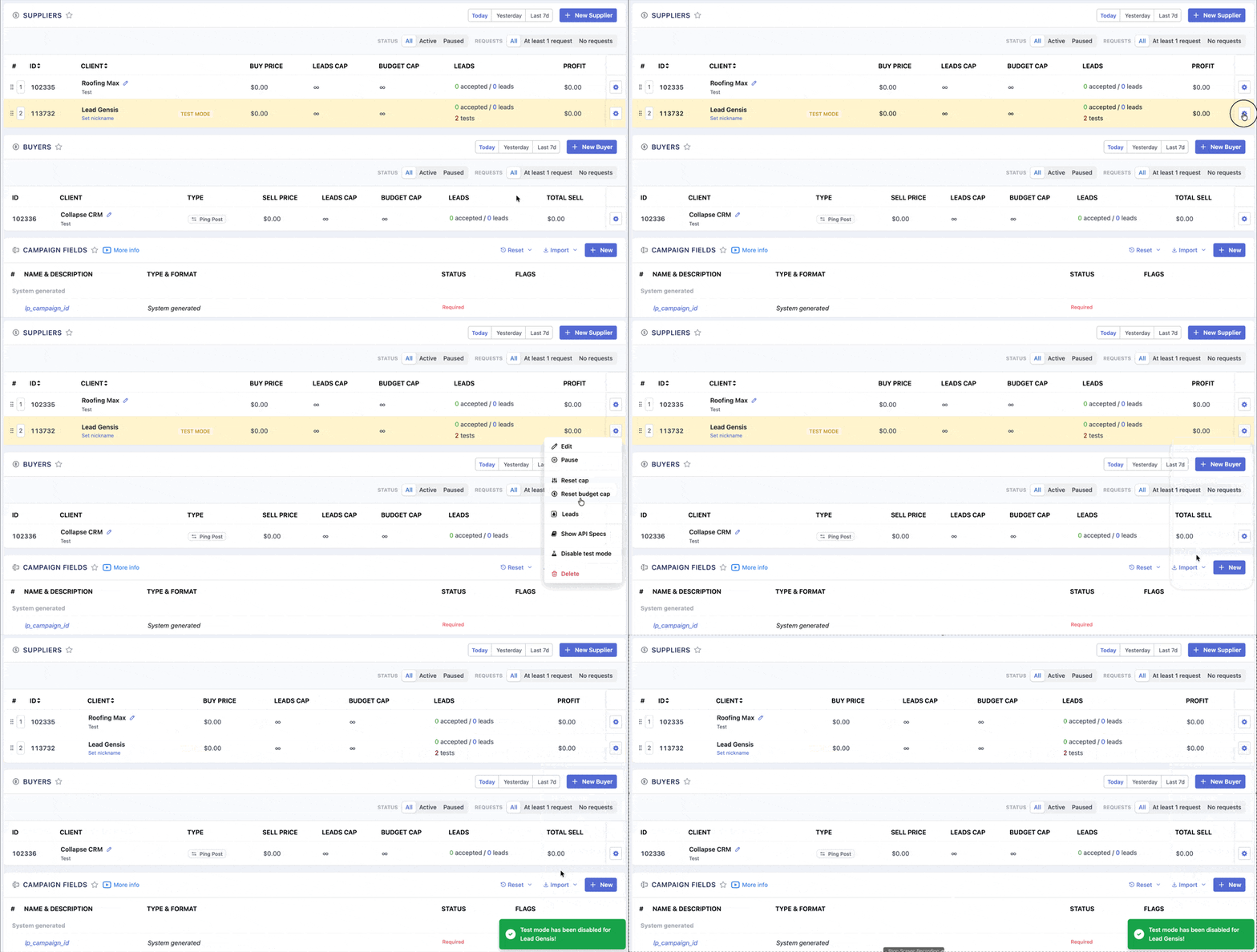
After confirming, the Supplier is ready to start ingesting live leads to be distributed to your Buyers.
Step 6: Monitor Live Traffic
After your Supplier goes live, continue monitoring the traffic from that Supplier for a few days to ensure there are no issues. A handful of test leads can only reveal so much — real volume is where problems tend to surface.
Data Quality
Review incoming leads for incorrectly formatted data, bad values, or missing required fields. These issues can indicate a misconfiguration on the Supplier's side that wasn't caught during testing.
Buyer Rejections
Check the Buyer responses to see if leads are being rejected. Common rejection reasons include data failing validations, phone numbers on DNC lists, or leads that don't meet your Buyer's qualification standards. If these rejections happen frequently, reach out to your Supplier to have them address their traffic quality.
Validation Failures
If you have validations enabled and the Supplier's leads are consistently failing, treat that as a red flag. Occasional failures are normal — a pattern of failures is not.
Fraud Indicators
Watch for duplicate data points appearing across multiple leads. Repeating values in any of the following fields should prompt you to pause the Supplier immediately, as they can indicate fraudulent traffic:
- IP Address
- User Agent
- TrustedForm Certificate URL
- Jornaya LeadiD
When Something Looks Off
If anything seems off, reach out to your Supplier right away. You are purchasing this data from them, so it is in their best interest to send their highest quality traffic.
Taking a few minutes to test thoroughly before going live prevents data issues from reaching your Buyers and saves time troubleshooting down the road. If you need to test again at any point after disabling Test Mode, you can send individual test leads using the lp_action=test parameter without interrupting live traffic.