.png)
Data Append: Enriching Leads with Geographic and API Data
The Data Append feature allows Lead Prosper users to enrich lead data automatically during ingestion — before leads reach your buyers. Use it to convert a zip code into geographic fields (City + State + County), call an external API for a reverse phone lookup, or append any data your buyers require downstream.
Setting Up Data Appending In Your Campaign
There are two data append types available:
- LP Geo-location Service — Converts a zip code into city, state, and county using Lead Prosper's built-in database. No external API calls.
- Third Party API — Calls any external API endpoint, parses the response, and maps the returned values to your selected campaign fields.
To begin setting up Data Appending first start by navigating to your campaign's edit page. Scroll down and you'll find the Data Append section.
Adding a Data Append
- Select New Append to open the append type selector.
- Choose LP Geo-location Service or Third Party API.
- Give your append a descriptive name (e.g., "Zip to City/State" or "Reverse Phone Lookup") so it's easy to identify in the list.

Append Mode
Every append has an Append Mode that controls how it interacts with existing field data:
- Fill Missing — Only populates fields that are empty. Existing data is left untouched. Use
- Override (default) — Replaces existing values with fresh data on every lead.
Use Fill Missing when your suppliers sometimes include the data and you only want to fill gaps. Override when you always want the canonical value regardless of what the supplier sent.
Lead Prosper Geo-location Service
The LP Geo-location Service converts a zip/postal code into geographic information (City + State + County) using Lead Prosper's built-in database. Lookups are fast and free — no external API calls are made.
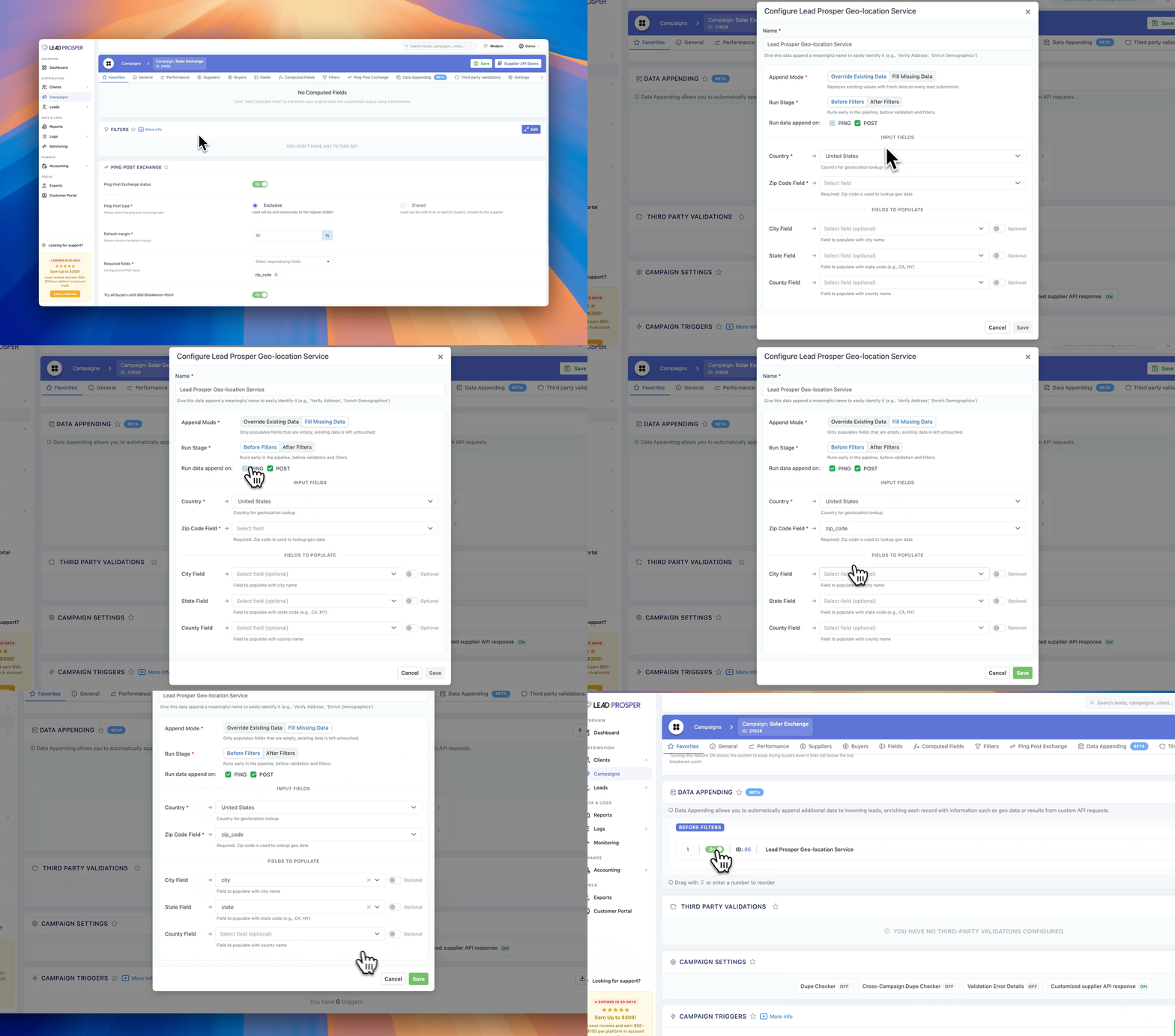
Supported Countries
- United States — Available now.
- More countries coming soon.
Setup
- Country — Select the country for the lookup (currently US).
- Zip Code Field — Choose the campaign field that contains the zip/postal code. This field is required.
- Target Fields — Map lookup results to your campaign fields:
City— The city/place name associated with the zip code.State— The state or administrative region.County— The county name.
All three target fields are optional, but at least one must be mapped. Each target field can be marked as Required — if a required field cannot be resolved, the lead will be rejected.
Third Party API
The Third Party API append lets you call any external HTTP endpoint, parse the response, and map returned values to your campaign fields. Common use cases include:
- Credit score pulls
- Reverse phone lookups
- Mortgage data appends
- Any API that returns data you want to append to a lead

Request Configuration
Method and URL
Choose the HTTP method (GET or POST) and enter the API URL. Include campaign field values in the URL using Campaign Field Shortcodes:
https://api.example.com/lookup?phone={{phone}}&zip={{zip_code}}
Available Shortcodes include any campaign field (e.g., {{first_name}} , {{email}} ), system fields like {{lp_campaign_id}} , and computed fields.
Request Body
For POST and other methods that support a body, configure the payload using the built-in editor. Supported formats:
- JSON
- XML
- FORM
Headers
Add custom headers (e.g., API keys, content types, authorization tokens). Field placeholders are supported in header values.
Timeout
Set the request timeout in seconds (default: 30, range: 1–300). If the API does not respond within this time, the append fails gracefully — unless the mapped fields are marked as required.
Response Configuration
Response Type
Select the format of the API's response:
- JSON — Parse JSON response bodies.
- XML — Parse XML response bodies.
- Plain Text — Use the raw response text.
Response Mappings
Map values from the API response to your campaign fields. Each mapping consists of:
- Response Key — The path to the value in the response (e.g.,
data/cityfor JSON,/data/cityfor XML). - Target Field — The campaign field or computed field to populate with this value.
- Required (optional) — If checked, the lead will be rejected if this value is missing from the response.
You can add multiple mappings to extract several fields from a single API call.
Important: Use the Response Parser Tool when setting up mappings to correctly extract the key from the response.
Note: The same campaign field cannot be mapped twice within a single append. If you need to populate a field from multiple sources, create separate appends and use ordering to set priority.
Example: Credit Score Lookup
The following example pulls a credit score for every incoming lead. The credit API expects a POST request with the applicant's SSN and returns a JSON response with their score and risk level.
Request
- Method:
POST - URL:
https://api.creditprovider.com/v1/score - Headers:
Authorization:Bearer YOUR_API_KEYContent-Type:application/json
- Body:
{
  "ssn": "{{ssn}}",
  "first_name": "{{first_name}}",
  "last_name": "{{last_name}}"
}
API Response
{
  "status": "success",
  "data": {
    "credit_score": 720,
    "risk_level": "low",
    "unsecured_debt": "$15,000",
    "bankruptcy": false
  }
}
Response Mappings
| Response Key | Target Field | Required |
|---|---|---|
data/credit_score |
credit_score |
Yes |
data/risk_level |
risk_level |
No |
data/unsecured_debt |
debt |
No |
data/bankruptcy |
is_bankrupt |
No |
With this configuration, every lead that passes through will automatically have its credit score, risk level, and bankruptcy status appended. If credit_score is marked as required and the API fails to return it, the lead will be rejected.
Run Stage
Each append can be configured to run at one of two stages in the lead processing pipeline:
- Before Filters — The append runs after input/field validations but before cap checks and filters are applied. Use this when downstream filters depend on the enriched data (e.g., a state filter that relies on a geo-lookup).
- After Filters — The append runs after filters pass. Use this to avoid making API calls for leads that will be rejected anyway, saving cost and processing time.
If a geo-lookup populates a state field that your filters check, it must run Before Filters. If the append is only enriching data for the buyer, After Filters is more efficient.
Ordering
When you have multiple appends, they execute in the order displayed. Drag and drop to reorder them within each stage. Appends in the Before Filters stage always run before those in the After Filters stage.
Testing
Before going live, test each append individually:
- Open the append and click Test.
- The test page generates a sample payload based on your campaign fields.
- Fill in test values (e.g., a real zip code or phone number).
- Click Send Request to execute the append.
- Review the results:
- Request — The method, URL, headers, and body that were sent.
- Response — The raw response from the API.
- Appended Fields — A summary showing the old value, new value, and whether each field was applied or skipped.
Testing uses live API calls — ensure your test data is appropriate for the external service.
Logs
Append execution is logged for every lead. View logs from the append's detail page to see:
- Status (success or error)
- Request and response details
- Which fields were appended and what values changed
- Timestamps
Logs are kept for 90 days.
Important Notes
Auto-pause: When editing an existing append, saving it without any response mappings configured will automatically pause it with a warning. When creating a new append, it starts paused by default if no mappings are configured. Add your mappings and enable it when ready.
Required fields: Marking a response field as required means the lead will be rejected if the append cannot return a value for that field. Use this carefully — an API outage would cause all leads to be rejected.
Encryption: Append settings (including API URLs, headers, and keys) are stored encrypted in the database.
Fill Missing vs. Override with multiple appends: When multiple appends target the same field, execution order and mode both matter. The first append to fill a field wins in Fill Missing mode; in Override mode, the last one wins.
Cost: LP Geo-location lookups are free and use a local database. Third Party API calls depend on the external service's pricing.
If you have questions about setting up Data Append or need help configuring a specific use case, reach out to our support team.