.png)
Connecting landingl.com to Lead Prosper
This support document will walk you through connecting your LandingI.com landing page to Lead Prosper. To watch a video tutorial on this topic click here
For this example, we’ll be using a sample supplier named Home Service Pros.
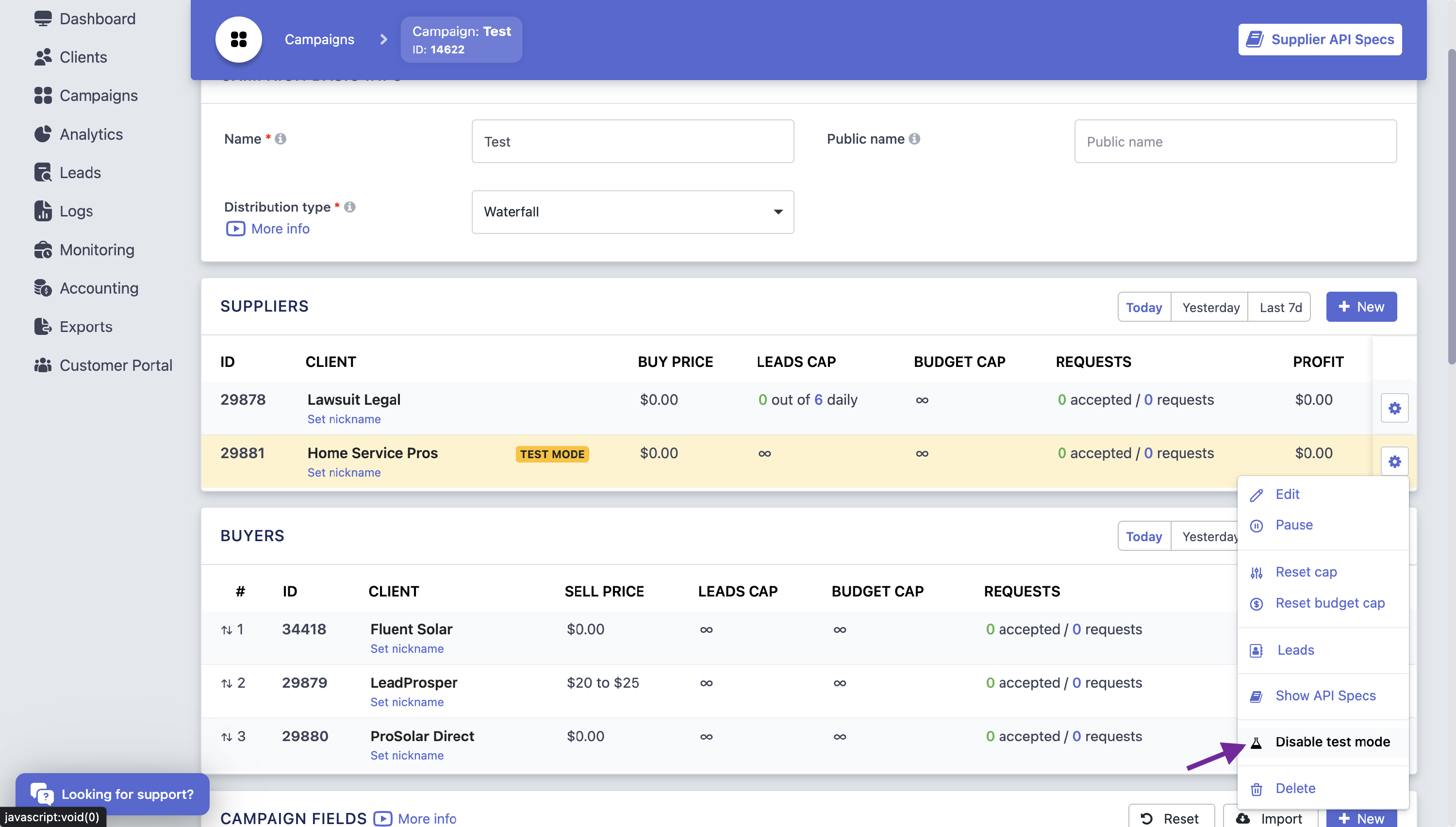
It is important to note that this campaign is in TEST MODE. Once your form is set up and you are ready to go live, you MUST disable test mode for the leads from this supplier to be distributed to buyers. To begin, we will pull up our example supplier’s API specs. Click the settings button beside your supplier and select “Show API Specs”
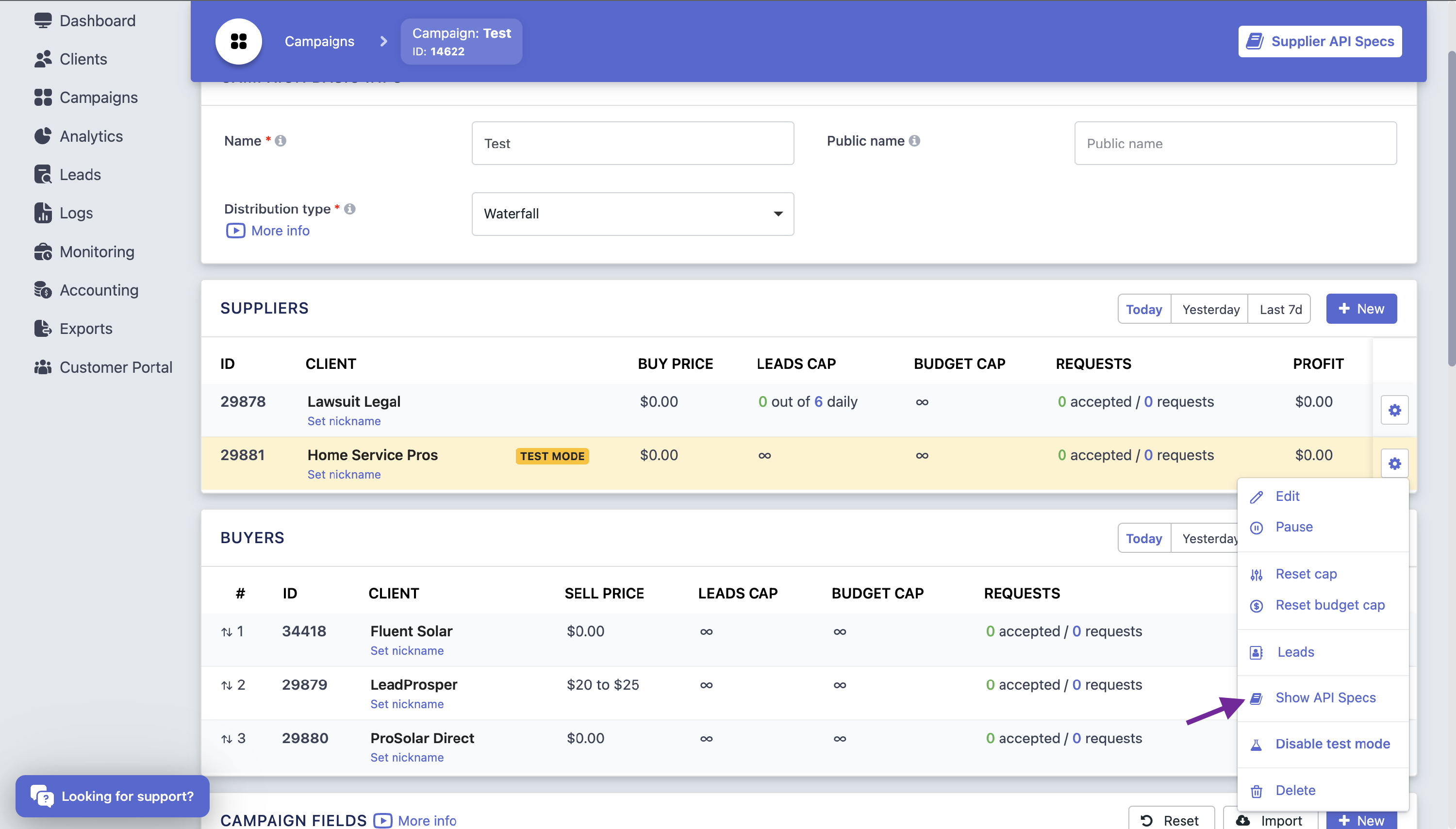
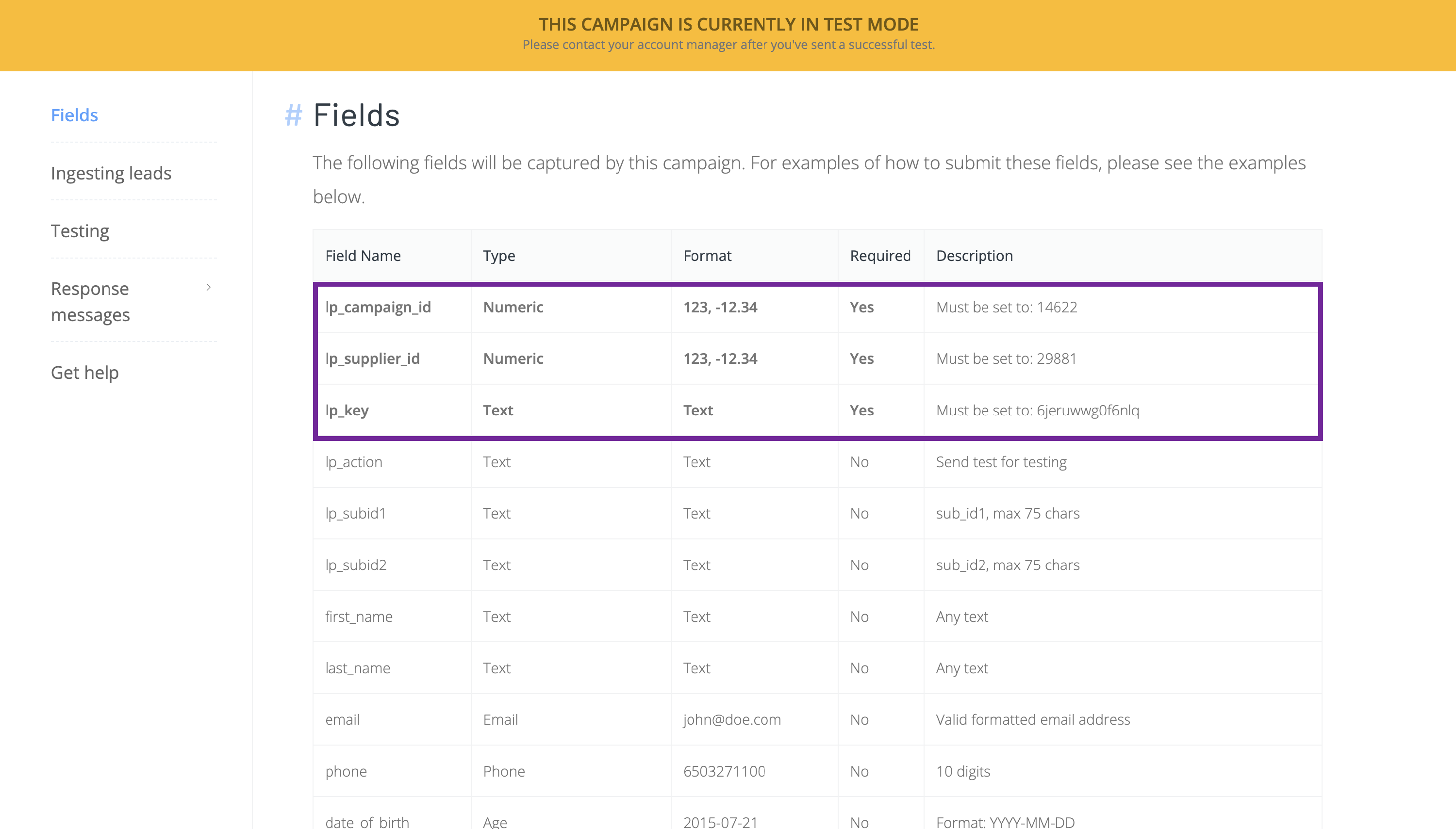
lp_campaign_id, lp_supplier_id, and lp_key are hidden values that need to be passed with every lead that is sent
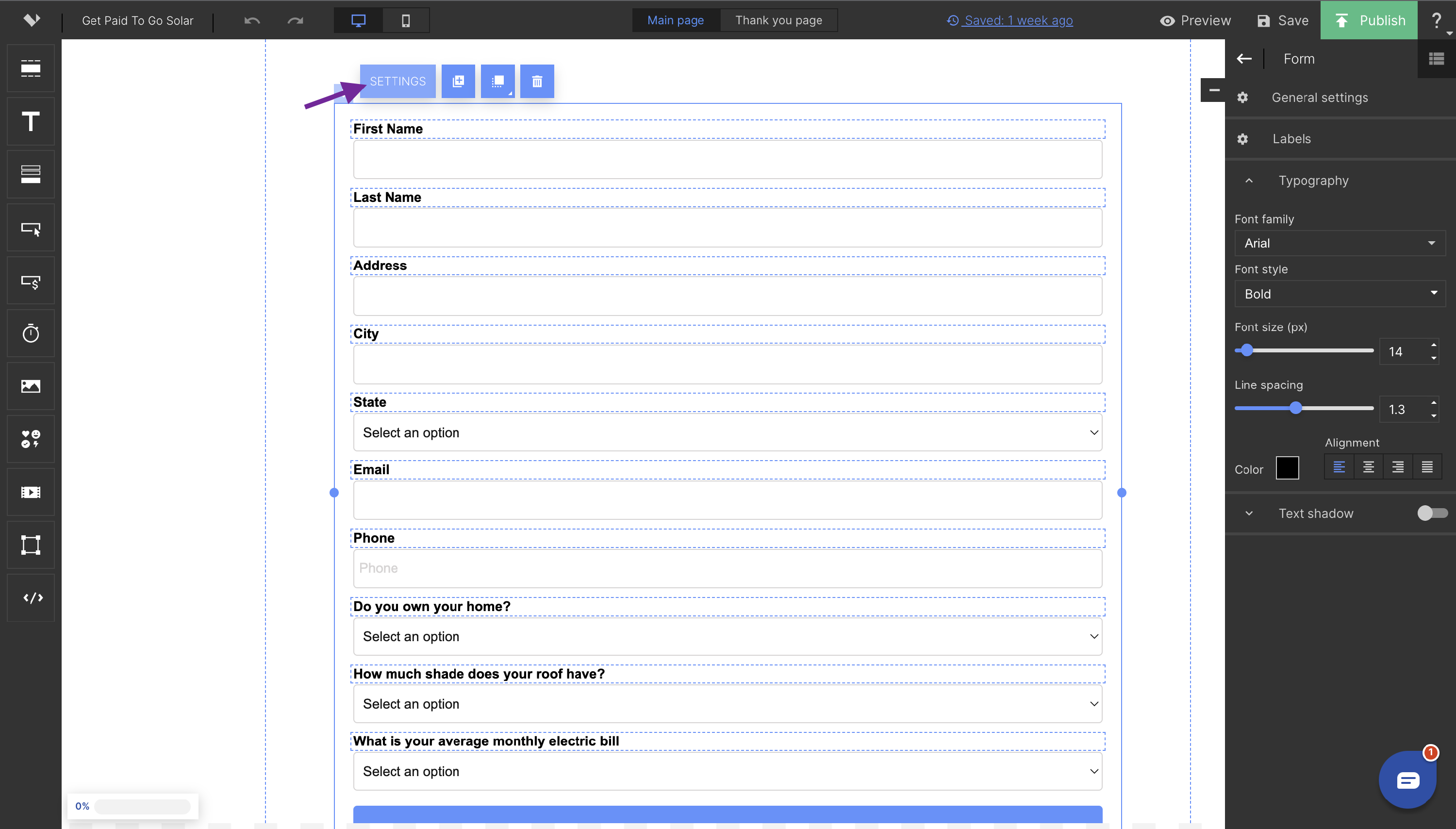
The next step is to set up the form on your landing page. Click on your form then select form settings
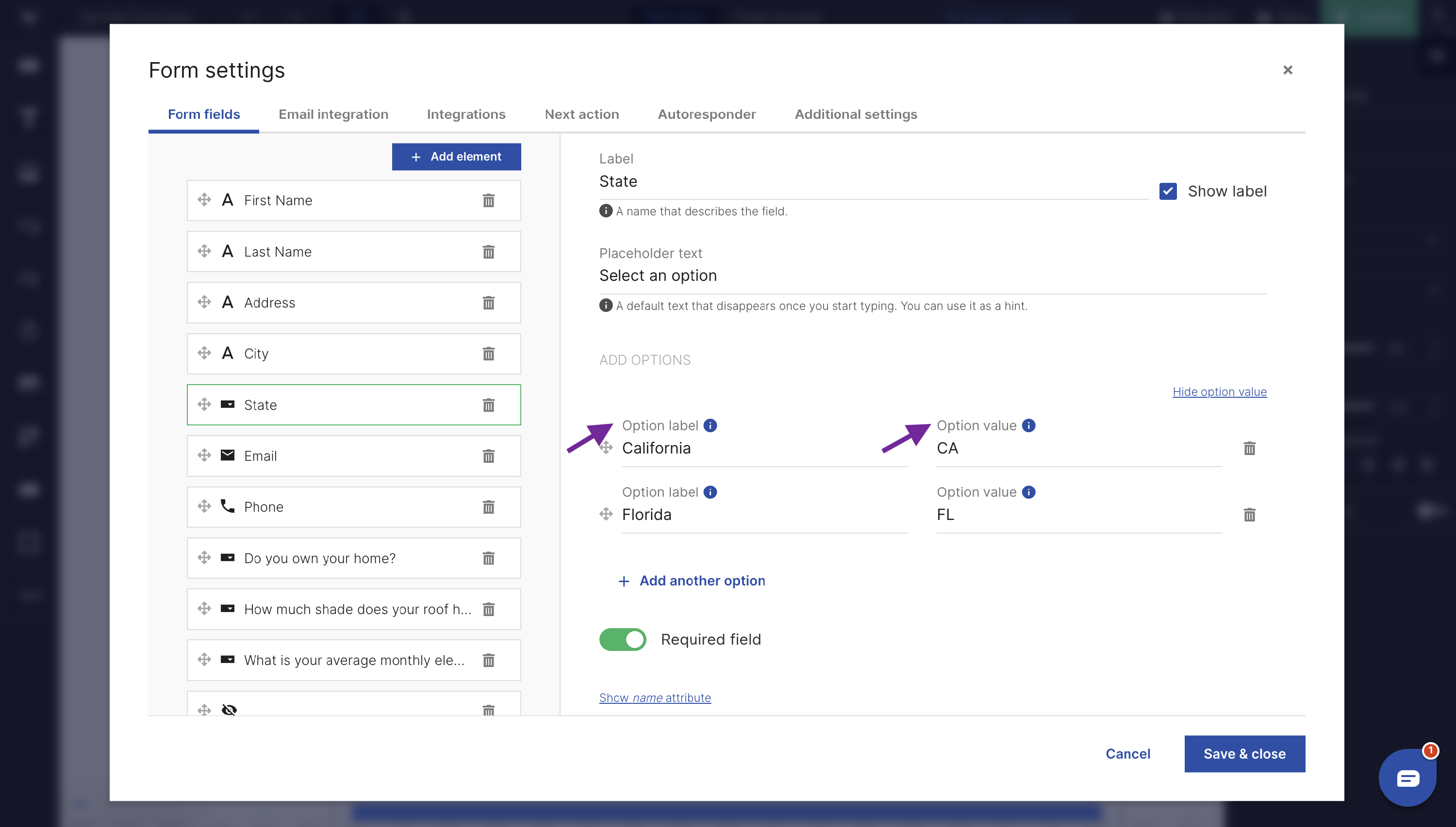
Unless you are using a service like Zapier, you must ensure in the form settings that the field option values match the allowed values in the API specs. At the time of this video’s publishing, LandingI does not allow you to transform a value before it is sent over, therefore you must make sure that the options values and allowed values are exactly the same, otherwise the leads will fail
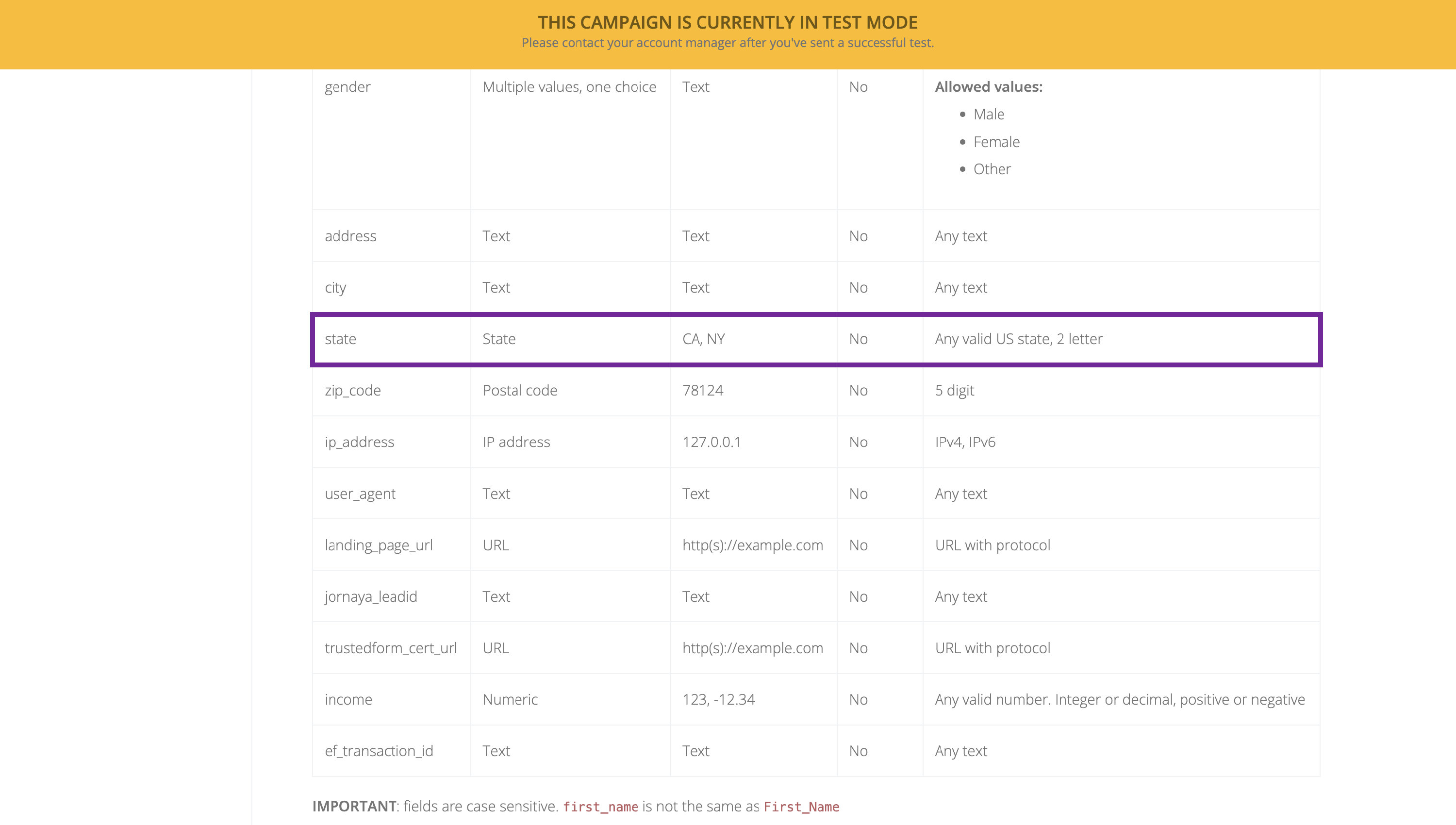
The state field provides a good example of the option values needing to match list values.
Here the option LABEL is the full state name, however you need to make sure that the option VALUE is a 2 letter state abbreviation, as that is what is dictated by the API specs
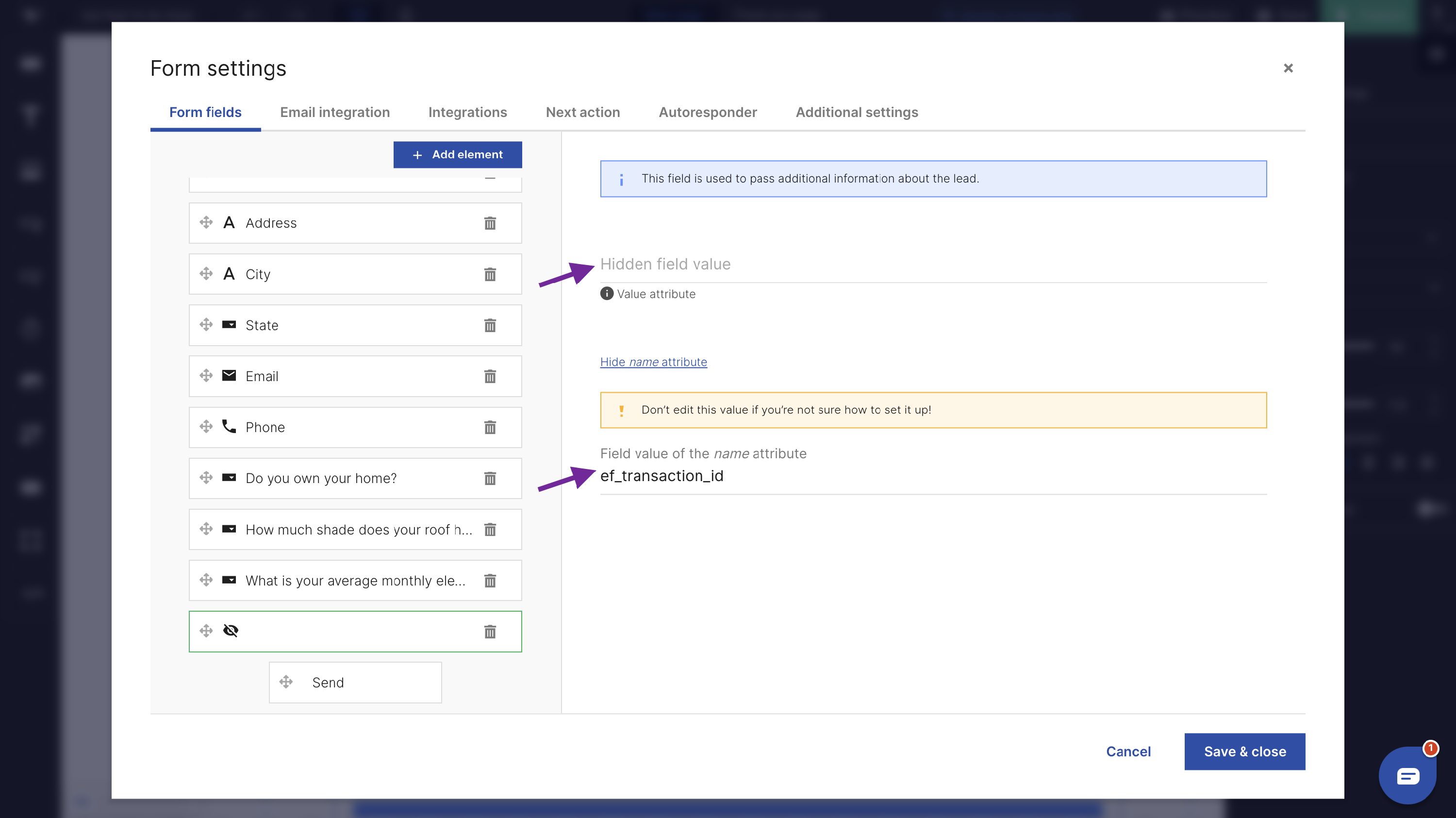
In situations where you have an affiliate passing a value through as a URL parameter, such as a click ID or transaction ID, you can set up your form to pull these values using a hidden field.
To do this, set up a hidden field and leave the value attribute blank. Click the “show name attribute” option below the value attribute. You’ll then set the field value to ef_transaction_id
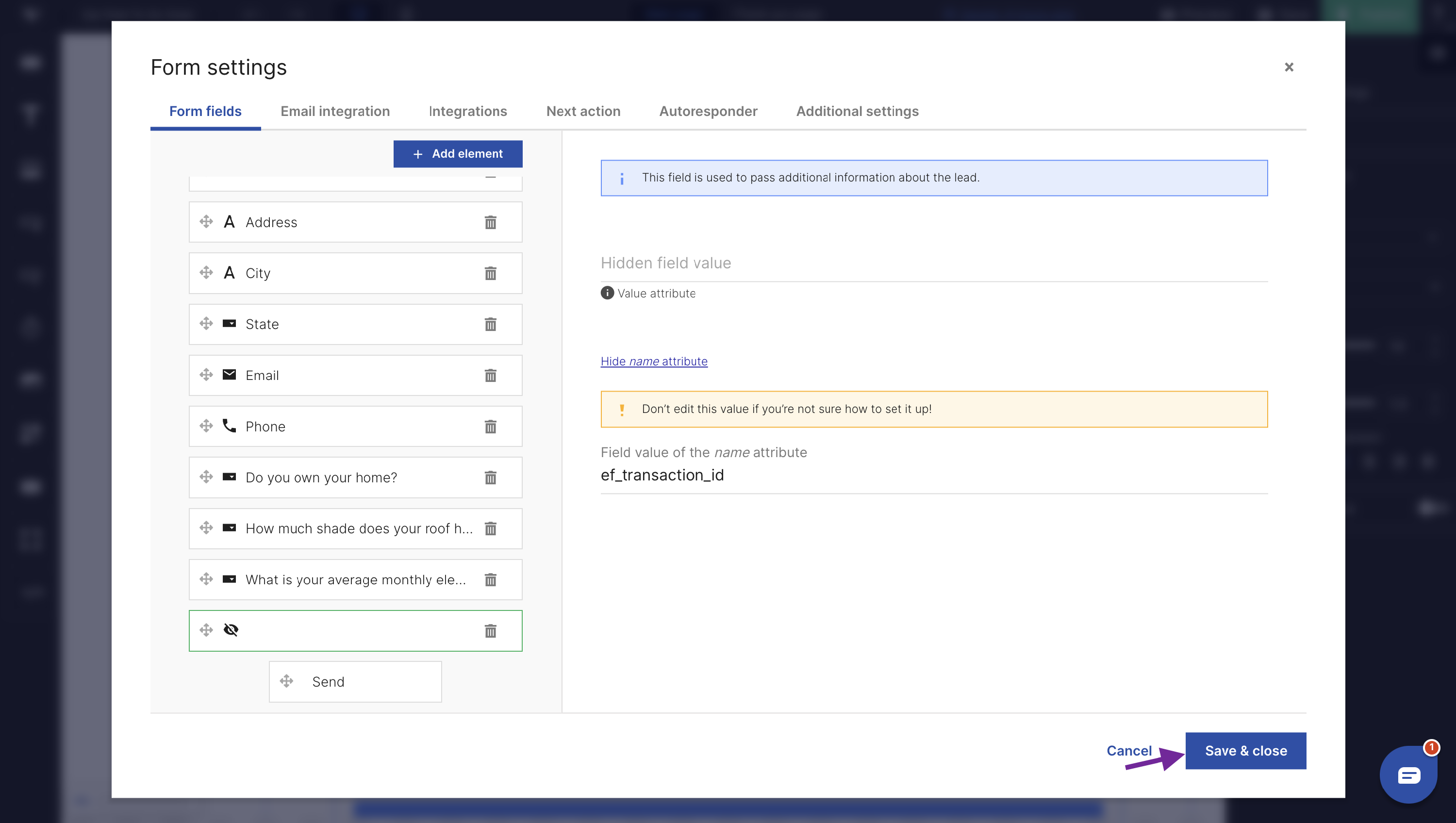
Next, click Save & Close
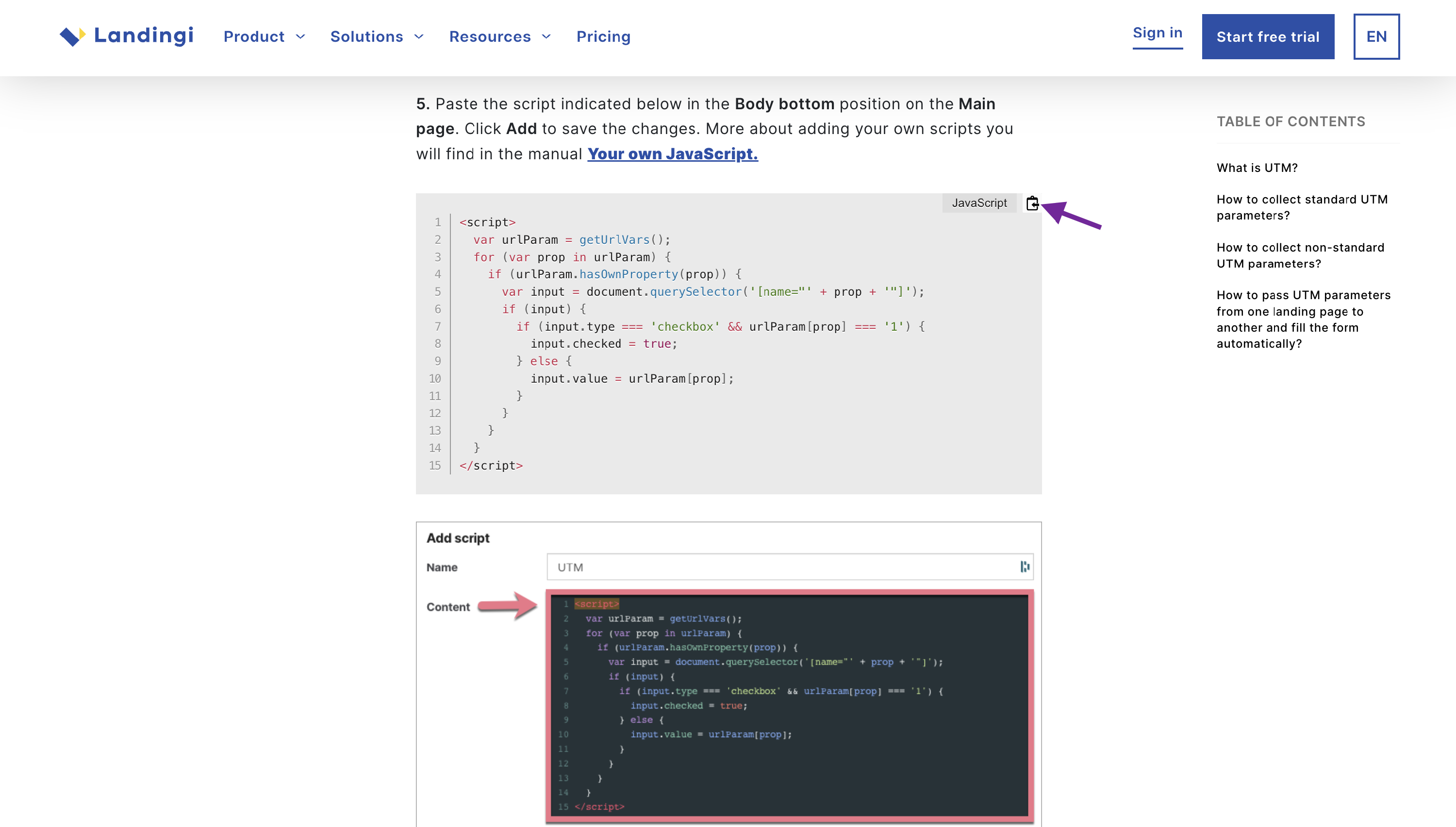
You’ll then open up LandingI’s UTM collection and automatic form filling page, linked here. Scroll down to step 5 on this page and copy the JavaScript code provided
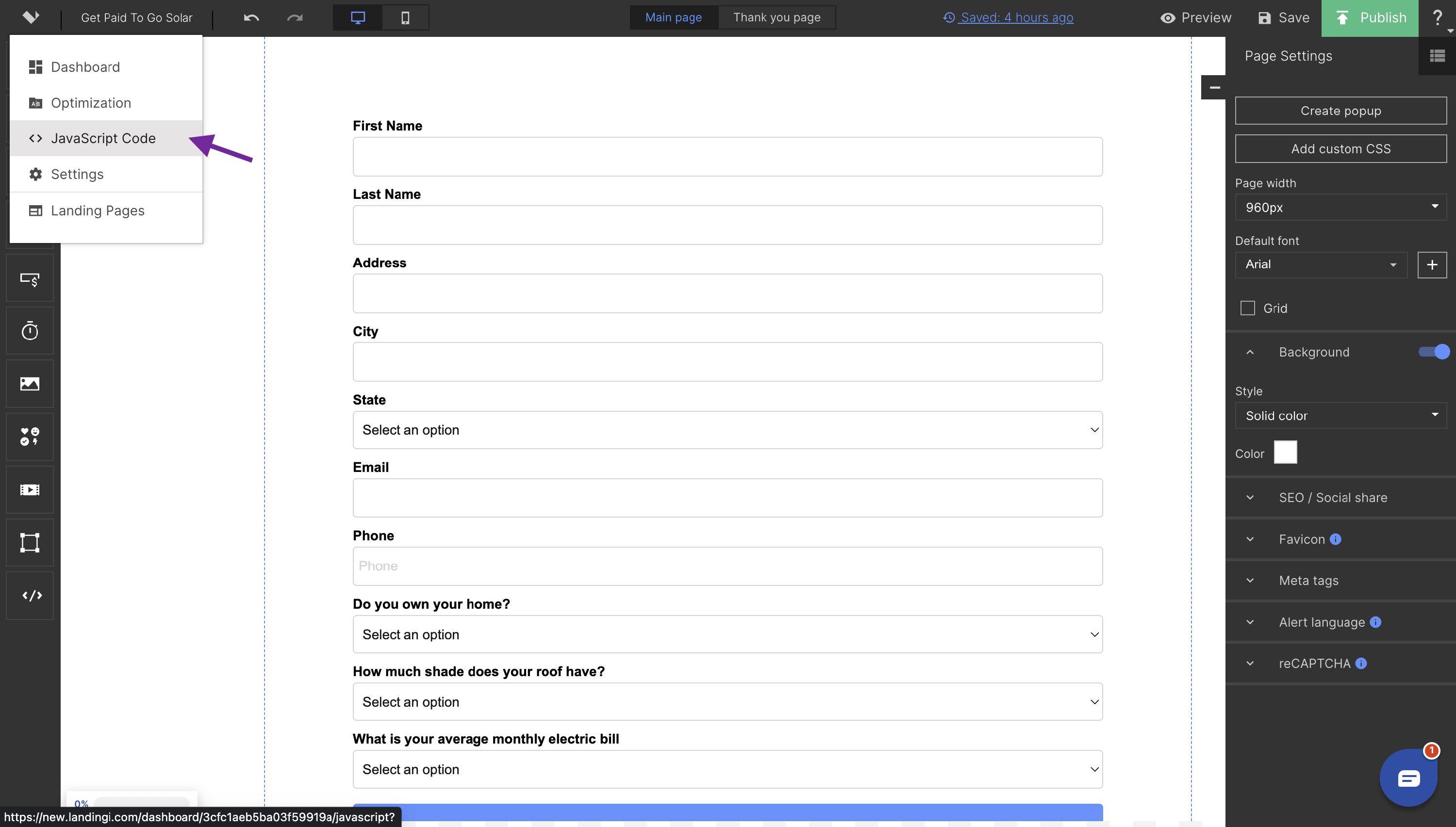
Then return to your LandingI editor and select JavaScript Code from the menu in the top left corner
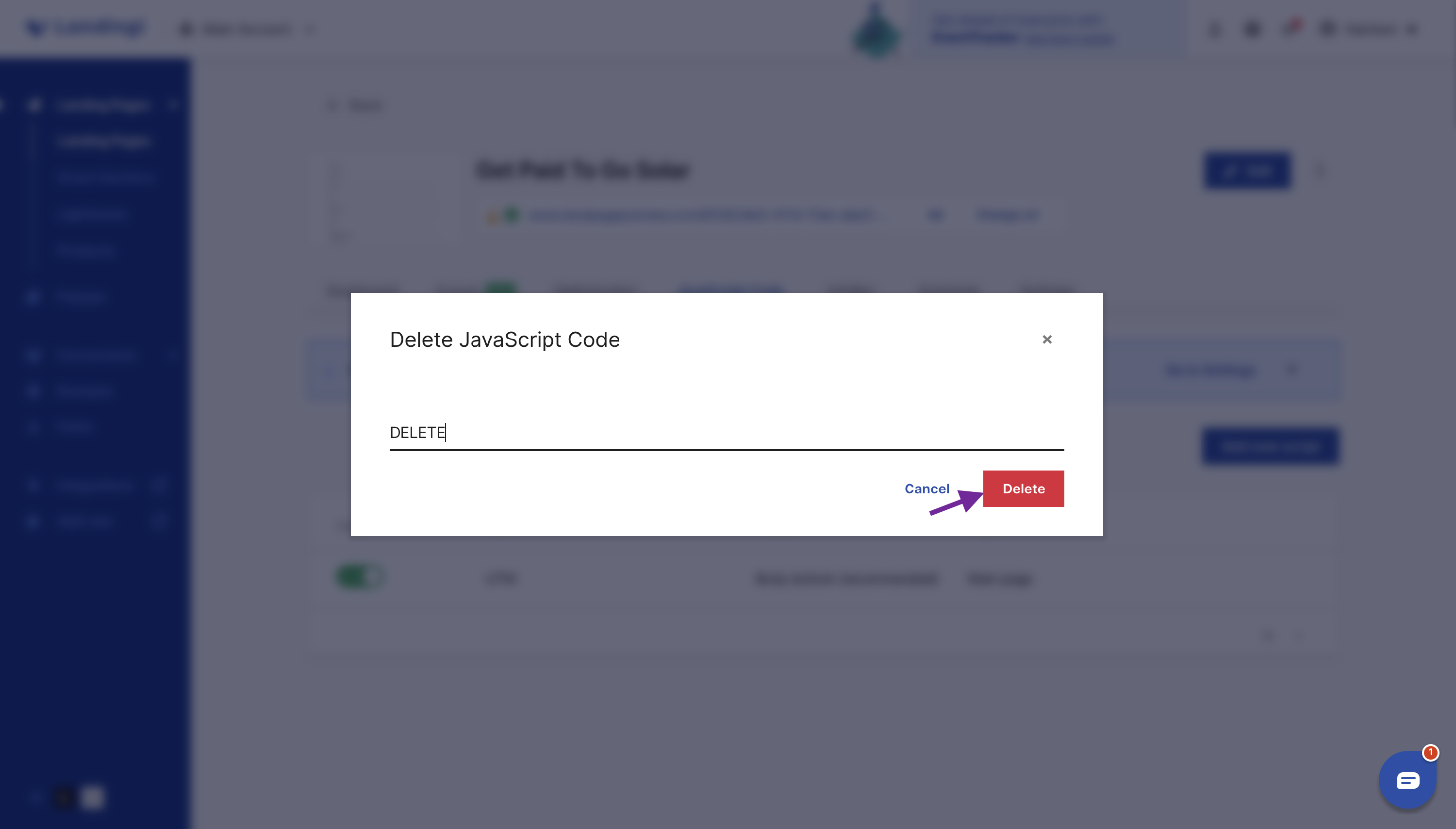
Delete the existing JavaScript code, typing DELETE to confirm
Click add new script. We’ll name this example UTM. Paste in the new JavaScript Code you copied earlier. This script will look for any parameters in the URL that match to the names of hidden fields, which will then map the value into the hidden fields. Click add script then click back to your landing page
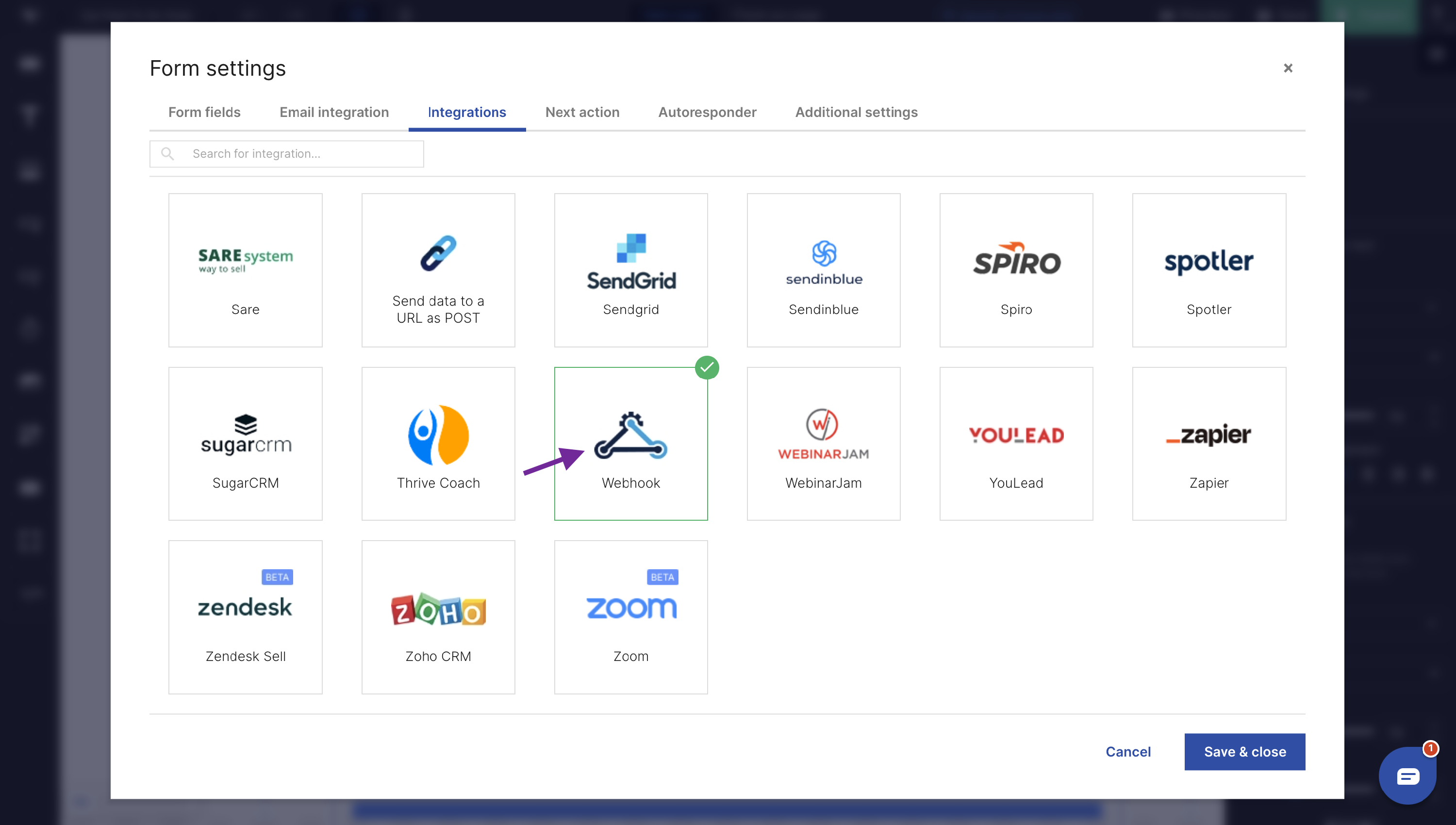
Next, click over to Integrations. Scroll down and select webhook
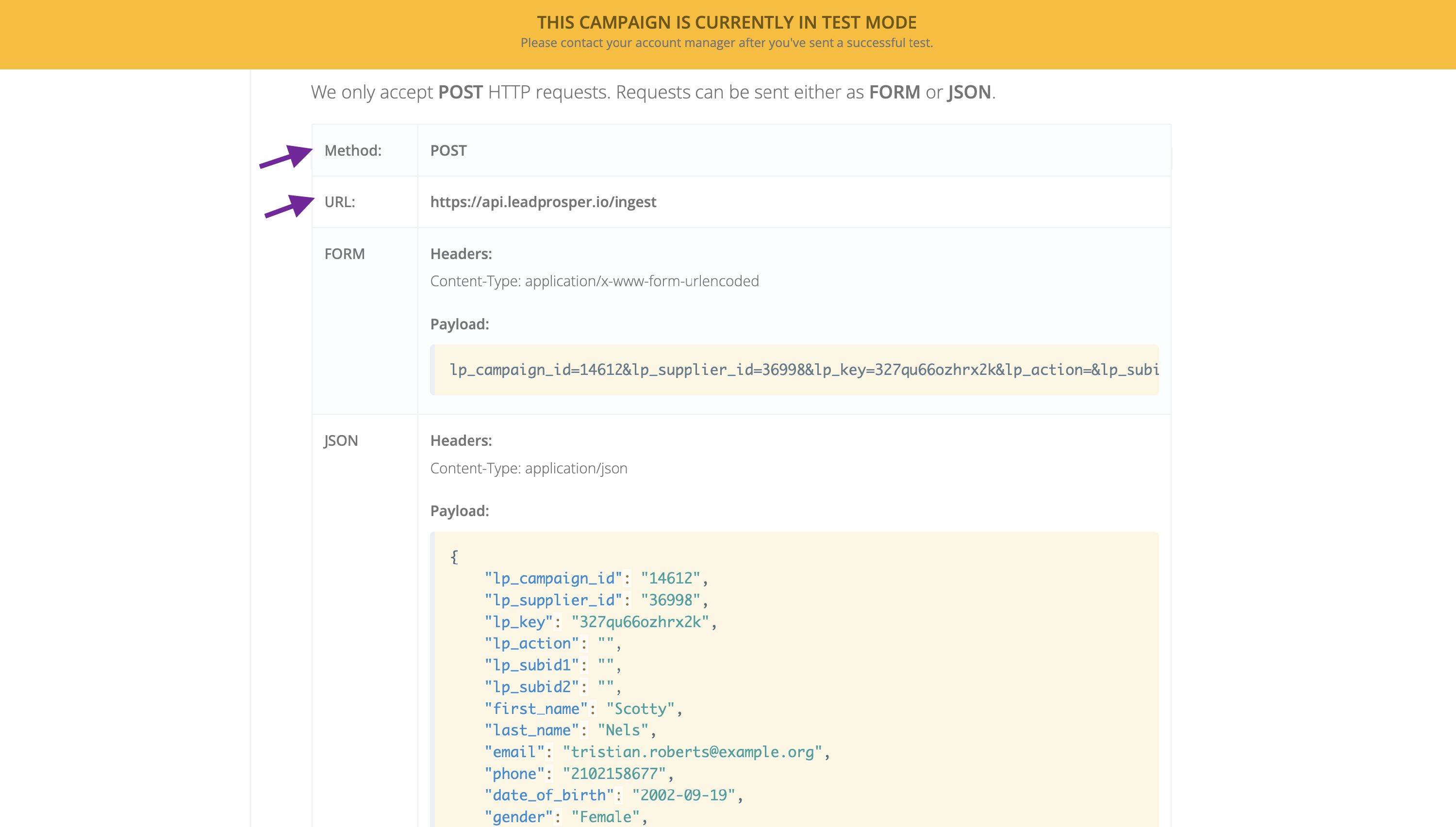
Copy and paste the URL from the ingesting leads section of your API specs into the webhook. The request method will be POST
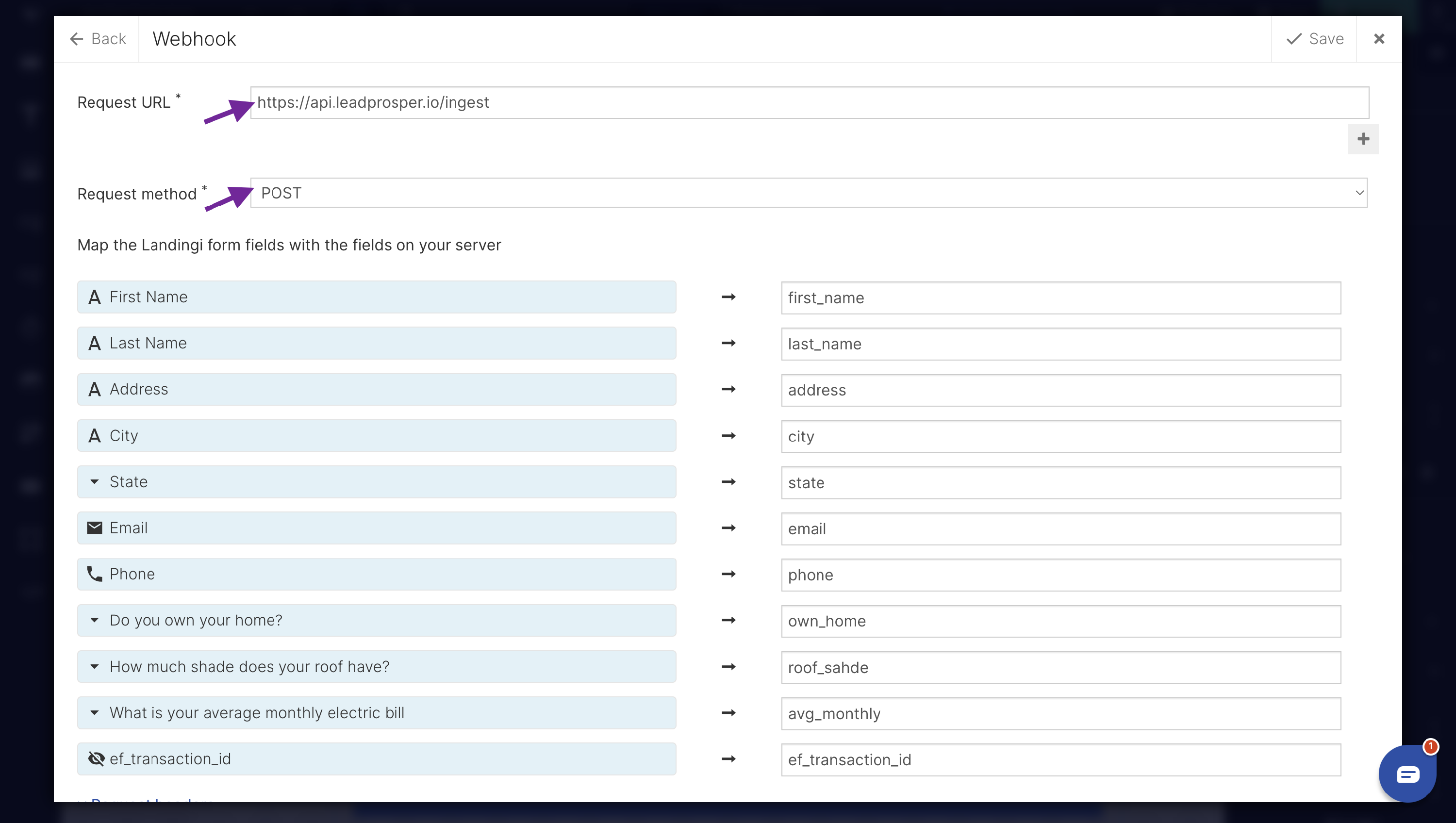
Next is mapping. Copy and paste the fields from your API specs into the right column of the corresponding fields on your LandingI form. When you’re done mapping your webhook should resemble the one seen above
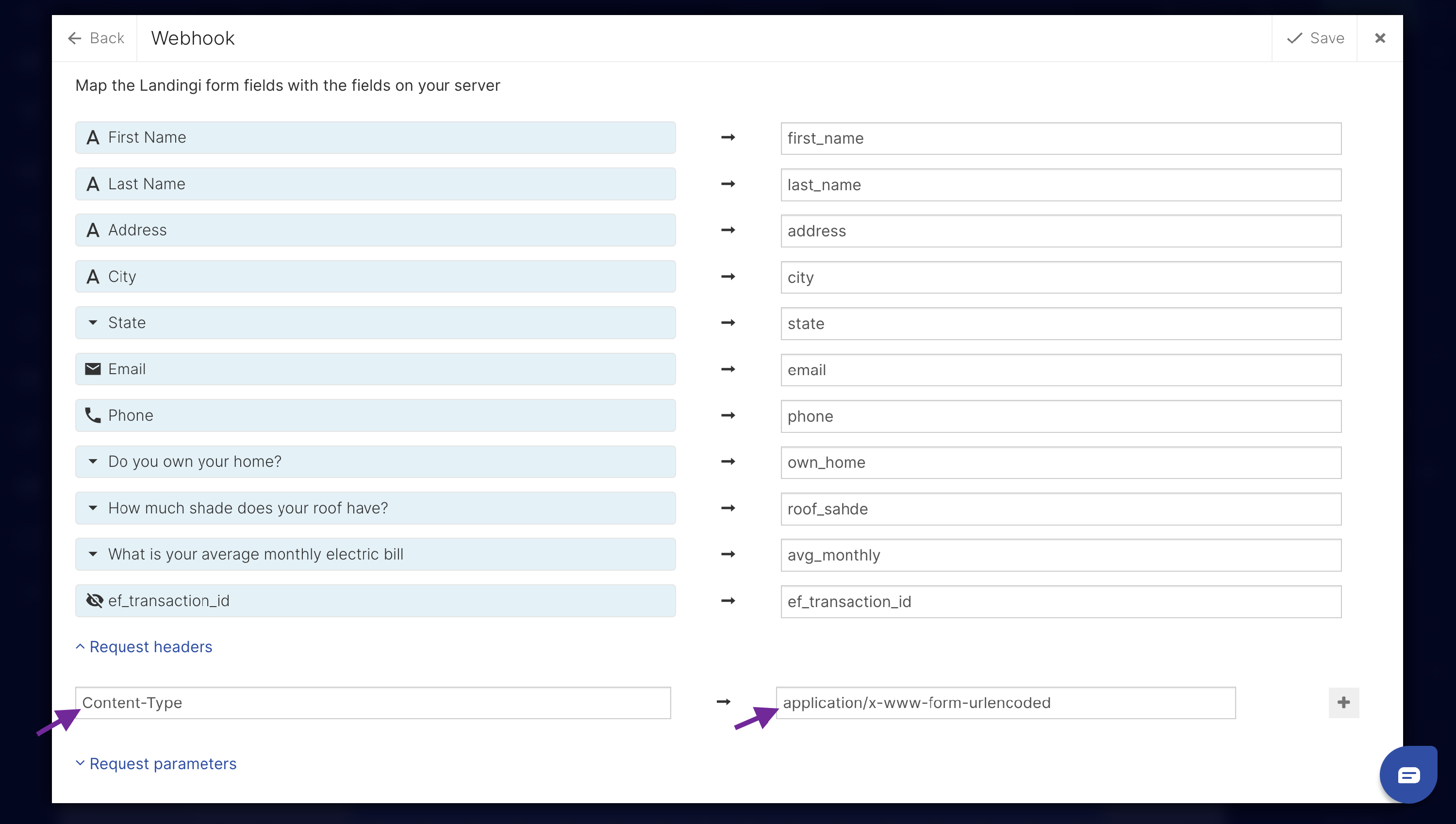
Next are request headers. It will be sent as FORM as requested by LandingI. Under the form headers section, copy Content-Type EXCLUDING the colon afterwards. It is important to NOT include the colon for this set up to work properly. Paste this as the header key, then copy and paste the value AFTER the colon and paste it into the value section of the header
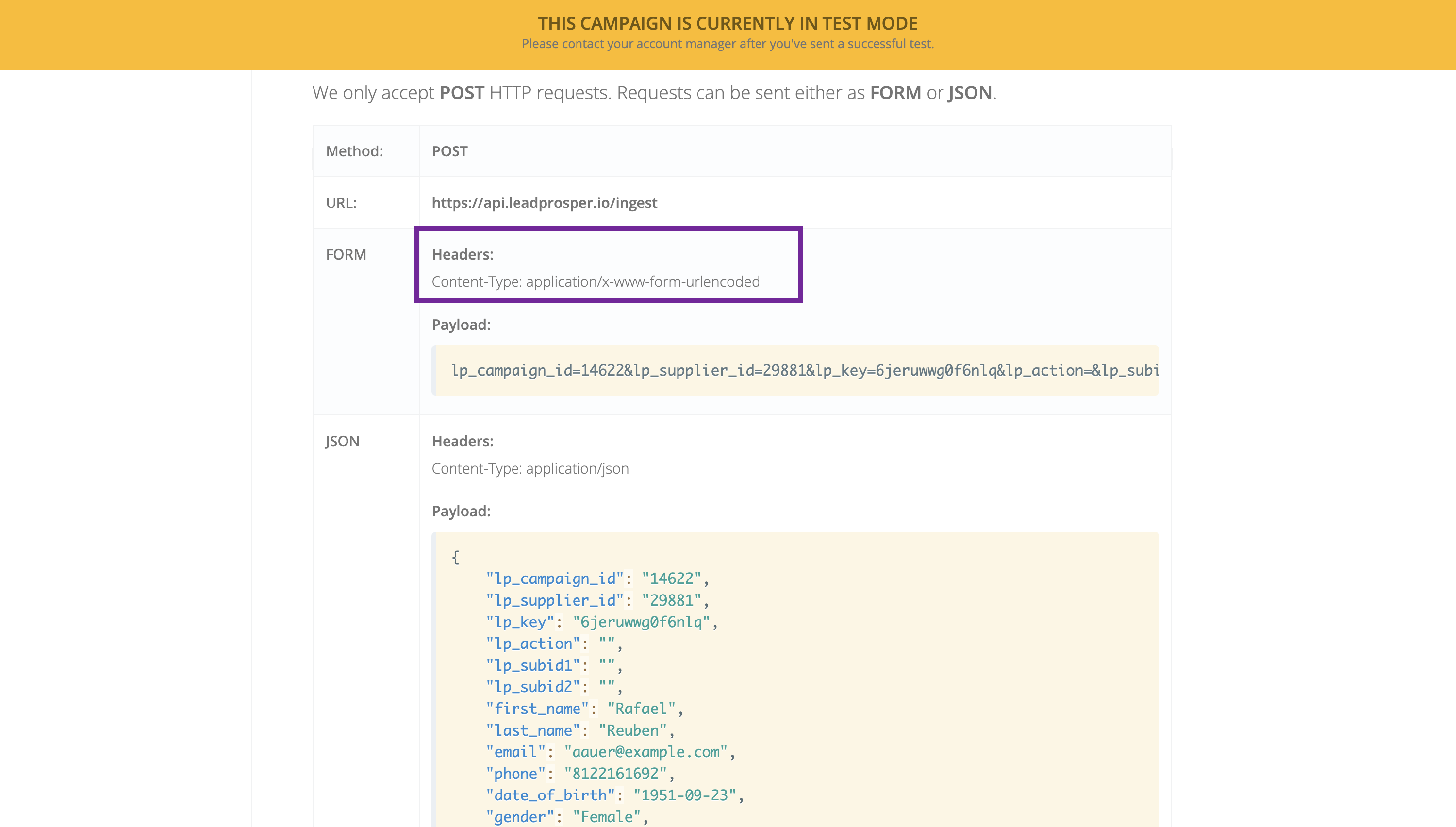
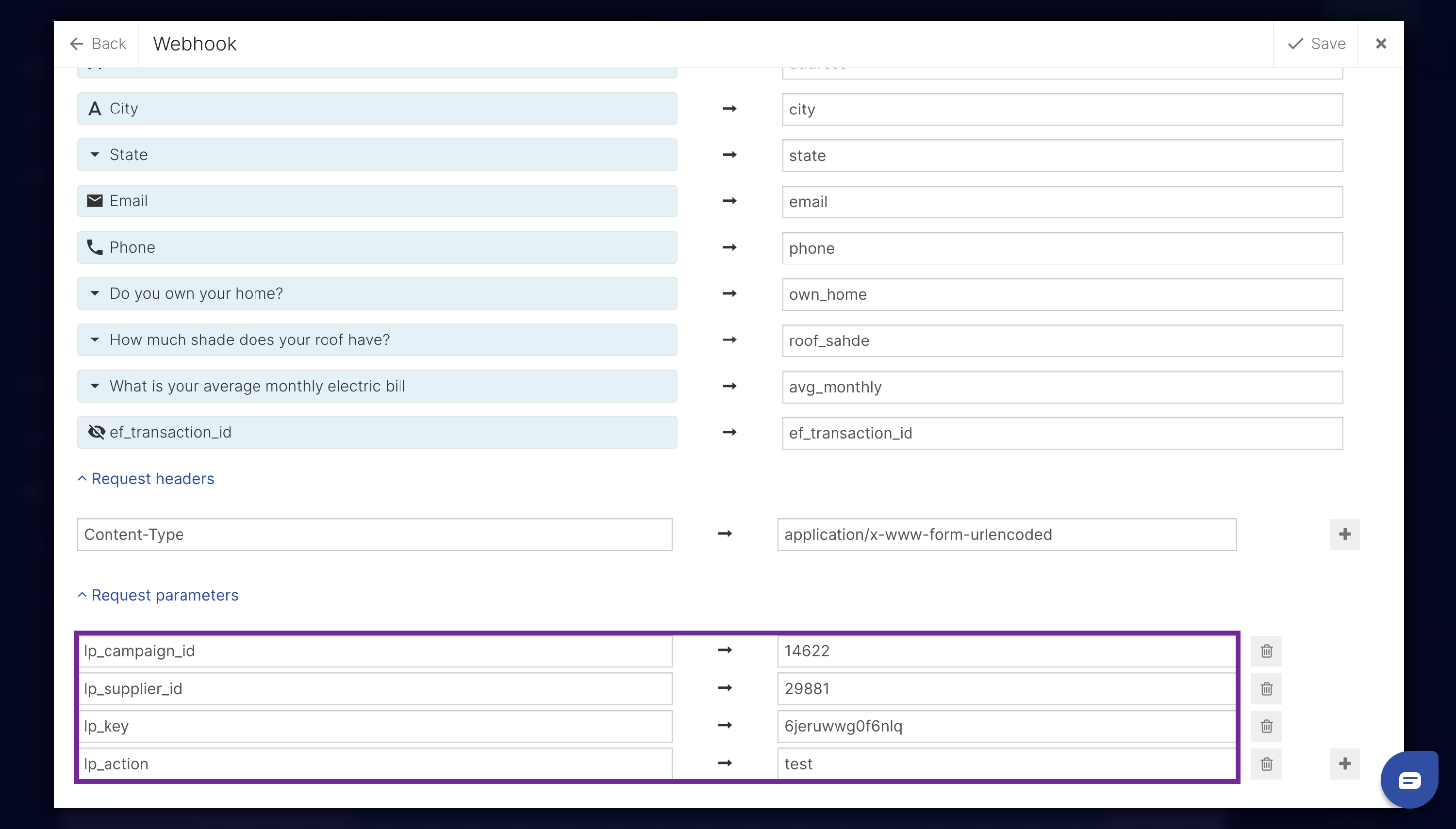
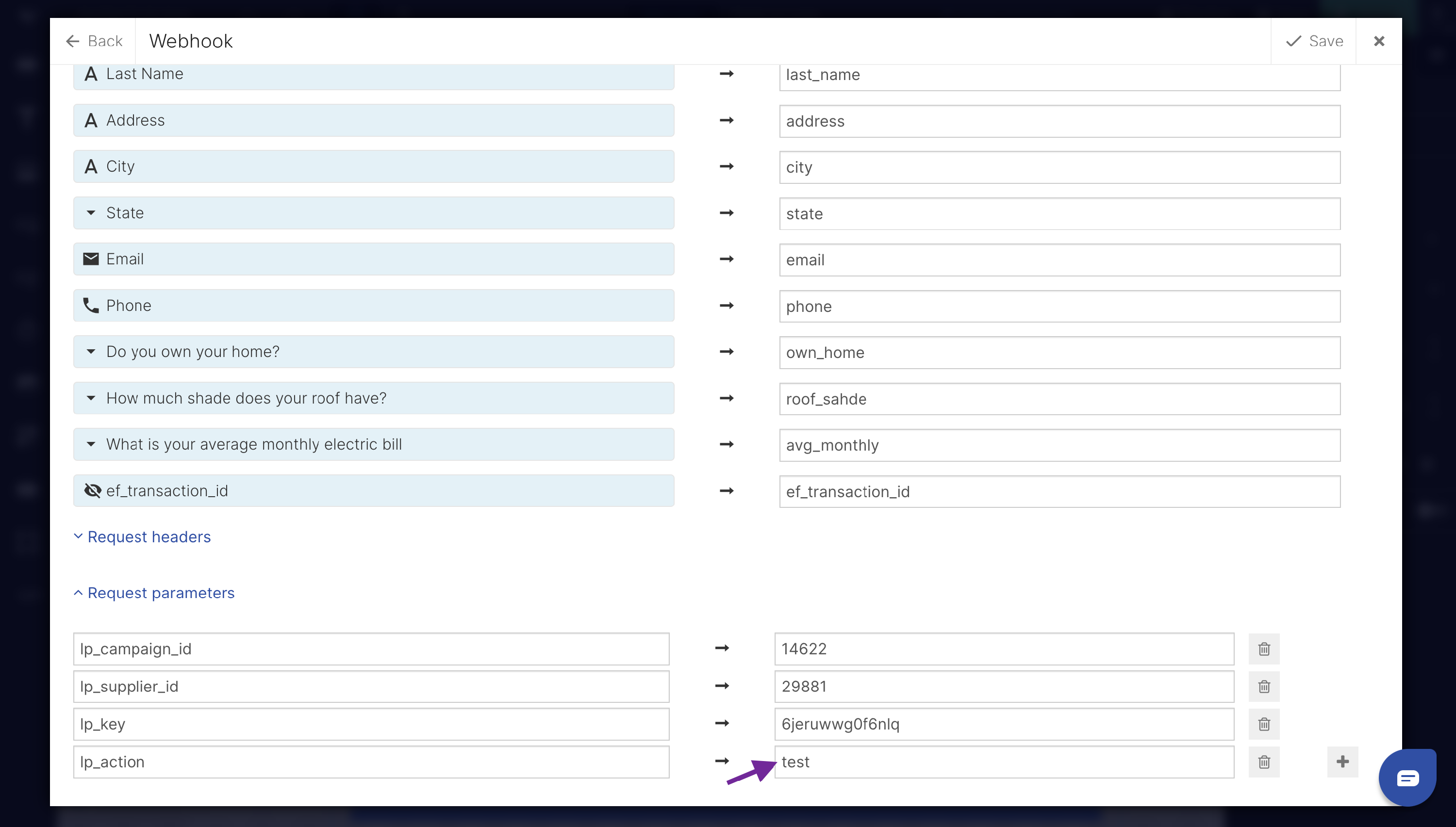
Under request parameters enter lp_campaign_id, lp_supplier_id, and lp_key, then copy and paste their values from the API specs into the value section. Also add lp_action and the value test
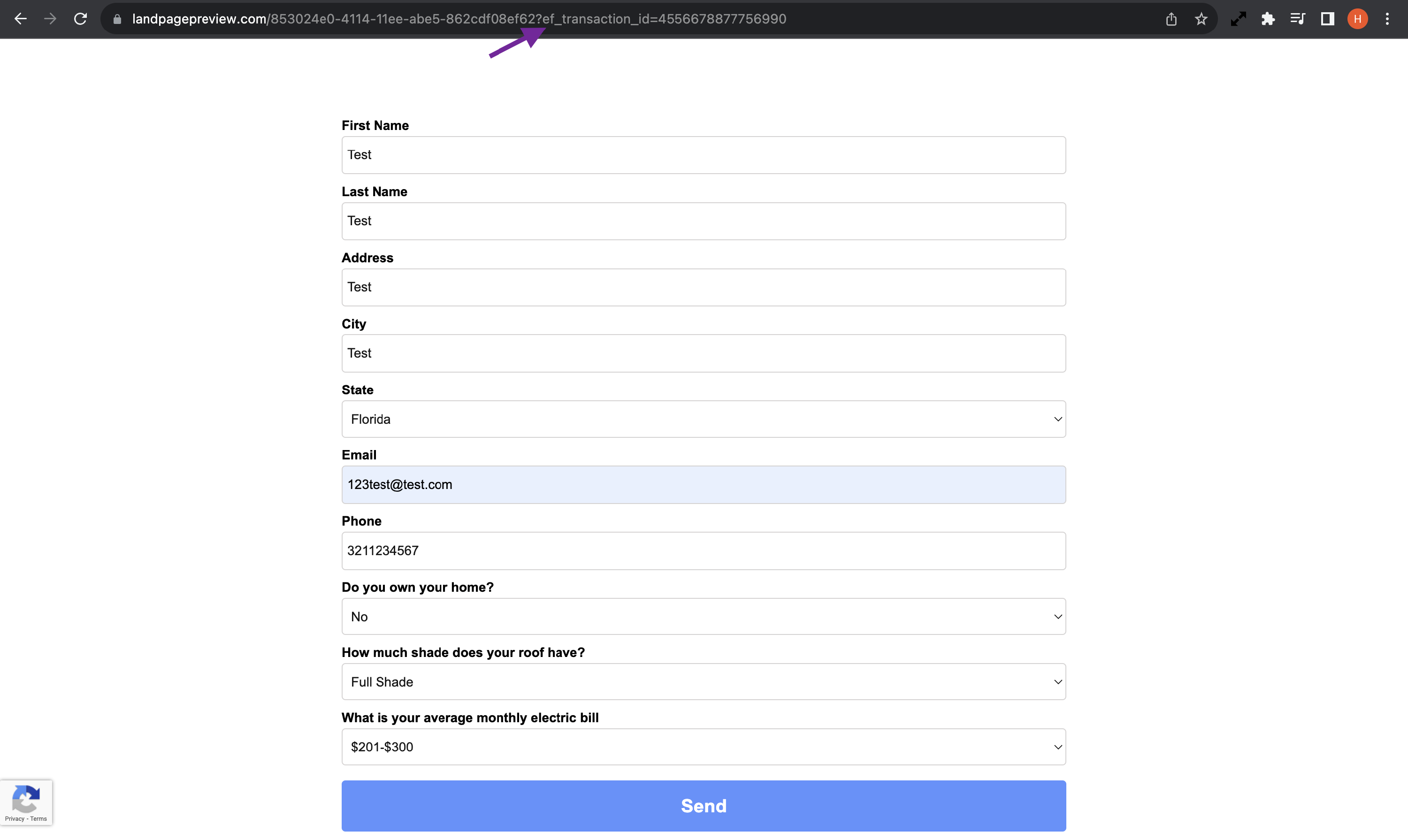
Now it's time to test. Here you can see the ef_transaction_id in the form URL. Be sure that your test data entered into your form matches the format of your API specs
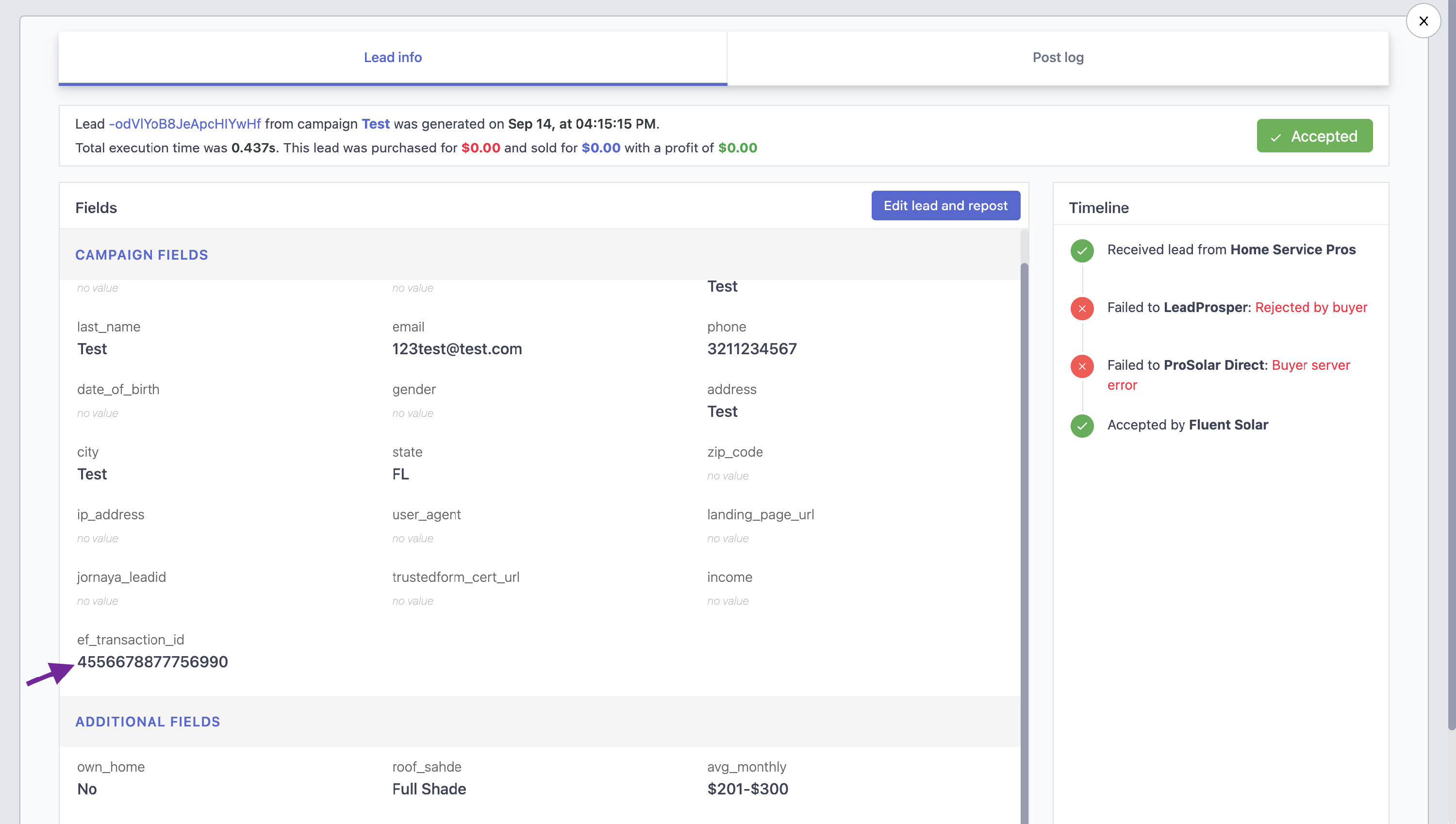
Once you send a test submission, click over to your campaign “leads” section. If you click on the lead we can see a detailed log of the lead data, as well as the ef_transaction_id that was sent along with the lead
Once you’ve successfully ingested a test lead, remember to remove lp_action test from the webhook and to disable test mode on your supplier
That’s all for connecting your LandingI.com form to Lead Prosper!