.png)
Ping Result Requirement Rules: Setting Minimum Bid Prices and Other Conditions
When you have a Ping Post Buyer, lead data is sent in two steps. First, the PING sends limited information so the buyer can determine whether they want the lead and how much they will bid on it. If the PING is Accepted, you then decide whether to send the full lead on the POST.
Over time, you'll see average bid prices from the buyer based on the data you're sending, and can optimize from there — including setting a minimum bid price to automatically reject a PING if the returned bid price falls below it.
That's what Ping Result Requirement rules are for. These rules reject a bid — regardless of whether the buyer has Accepted the PING — based on conditions you define. You set conditions for what counts as "Allowed," and anything outside those conditions is automatically rejected. When a Ping Result Requirement rule rejects the PING, it blocks the POST from being sent to that buyer. The PING itself may still be Accepted, but the POST will not go out.
For example, to reject bids where the returned bid price is less than $8.50, you'd add a Ping Result Requirement rule based on Price, set to "Greater or equal to $8.50." Any bid that comes in under $8.50 is automatically rejected.
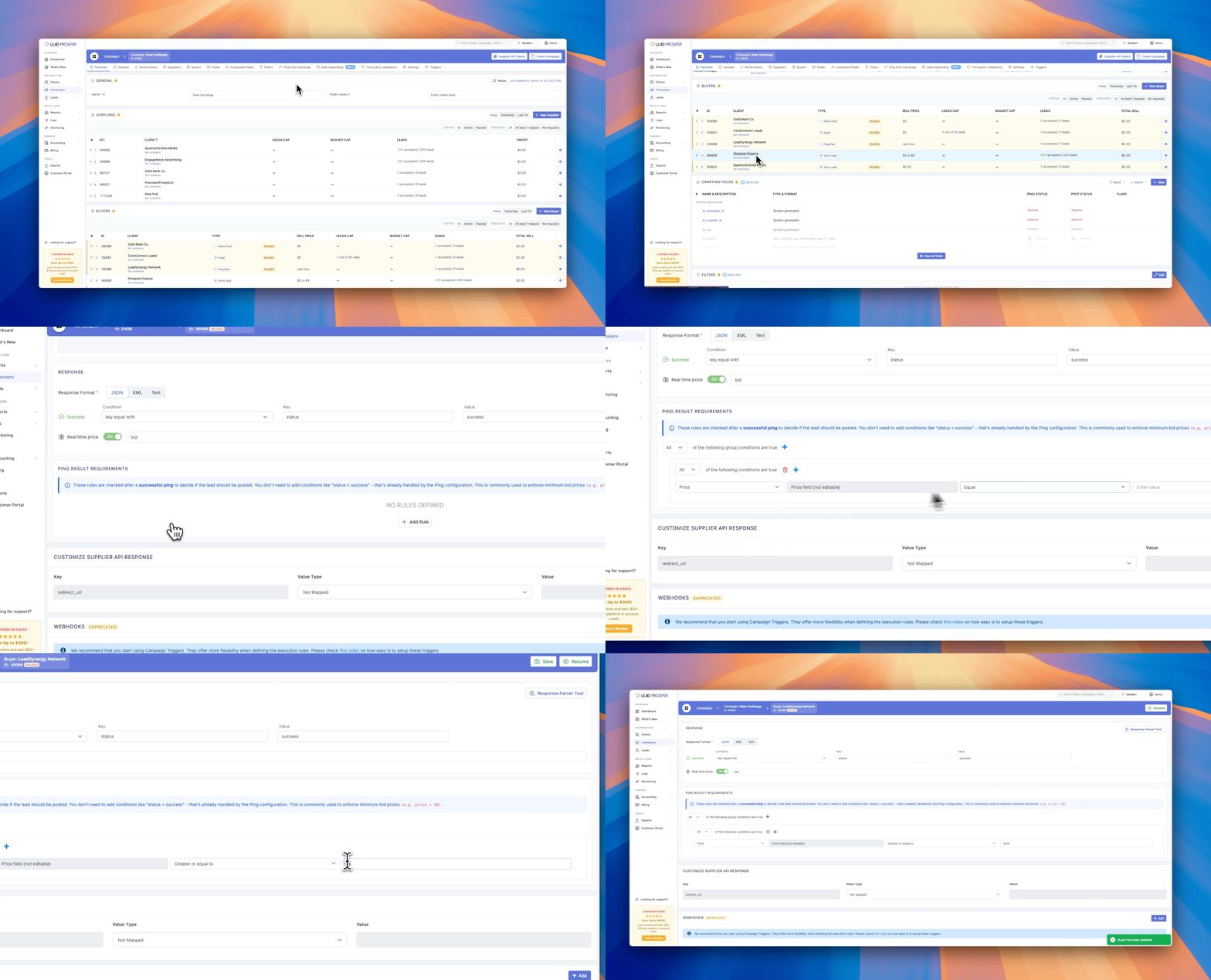
When a Ping Result Requirement rule blocks a lead, the error message returned is "POST Conditions Not Met."
Condition Types
Price — the most commonly used rule. It uses the dynamic Real-Time price set in the PING settings to pull the bid price, then applies a conditional rule: Equal, Greater Than, Greater or Equal To, Less Than, Less or Equal To, or Between. Set the value to the price you want and you're all set.
There are three other condition types available:
- Field: only allow the POST to be sent if a campaign field value is Equal, Not Equal, Greater Than, Greater or Equal To, Less Than, Less or Equal To, Between, One Of, or Contains a specified value.
- PING Response: only allow the POST to be sent based on a key and value returned in the PING response.
- Supplier: only allow the POST if the Supplier for that lead is Equal, Not Equal, or One Of the Supplier(s) selected.
How to Set Up Ping Result Requirement Rules
Setting up a Ping Result Requirement rule is straightforward, but the steps differ slightly depending on the condition type you're using.
Field
- When setting up the PING on a Ping Post Buyer, scroll down past the response mapping rules to the Ping Result Requirements section.
- Hit + Add Rule to add your first rule.
- Field is the default option, so no changes are needed here.
- Open the Select Field dropdown and select the campaign field you want to use.
- Choose your condition from the list: Equal, Not Equal, Greater Than, Greater or Equal To, Less Than, Less or Equal To, Between, One Of, or Contains.
- Follow the instructions to add or select one or multiple values in the Values area.
PING Condition
- When setting up the PING on a Ping Post Buyer, scroll down past the response mapping rules to the Ping Result Requirements section.
- Hit + Add Rule to add your first rule.
- Choose Ping Response from the first rule dropdown.
- Set the key to look at for the value in the PING response.
- Choose your condition from the list: Equal, Not Equal, Greater Than, Greater or Equal To, Less Than, Less or Equal To, Between, One Of, or Contains.
- Follow the instructions to add or select one or multiple values in the Values area.
Tip: To make sure this is set up correctly, grab an example Accepted response from your buyer and use the Response Parser Tool to confirm you're using the correct key and value.
Supplier
- When setting up the PING on a Ping Post Buyer, scroll down past the response mapping rules to the Ping Result Requirements section.
- Hit + Add Rule to add your first rule.
- Choose Supplier from the first rule dropdown.
- Choose Equal, Not Equal, or One Of.
- Select one or more Suppliers from the Select Supplier dropdown.
Price
- When setting up the PING on a Ping Post Buyer, scroll down past the response mapping rules to the Ping Result Requirements section.
- Hit + Add Rule to add your first rule.
- Choose Price from the first rule dropdown.
- Choose your condition from the list: Equal, Greater Than, Greater or Equal To, Less Than, Less or Equal To, or Between.
- Follow the instructions to add or select one or multiple values in the Values area — in this case, the bid price value you want to use.
The Price value is derived from the Real-Time price settings you have enabled on the PING step.
Combining Rules
As with any condition-based rules, you can add multiple rules and condition groups within a single buyer. For each rule or group, you can set whether it runs when ALL conditions are met or when ANY condition is met, allowing fully customizable Ping Result Requirement rules.
Ping Result Requirement rules give you fine-grained control over which bids move forward to a POST, whether you're filtering on price, campaign fields, PING response data, or Supplier. Combining these conditions lets you tailor buyer behavior to match your exact quality and pricing standards.
If you have any questions about setting up Ping Result Requirement rules, contact Lead Prosper Support for help.