.png)
Send Leads to a Google Sheet Using Lead Prosper's Native Integration
Lead Prosper now offers a built-in Google Sheets integration for both buyers and campaign triggers — eliminating the need for tools like Zapier or other third-party connectors. With this feature, you can securely link your Google account and send data directly into existing Google Sheets in just a few clicks. You can also connect multiple Google profiles, making it simple to manage sheets across different accounts.
Connecting Your Google Account
You can add a Google account in two ways:
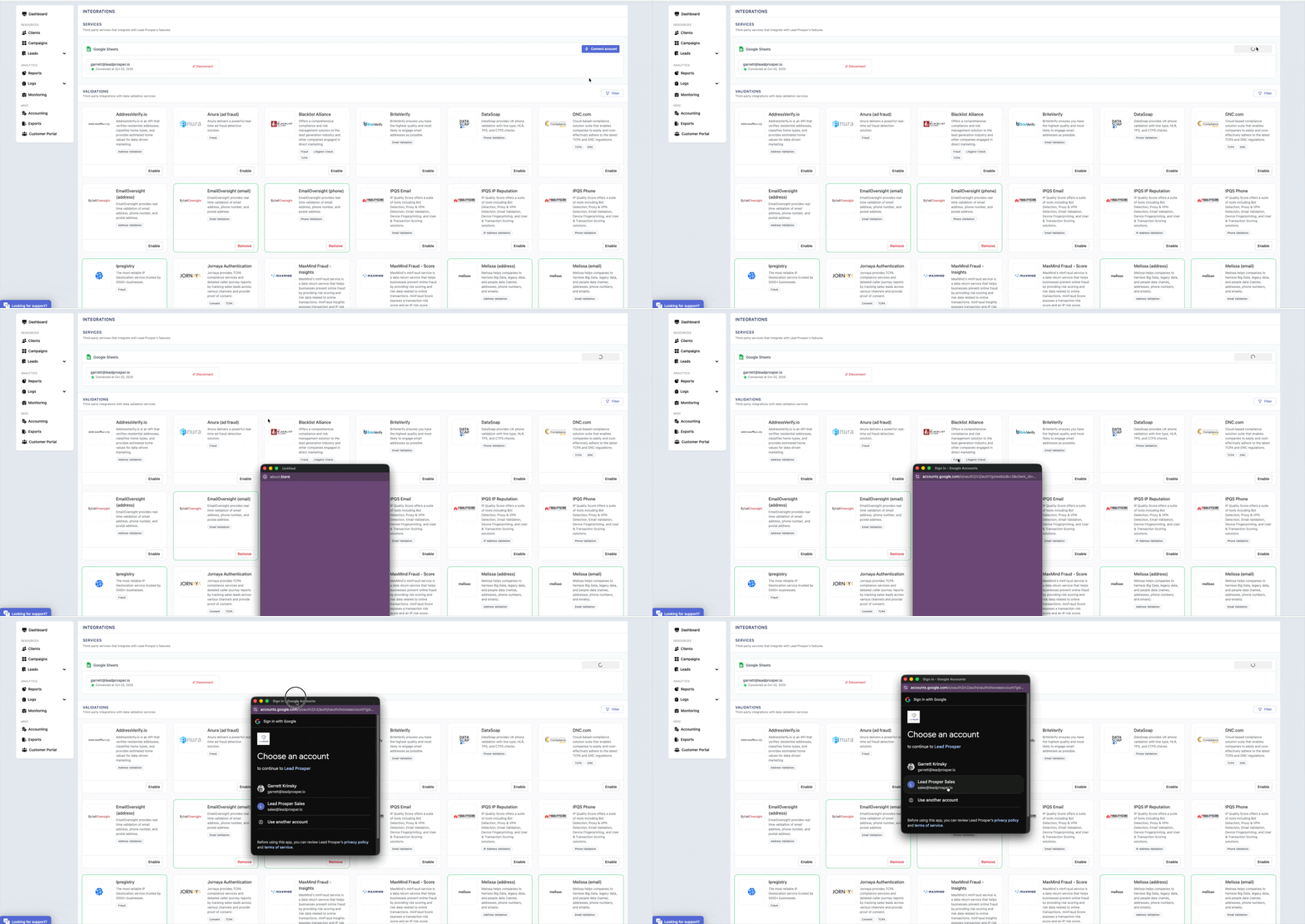
1. From the Integrations Page
- Go to your account menu in the top-right corner.
- Select Integrations.
-
From here, you can add, edit, or remove any Google profiles connected to your account.
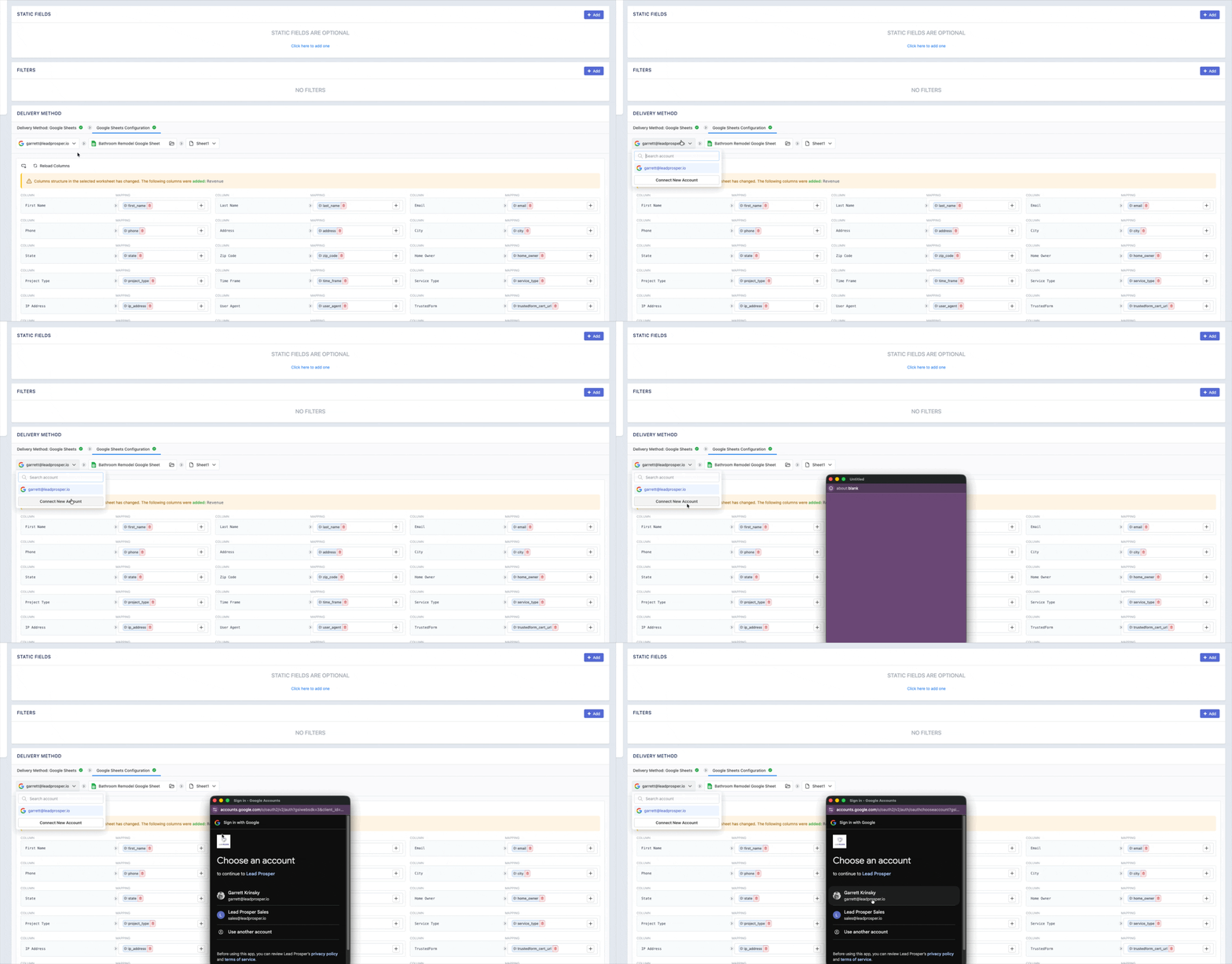
2. While Setting Up a Buyer or Campaign Trigger
- When creating or editing a Google Sheets Buyer or Campaign Trigger, select Connect an Account.
-
This lets you link a new Google profile and pick a Sheet without leaving your setup flow.
👉 Learn more: Managing Google Profiles in Lead Prosper
Tip: When connecting, make sure you’re logged into the correct Google account in the same browser you’re using for Lead Prosper. This is required by Google for security and ensures only authorized users can modify connected Sheets.
Security and Data Privacy
Lead Prosper uses Google’s official File Picker API, the same secure interface used by Google Drive. You choose exactly which Sheet to connect, and Google issues a limited, temporary access token for that file only. Lead Prosper never sees or stores your full Drive contents, keeping your data private and compliant with Google’s sharing policies.
Once your Google profile is connected, you can quickly map your campaign fields to the column headers in your Google Sheet. Each new lead or trigger will create a fresh row with your data automatically added. Be sure the Google account you’re using has Editor access to the target Sheet — without it, you’ll see an error when trying to write data.
Setting Up Google Sheets Delivery
You can send leads to Google Sheets in two ways — depending on your workflow:
Option 1: Buyer
Use this if you want to send leads directly to a single buyer’s Google Sheet.
Option 2: Campaign Trigger
Use this if your campaign has multiple buyers and you want one tracking Sheet for all outcomes.
Campaign triggers run after a lead has processed or sold, allowing you to include extra details like sale price or disposition.
Setup Overview (for Both Methods)
- Connect your Google Account
- Select the target Google Sheet
- Confirm you have Editor permissions
- Choose the worksheet/tab
- Map campaign fields to your Sheet’s headers
- Run a test to confirm data flow
- Turn it live!
📘 Detailed guides:
- Adding a Google Sheet Buyer to Your Campaign
- Updating a Google Sheet in Real Time with Campaign Triggers
Field Mapping & Computed Fields
Once your Google profile is connected, you can map your campaign fields to the column headers in your Sheet.
- Each new lead creates a new row automatically.
- The Google account used must have Editor access or the connection will fail.
Visual Field Mapping
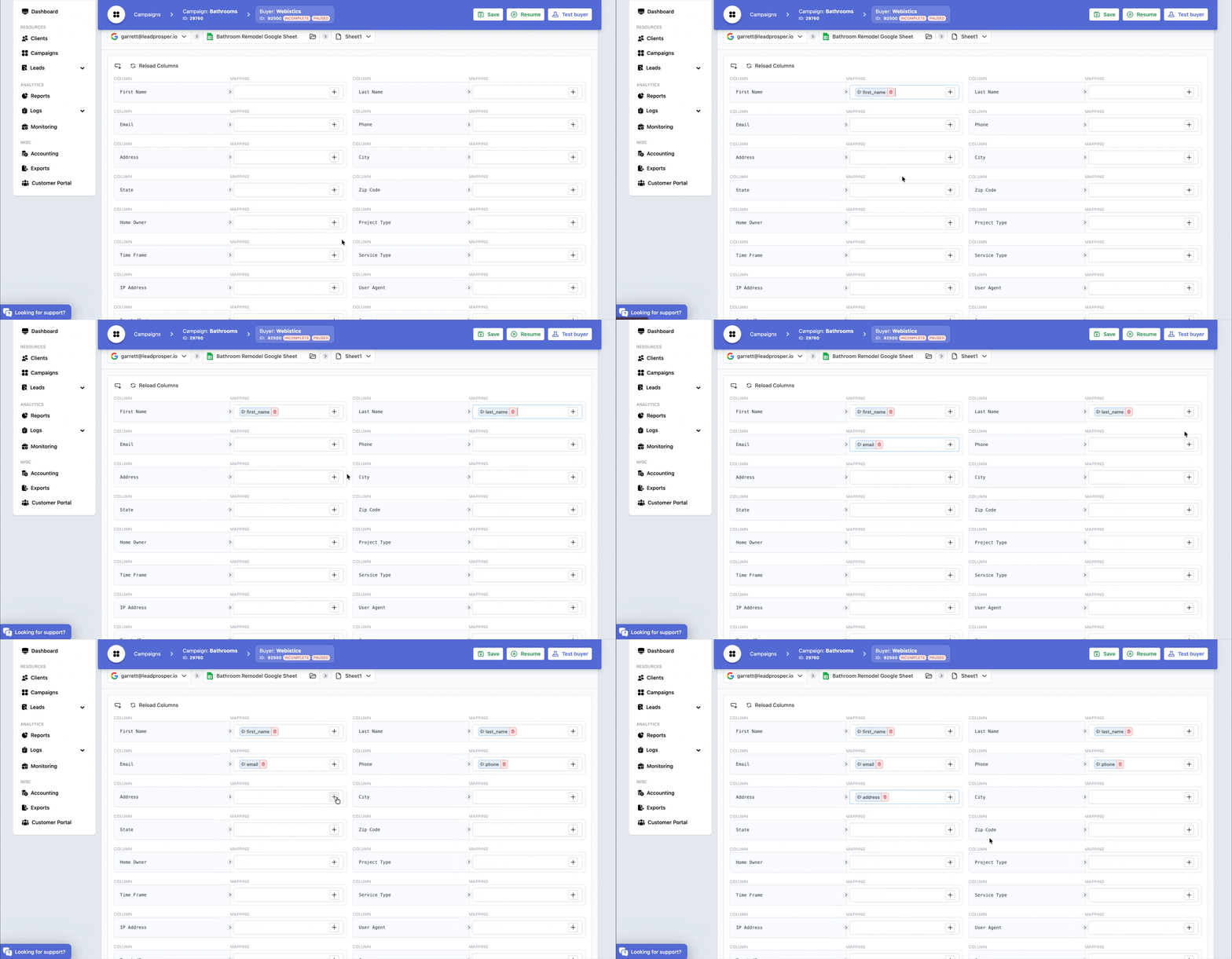
Lead Prosper’s new visual interface makes field mapping simple:
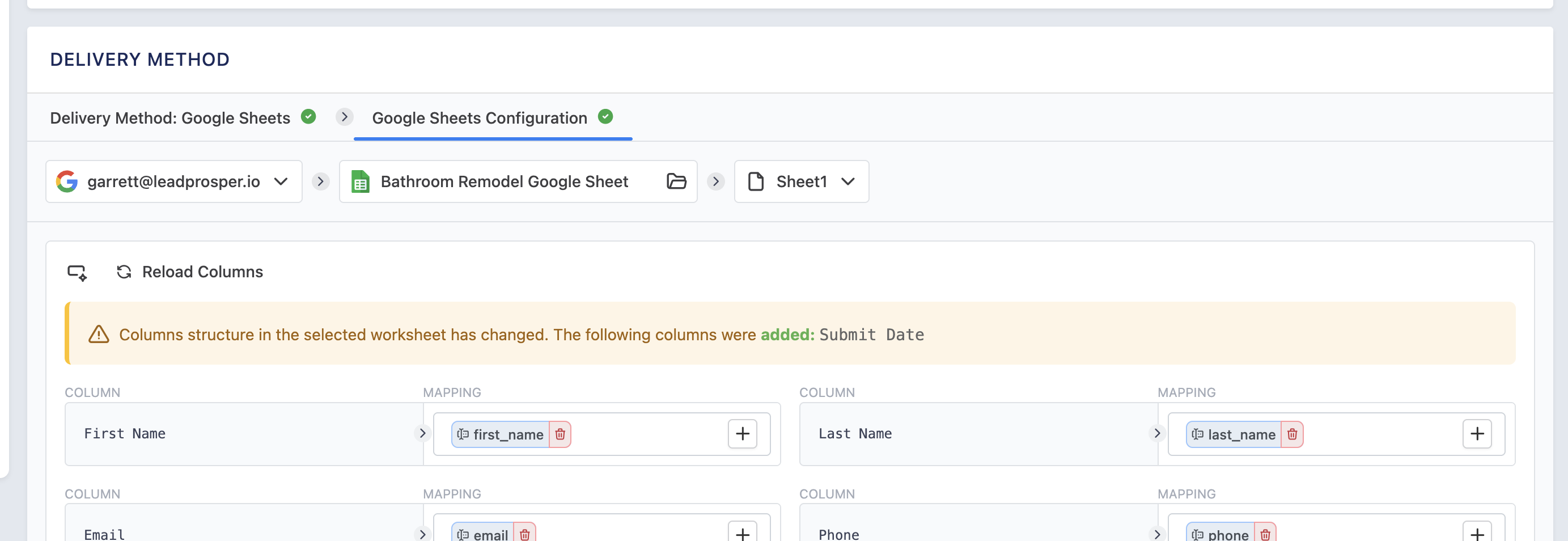
- Column headers are automatically imported.
- Click the “+” next to any header to select a matching campaign field.
-
For formatting or transformations, use Computed Fields.
Computed Fields
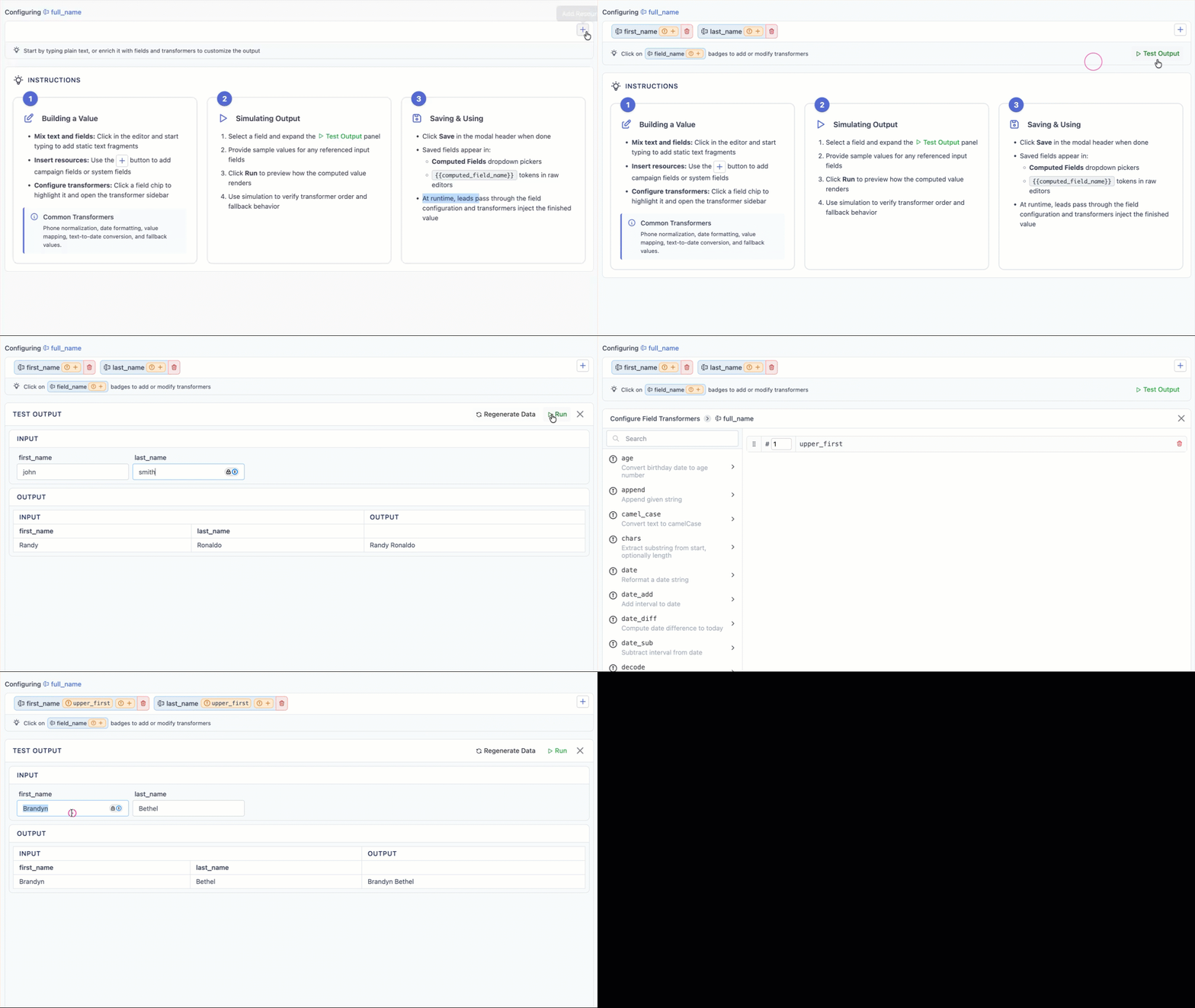
Computed fields let you:
- Build and test complex transformations visually.
- Reuse formulas across buyers, triggers, and other features.
-
Insert fixed values directly when needed.
📘 Learn more: In-Depth Guide to Computed Fields
Ongoing Management & Maintenance
Disconnecting a Google Profile
Before removing a Google profile:
- Ensure it’s not connected to any active buyers or campaign triggers.
- Either disconnect it from those items or delete the unused ones.
- Profiles still in use cannot be disconnected until cleared.


Changes to Your Google Sheet Headers
Lead Prosper continuously monitors your connected Sheet:
- If you add, remove, or rename columns, you’ll be alerted the next time you open the setup.
- Renaming a header will break its field mapping, requiring you to re-map that column before receiving new data.
Lead Prosper’s new Google Sheets integration brings power, flexibility, and simplicity together — no more juggling connectors or external tools. With real-time lead delivery straight into Google Sheets, you can instantly view and share data across teams. Each connection is fully secure and compliant with Google’s standards, and you can easily manage multiple profiles to keep everything organized. Combined with our intuitive visual field mapping, computed fields, and built-in campaign trigger options, this integration makes it easier than ever to track, analyze, and act on your lead data — all without leaving your Lead Prosper dashboard.