.png)
Create Artificial Buyer Bid Prices In Highest Bidder Direct Post Campaigns
In a Highest bidder Campaign, Buyers are ordered by their bid price, and sells down the list from Highest Bid to Lowest until the lead is sold or fails to sell. By default a Buyer's bid is its Sell Price. The Bid Override lets you order a buyer outside of the Sell Price either by Custom Bid, Bump Up Percentage, Bump Down Percentage, or Buyer Position.
Bid Override only affects the Buyer's bid price in relation to the Highest Bidder Buyer order, similar to a Bid Penalty. It does NOT affect the price that the lead sells for, only the positioning.
Options
-
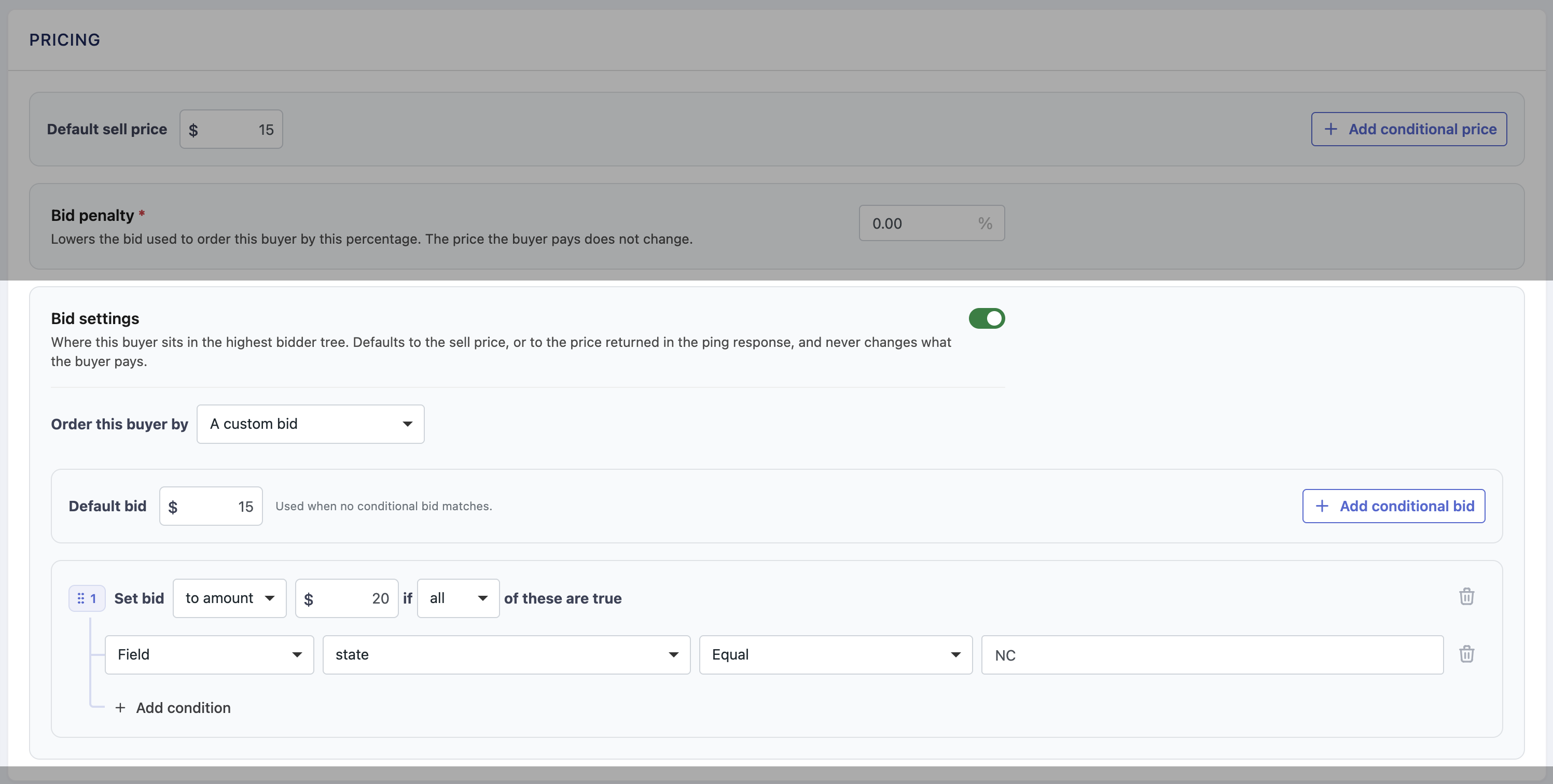
Custom Bid - set up custom static bid or conditional bid price rules that override a Buyer's bid price.
Use Case: You have a Buyer set up in a Highest Bidder campaign that you are working with on Rev Share. If they close the sale after you send it to them, you make X% of the sell price. The sell price at the time of 'sale' to the Buyer is a static $0, but they need to be able to be competitive in the Highest Bidder campaign. Enabled Bid Override and set a Custom Bid price to create an artificial bid price to put the Buyer in a position to potentially purchase a lead. If the lead sells to the Buyer the Lead Sell Price would be $0.
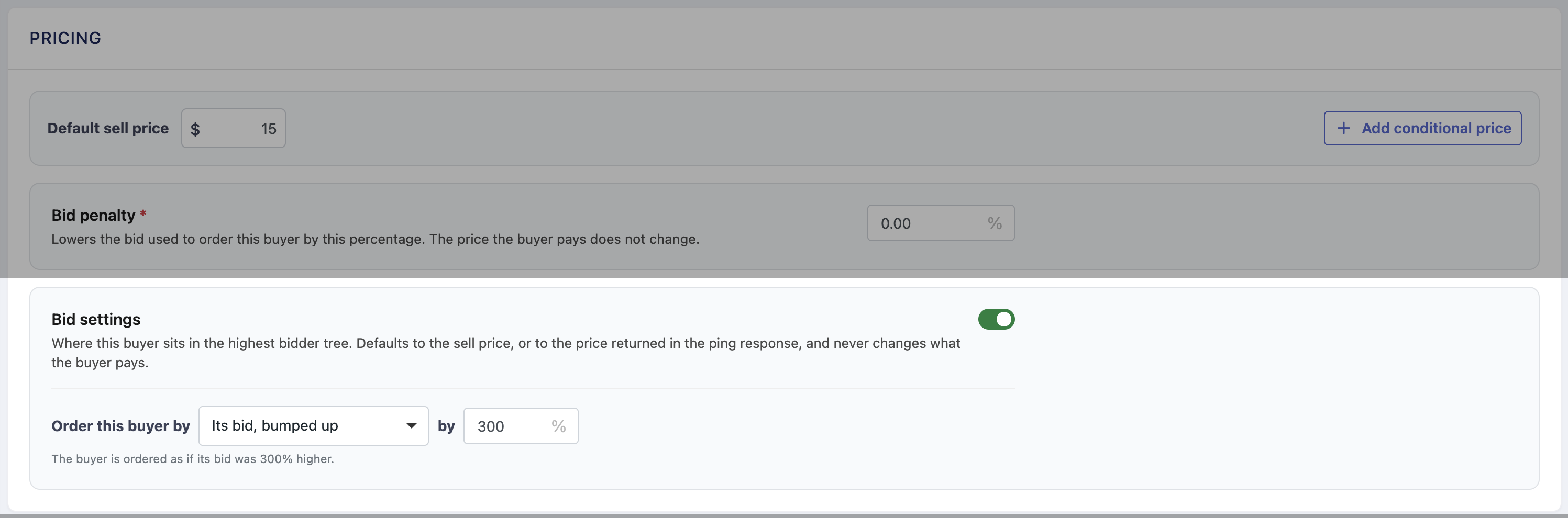
- Bump Up - set a custom percentage to bump the Bid price up by. You can artificially increase the Buyer bid price by up to 1000%.
-
Bump Down - set a custom percentage to bump the Bid price down by. You can artificially decrease the Buyer bid price by up to 1000%.
-
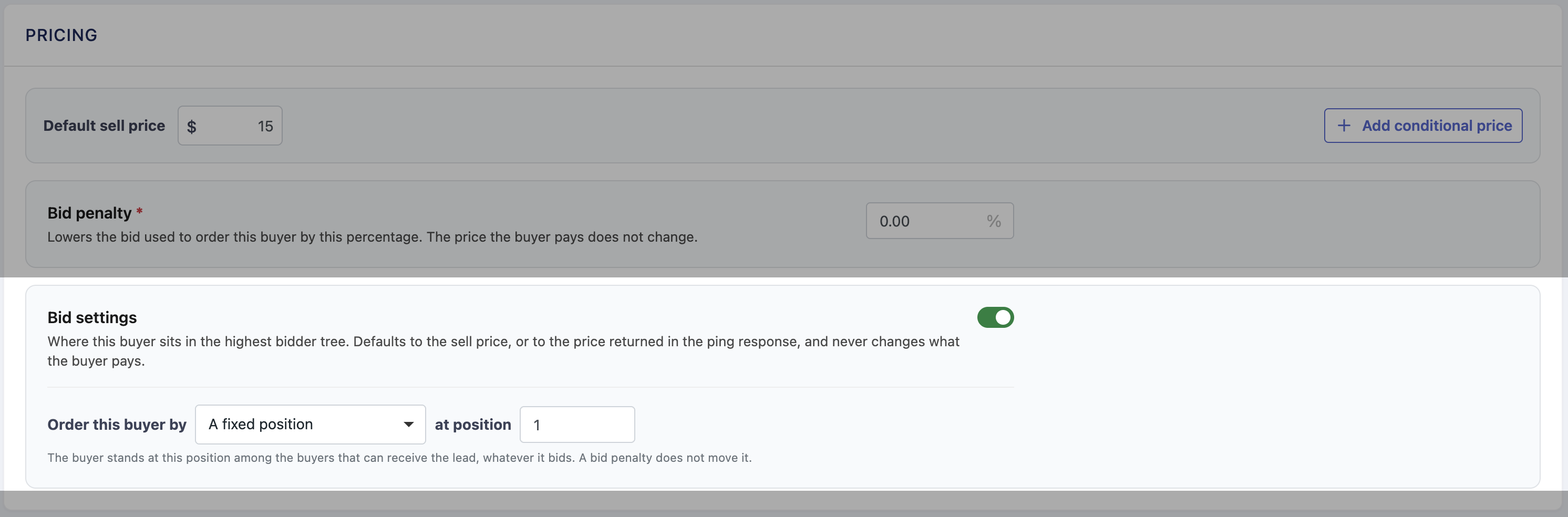
Position - force a Buyer to always be in a specific position in the Buyer sort order when enabled.
Use Cases: You have a Buyer in a Highest Bidder campaign that you always want to get priority access over any other Buyers, regardless of their Bid Price, so you would set their position to always be 1 in the Buyer sort order.
How To Set Bid Override Settings In A Highest Bidder Campaign
- Go to the Direct Post Campaign that is set to Highest Bidder, or the Buyer Group in a Direct Post Campaign that is set to Highest Bidder.
- Find the Buyer you want to add a Bid Override and open the Buyer Profile.
- Under Pricing toggle on Bid Settings
- Choose which Option you want to use for the Bid Override from the dropdown, and set the Override
- Custom Bid - set a Static Price or Conditional Bid Price rules.
- Bump Up - set the % to increase the bid by (up to 1000%)
- Bump Down - set the % to decrease the bid by (up to 1000%)
- Position - set the exact position you want the Buyer to always sit in the sort order.
NOTES
- You can only set one Option for the Bid Override, however if you have already have Options set and choose to try out another one, your current Option settings will remain if you select back to it.
- Bump Up & Bump Down can be applied to Real-Time Prices returned on the PING
- A Buyer in Position 1 will always take priority over the actual Highest Bidder Buyer.
- If you have two Buyers set to Bid Override for the same position - for example two buyers set to Position 1 - the Highest Bidder of those two buyers will get priority.
- Bid Override does not take precedent over any Minimum Sell Price or Supplier Price rules that are in place.
To learn more about all custom pricing features we have please review this article.